Disclosure: We may earn a commission from links on this page. Learn more.
7-Zip Review 2026: Is This Free File Archive and Zip Extractor Safe?
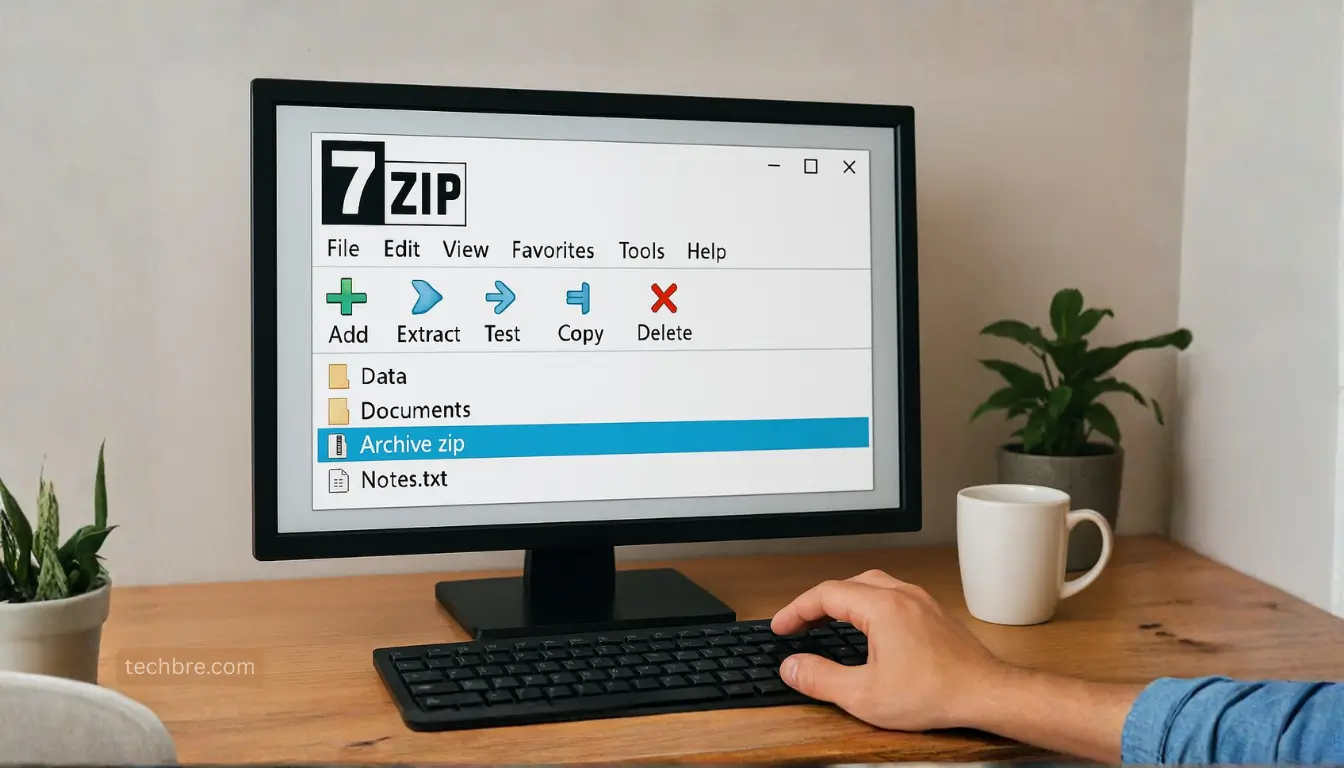
7-Zip Review 2026 answers the big question fast: is 7-Zip a free and safe archive tool? Yes, with key security precautions. 7-Zip is a powerful, free file compression tool, but because it’s widely used, it often comes up in security discussions.
The real risk isn’t the open-source software itself. The common mistake is running outdated builds or opening archives from unknown senders, which can expose you to vulnerabilities attackers look for.
The safe path is simple: download 7-Zip only from official sources and use strong passwords with AES-256 encryption for sensitive files. This review breaks down 7-Zip’s features, formats, and security settings so you can use it safely.
Official Download:
What is 7-Zip?
7-Zip is a free file archive and compression tool. It is open source and 7-Zip is available for personal and commercial use. The software allows users to compress files into archives and extract files from various archive formats. 7-Zip is highly regarded for its efficient file compression and ability to handle large files.
Overview of File Compression Formats
File compression is essential for reducing file sizes, and 7-Zip supports a variety of file formats. Common archive formats include zip, 7z format, tar, rar, and others. 7z is 7-Zip’s native archive format, known for its high compression ratio. Understanding these formats is crucial for efficient file compression and extraction tasks.
7-Zip as a Free File Archive Tool
7-Zip works as a free file archiver that can compress folders into 7z or ZIP and extract many common archive types. It’s a practical option for students, remote workers, and anyone who shares large files.
Because it’s open-source and widely used, it’s also important to download it from official sources and stay on a current version.
Importance of File Archive Software
File archive software plays a crucial role in managing and protecting data. It allows users to compress files for easier storage and transfer, as well as create password-protected archives with the 7z, zip, or other archive format.
These tools are essential for backups, sharing large files, and encrypting files to ensure data security.
Features of 7-Zip
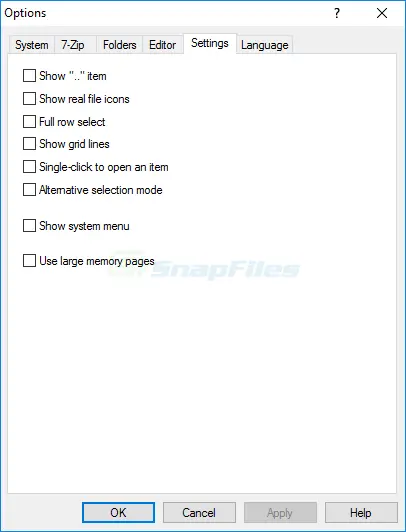
High Compression Ratios
One of the key features of 7-Zip is its high compression ratio, especially with the 7z format.
You can adjust compression levels to balance file size with compression time, depending on whether you want speed or the smallest archive.
Supported File Formats
7-Zip supports a wide array of file formats, which can be divided into those used for compression and extraction and those used only for extraction. Specifically, for compression and extraction, it supports:
- 7z format
- ZIP
- TAR
- GZIP
- BZIP2
- XZ
- WIM
7-Zip also offers support for extracting from RAR, ISO, and other formats, making it a versatile compression tool for various needs.
Encryption Capabilities
Security is a paramount concern, and 7-Zip provides robust encryption capabilities. It uses AES-256 encryption to secure archives with the 7z and zip files, offering a high level of protection against unauthorized access.
With the 7z format, users can also enable “Encrypt file names,” adding an extra layer of privacy beyond just encrypting file contents.
Pros and Cons of Using 7-Zip
| Pros | Cons |
|---|---|
| Free and open-source (personal + commercial use) | Interface is basic vs paid tools |
| Strong compression with the 7z format | High compression can take longer |
| Supports many common formats (create + extract) | Some formats are extraction-only (can confuse beginners) |
| AES-256 encryption for 7z/ZIP archives | Fewer guided helper features |
| Lightweight + Windows right-click integration | Needs updates like any software |
User Reviews and Feedback
User reviews of 7-Zip often highlight its efficient compression and strong encryption options. Many users like that it’s a free zip solution that stays reliable over time.
The most common complaint is the basic interface, but overall feedback remains positive because the core features work well and the tool stays lightweight.
How to Use 7-Zip
Installing 7-Zip
Installing 7-Zip is easy, but the download source matters.
- Download the correct version for your Windows (64-bit is the most common) from the official download page.
- Run the installer and follow the prompts.
Safety tip: Avoid “download mirror” sites that bundle extra installers. If you want the safest approach, only use the official site.
Basic Functions: Creating and Extracting Archives
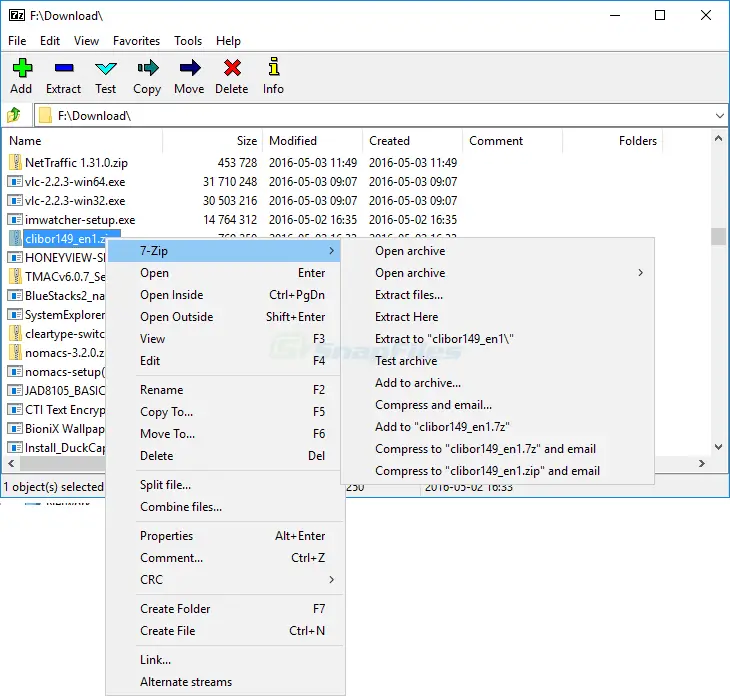
7-Zip makes creating and extracting archives simple for everyone. Compressing files involves a few key steps:
- Select the desired files or folders, then right-click and choose “7-Zip” > “Add to archive.”
- Specify the archive format (like 7z or zip), compression level and desired encryption options.
Extracting files is similarly straightforward: just right-click the archive and select “7-Zip” > “Extract Here” or “Extract to [folder name]“.
Advanced Features: Compression and Encryption
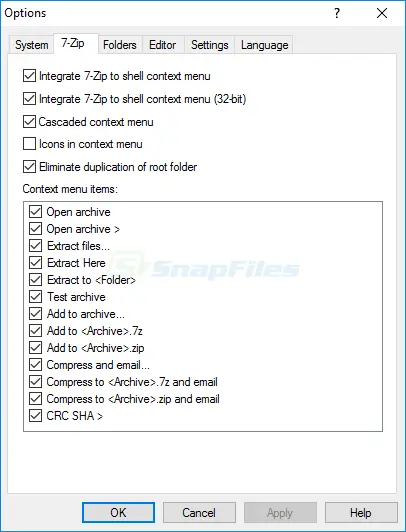
7-Zip offers advanced features such as adjusting compression levels and encryption, and integration with Windows Explorer. Users can select different compression levels to balance file size and compression time.
For enhanced security, 7-Zip provides AES-256 encryption to password protect archives with the 7z files and zip files. Integration with file explorer allows users to perform 7-Zip operations directly from the context menu, streamlining compression and extraction tasks.
Comparing 7-Zip with Other Free Zip Tools
Best Free Alternatives
When evaluating 7-Zip, it’s useful to consider the best free alternatives available for file compression and extraction. PeaZip stands out as a strong contender, offering a user-friendly interface and supporting a wide array of archive formats.
While 7-Zip is a free zip solution, PeaZip provides a more intuitive experience for some users. However, 7-Zip maintains its edge with its high compression ratio and efficient file compression.
7-Zip vs. Competitors: A Feature Comparison
In a feature comparison, 7-Zip holds its own against competitors like WinZip and WinRAR. 7-Zip supports multiple file formats. While WinRAR offers additional features and a more polished interface, it is not a free zip solution.
7-Zip provides AES-256 encryption to password protect archives with the 7z and zip files, ensuring robust security. The choice depends on whether a user-friendly interface and additional features justify the cost.
User Experience and Satisfaction
User reviews often highlight 7-Zip’s reliability and compression capabilities, but some users find the interface less intuitive compared to WinZip or PeaZip. 7-Zip provides integration with Windows Explorer, allowing users to compress and extract files directly from the context menu.
Despite minor usability concerns, many users appreciate that 7-Zip is a free and open source compression tool. Satisfied user feedback often emphasizes its efficient file compression.
7-Zip Review Verdict: Is It Safe and Worth It?
7-Zip is a free file archive and compression tool, providing a cost-effective solution for managing archives. It features AES-256 encryption for strong file security. Despite user interface concerns, 7-Zip offers a solid choice for efficient compression and extraction, especially when dealing with large files.
For users seeking a free zip solution with a focus on efficient file compression and security, 7-Zip is an excellent choice. If a more intuitive interface is a priority, consider alternatives like PeaZip. Ensure you download 7-Zip from the official website to avoid potentially harmful software. For those needing advanced features such as the ability to repair archives, 7-Zip is a great software.
The future of compression will focus on improved algorithms and enhanced security. Continued support for the native 7z format and better Windows Explorer integration will streamline workflows for advanced users.
For official answers on common questions (formats, encryption, usage), see the:
Further Reading
Want to get the full picture on 7-Zip (features + safety + alternatives)? Check out these helpful posts:
- Is 7-Zip Safe?
- Bandizip Review
- Is PeaZip Safe? (Review)
- Is WinRAR Safe to Use?
- Best File Compression Software (2026 guide)
- Wondershare PDFelement Review 2026
- 7z vs ZIP vs RAR: Choose the Right File Compression Format
For more helpful guides, visit our Software & Apps category.
FAQs
Q: What is 7zip and why is it popular?
A: 7-Zip is a free, open-source archiver that compresses and extracts files (especially 7z and ZIP). It’s popular for strong compression, reliability, and wide format support.
Q: Is 7-Zip free to use?
A: Yes. 7-Zip is free and open source for personal and commercial use. It’s officially Windows-focused, and on Linux/macOS users typically use compatible ports or third-party archivers.
Q: Can 7-Zip handle formats like ARJ, CHM, DMG, and CPIO?
A: 7-Zip can extract many archive types, including ARJ, CHM, DMG, and CPIO. Some formats are extract-only, and support can vary by version and platform.
Q: How does 7-Zip integrate with the Windows shell?
A: 7-Zip adds right-click menu options in Windows Explorer, letting you quickly extract files, compress folders, or create archives without opening a separate app.
Q: Is 7-Zip easier to use than the built-in compression tool in Windows?
A: For simple ZIP tasks, Windows’ built-in tool is fine. 7-Zip is better once you need more formats, stronger compression, encryption, or options like splitting archives into parts.
Q: Does 7-Zip use a lot of system resources?
A: Usually no for basic extraction. Higher compression levels can use more CPU and time because the tool is working harder to reduce file size, which is expected.
Q: Can I create multiple archives and split files with 7-Zip?
A: Yes. You can create multiple archives, split large archives into volumes, and choose compression levels depending on your speed vs size needs.
Q: Is 7-Zip a good decompression tool for Linux and macOS?
A: It can be, but 7-Zip is officially Windows-focused. On Linux and macOS, users typically rely on compatible ports or third-party apps that support 7z extraction.
Q: Is 7-Zip great software for daily use?
A: For most people, 7-Zip feels like great software because it’s fast for everyday extraction, reliable over time, and doesn’t push upsells. If you want a more modern UI, you may prefer an alternative, but for pure compression value, 7-Zip is hard to beat.
Q: How secure and reliable is the compression (LZMA/LZMA2) used by 7-Zip?
A: LZMA/LZMA2 is known for high compression efficiency and is widely used for archiving and backups. For security, use 7z with AES-256 encryption and a strong, unique password.