Disclosure: We may earn a commission from links on this page. Learn more.
Ashampoo Zip Free Review 2026: Is This Archiving Tool Safe?

Is Ashampoo Zip Free safe to use? Yes, it is, but user habits introduce risk. Ashampoo Zip Free is a popular, full-featured archiving tool that remains a strong choice, but like all compression software, it must be used with a security-first mindset.
The main threat isn’t the software’s core code, but the common mistake of running outdated versions or extracting files from archives sent by unknown or untrusted sources. This critical weak spot is how malware often exploits directory traversal vulnerabilities.
The safe path is straightforward: only download the software from the official Ashampoo site, keep the program updated to the latest 2026 build, and always use strong AES-256 encryption for any sensitive files you create. This review provides a full breakdown of its safety and features.
Ashampoo Zip Free Review: Key Features
Usability and Interface of Ashampoo Zip Free
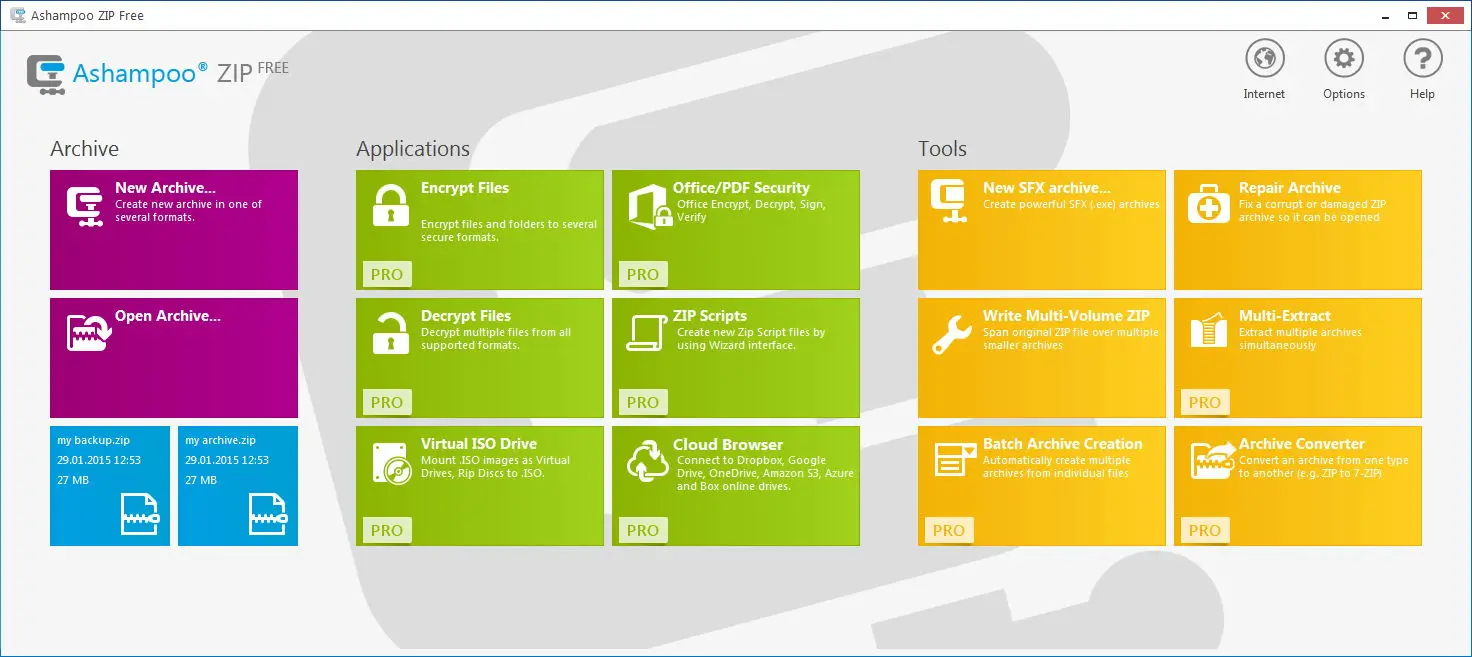
Ashampoo Zip Free boasts an intuitive and user-friendly interface that makes it easy for both beginners and advanced users.
Its clean layout and straightforward design make it easy-to-use and simple to navigate through the software’s tools. Its ease of use also helps beginners compress and decompress files without digging through menus.
Comprehensive Format Support
One of the standout key features of Ashampoo Zip Free is its support for multiple archive formats. It can handle ZIP, RAR, 7-Zip (including 7-zip), TAR, ISO, CAB, and many other file formats, which helps when you work with different formats on Windows.
It can extract and open many file formats (ZIP, RAR, ISO, CAB, TAR) and common TAR variants like TGZ, TBZ, and TAZ, plus legacy types like LZH/LHA and disk images such as IMG.
Password and AES Encryption (256-bit)
Security matters when sharing compressed files. Ashampoo Zip Free supports password protection and AES encryption with 256-bit strength, which makes it useful for private documents and folders. When you encrypt archives using the AES option, use a strong password and store it safely.
Integration with Cloud Services
In modern workflows, cloud storage matters. Ashampoo Zip Free can still fit into that routine by working with folders synced from services like OneDrive or Google Drive. In the free version, this is usually done by working with cloud storage folders (like OneDrive or Google Drive) that appear as normal folder paths in Windows.
Performance and Speed
Ashampoo Zip Free is designed for fast compression and decompression, and it can help manage multiple archives without slowing down normal work. If you regularly create a new archive, extract large compressed files, or handle multiple zip files daily, the performance feels solid.
Installation and Setup Process
System Requirements
Ashampoo Zip Free is built for Windows and works best on modern versions of Microsoft Windows. If you’re still on Windows 7, expect possible compatibility limits in 2026 and consider upgrading for better security.
Step-by-Step Installation Guide
- Download Ashampoo Zip Free from the official page
- Run the installer and follow the prompts
- Choose where you want the program installed
- Finish setup and launch the software
Tips for a Smooth Installation
- Close other installers before you start
- Keep enough free disk space for temporary files
- Restart your PC if Windows Explorer shell options don’t appear immediately
Using Ashampoo Zip Free
Microsoft Windows Explorer Integration (Context Menu)
One reason Ashampoo Zip Free feels fast is how it integrates within Windows Explorer. You can right-click ZIP files in File Explorer to compress, extract, or encrypt without opening the app, which improves efficient file management for everyday folders and downloads.
Creating Zip Files
To compress and create archives:
- Select the files
- Right-click and use the context menu options within Windows Explorer
- Choose “New archive” and pick the ZIP format
- Choose the compression level and confirm
To create a new archive, select the files and folders, choose the compression level, and name the ZIP. You can also simply drag and drop files into the window for quick access.
Extracting Files
To extract:
- Select the archive
- Choose “Extract” from the interface or right-click menu
- Pick your folder paths and confirm
This is useful for extracting files from RAR, TAR, ISO, and other archive formats.
Advanced Options and Settings
Ashampoo Zip Free includes helpful options like:
- Choosing compression solutions for speed vs size
- Handling multiple archives quickly
- Better access to files stored across different locations
- Quick access actions for frequent tasks
Comparison with Other Free Zip Tools
If you’re comparing free application options, here’s how Ashampoo ZIP Free stacks up against other archiving tool choices in 2026.
| Tool | Best for | Notes |
|---|---|---|
| Ashampoo ZIP Free | Easy ZIP work on Windows | Strong Windows Explorer shell integration, supports many archive formats; creates new archive mainly in the ZIP format. |
| 7-Zip (including 7-zip / 7z) | Maximum compression | Great compression level control for 7z and ZIP, but the interface is more basic. |
| WinRAR | RAR workflows | Excellent for RAR and many file formats, but it’s not a free version for long-term use. |
| Bandizip | Modern UI | Clean design and quick preview options, but some features are paid. |
| IZArc | Lots of format support | Handy for different formats like LZH/LHA and disk images (IMG), but the UI feels dated. |
Pros and Cons
Advantages of Ashampoo Zip Free
- User-friendly interface
- Strong encryption and password protection
- Great support for archive formats and file formats
- Works seamlessly inside Windows Explorer
Limitations and Drawbacks
- The free version has fewer advanced features than the pro version
- Some workflows (automation, deeper tools) are better handled by ZIP Pro
Ashampoo ZIP Pro 4 Review
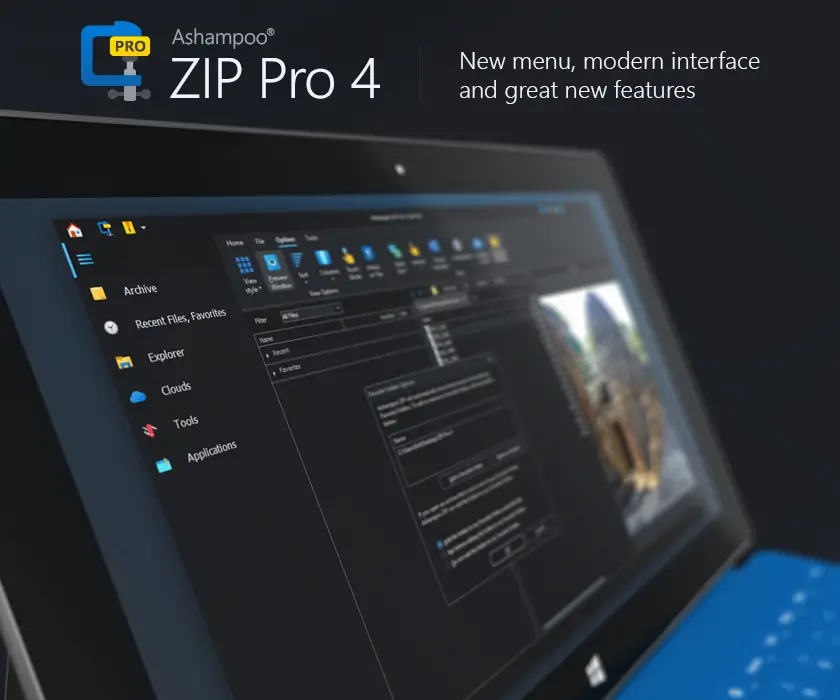
Ashampoo ZIP Pro 4 is built for users who need more advanced features and deeper control. The pro version adds advanced features like file preview (preview files within archives), self-extracting (SFX) archives, and Microsoft Office support for heavier workflows.
Comparison of Ashampoo ZIP Pro 4 and Ashampoo ZIP Free
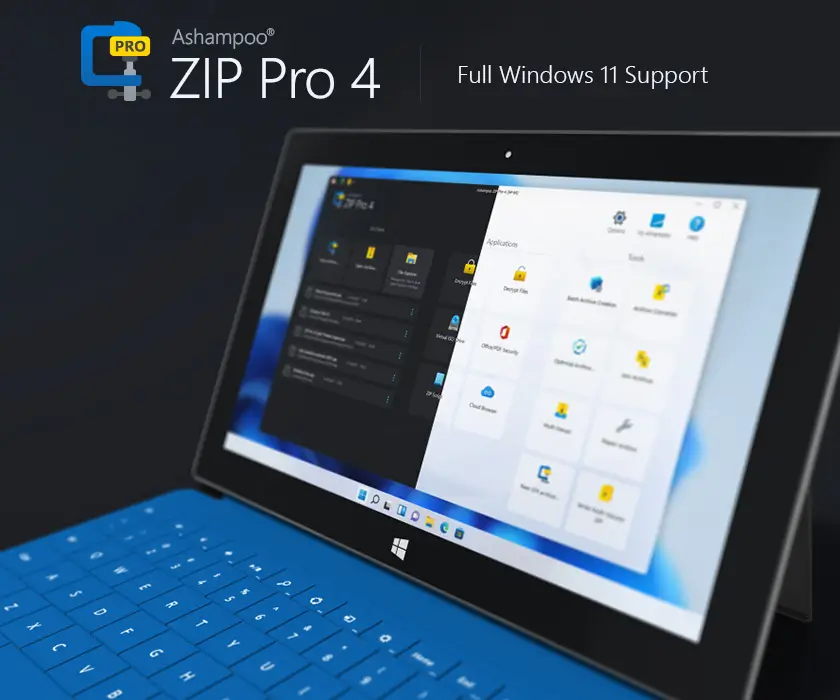
Ashampoo ZIP Free is a free file compression tool that covers most everyday tasks, while ZIP Pro adds extras like:
- Better previews and workflow tools
- More automation and power-user options
- Extra tools for large projects and professional use
Conclusion
Ashampoo Zip Free review — final verdict for 2026: Ashampoo Zip Free remains an excellent, user-friendly compression and decompression utility that balances simplicity with powerful features. Its clean interface, seamless Windows Explorer integration, fast performance and AES password protection make it ideal for everyday users and small businesses alike.
If you need reliable archiving, secure file sharing and straightforward workflows without a steep learning curve, Ashampoo Zip Free is one of the best free options available.
Download Ashampoo Zip Free from the Official Site Here
Further Reading
Want to see how Ashampoo ZIP Free stacks up against paid and free alternatives? Check out these helpful posts:
- Ashampoo ZIP Pro 4 Review
- Best File Compression Software (2026 guide)
- 7z vs ZIP vs RAR: Choose the Right File Compression Format
- 7-Zip Review
- Bandizip Review
- WinZip Review
For more helpful guides, visit our Software & Apps category.
FAQs
Q: What is Ashampoo Zip Free?
A: A free Windows tool for compressing, extracting and managing archives. It focuses on ease of use, speed and basic features for everyday file archiving tasks.
Q: What formats does Ashampoo Zip Free support?
A: Supports common archive formats such as ZIP, RAR, 7z, TAR, CAB, ISO and many others, allowing you to open or create archives across popular compression types.
Q: How user-friendly is the interface?
A: The interface is straightforward and intuitive, with drag-and-drop support, context menus, clear actions and simple settings aimed at nontechnical users.
Q: Is there a pro version available?
A: Yes. Ashampoo offers a paid ZIP Pro edition that adds advanced features, stronger compression options, encryption, batch processing and enhanced performance for power users.
Q: How do I create a new archive with Ashampoo Zip Free?
A: Select files or folders, choose the create or add option, pick ZIP as the format, set compression level and destination, then save to produce the archive file.
Q: Is Ashampoo Zip Free safe from malware?
A: Generally safe when downloaded from the official Ashampoo site; avoid opening archives from unknown sources and use antivirus to scan suspicious compressed files.