Disclosure: We may earn a commission from links on this page. Learn more.
Best File Compression Software & Tools (2026): ZIP, RAR & 7z
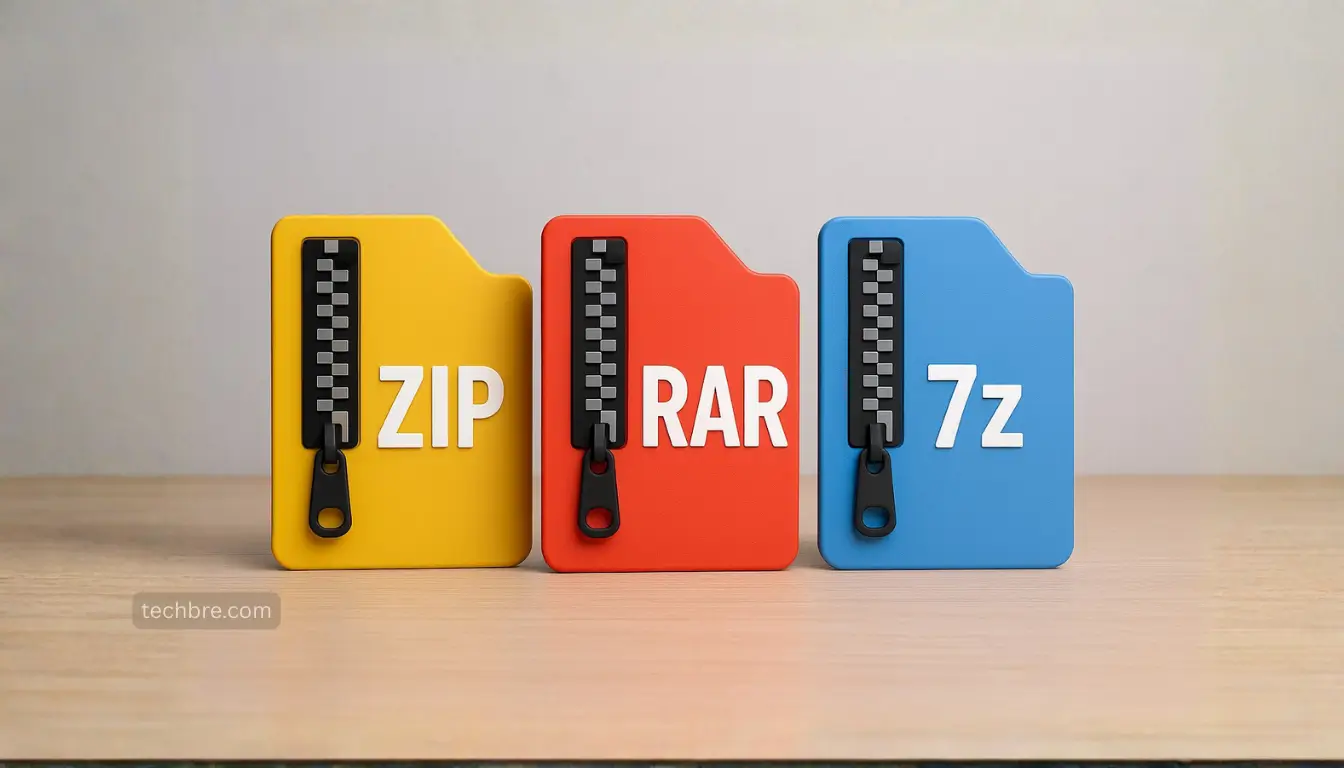
Best File Compression Software in 2026 helps when you need to send large folders, save disk space, or keep projects organised without breaking files. The right file compression tool or program can save time and reduce mess, especially if you work with ZIP, RAR, and 7z.
A common mistake is skipping compression until you hit upload limits, email size caps, or a full drive. Another mistake is choosing a file compression tool without checking format support, extraction reliability, and whether it handles your files cleanly on Windows 10/11.
In most cases, 7z gives the smallest archives, ZIP gives the best compatibility, and RAR is useful when you need advanced archive options. This guide compares the best file compression tools, including popular options like 7-Zip and WinRAR, and shows which one to pick for real file sharing and backups.
Quick Answer: Which Format Should You Use?
The best file compression software in 2026 supports ZIP, 7z, and RAR formats. Use ZIP for sharing, 7z for the smallest files, and RAR when you need advanced archive features.
| Format | Best For | What to Expect |
|---|---|---|
| ZIP | Sharing with anyone | Works on almost every device |
| 7z | Smallest file size | Often compresses best, needs a compatible tool |
| RAR | Advanced archive features | Strong features, usually paid to create |
What Is File Compression Software?
What File Compression Can Do (And What It Can’t Do)
File compression software reduces file size by storing data more efficiently. Archive tools mainly use lossless compression, which means you can extract and get the exact same files back.
Lossy compression (like JPEG and MP3) reduces size by removing detail, but that’s not what ZIP, RAR, and 7z archivers do when they package folders and documents. For work files and backups, the best practice is no data loss so your originals stay identical.
Compression is not guaranteed to shrink everything. It works best on files with repeated data like documents, databases, and some uncompressed images, while many videos and photos often shrink very little. The best practice is to compress for tidy packaging and sharing, not chasing big size reductions every time.
When File Compression Works vs When It Doesn’t
File compression software reduces file size by storing data more efficiently, and most archive tools use lossless compression so you can extract and get the exact same files back.
Lossy formats (like JPEG and MP3) shrink files by removing detail, but ZIP, RAR, and 7z archivers don’t do that for folders and documents. For work files and backups, the safest approach is no data loss so your originals stay identical.
Compression is not guaranteed to shrink everything. It works best on files with repeated data (documents, databases, some uncompressed images), while many videos and photos shrink very little, so use archive tools mainly for tidy packaging and sharing.
What to Avoid When Compressing Files
Avoid expecting big size reductions from already-compressed videos and photos, and avoid unknown “one-click” archivers from random sites.
For most users, the safest workflow is using a trusted compression tool, choosing the right format (ZIP, RAR, or 7z), and sticking to safe defaults.
Keep settings simple with default options unless you have a clear reason to change compression level, split archives, or add encryption.
Compression Formats and File Format Guide: ZIP vs RAR vs 7z
Choosing the right compression formats is critical for achieving optimal results and ensuring compatibility. While many software options are available, you need to choose the right compression method for your specific needs. Understanding the nuances of each file format can help you select the best method.
| Format | Best For | Why It’s Used |
|---|---|---|
| ZIP | Sharing with anyone | Best compatibility across Windows, macOS, and mobile |
| RAR | Large downloads + split archives | Recovery records and multi-volume archives (WinRAR) |
| 7z | Best compression + security | Strong compression (LZMA/LZMA2) and AES-256 support |
Below, we’ll explore these formats in detail, highlighting key features like encryption and ease of use.
ZIP File Format (Best Compatibility)
The ZIP file format is arguably the most widely supported compression format, known for its excellent compatibility across various operating systems and applications. Most operating systems today come with built-in compression and decompression capabilities for ZIP files, making it incredibly convenient for file sharing.
While ZIP might not always offer the highest compression ratios compared to other formats, its ubiquity makes it a reliable choice for general-purpose file compression. Many free tools and free compression softwares support the ZIP format. You can think of ZIP as the simplest option to compress files, especially if the recipient isn’t tech-savvy.
RAR File Format (Common for Downloads)
RAR is a proprietary archive format most associated with WinRAR. It’s common in large downloads because it supports strong compression, split archives (multi-volume parts), and recovery records.
Many tools can open/extract RAR files, but creating new RAR archives usually requires WinRAR (or another tool with licensed RAR support). If you handle RAR often, keep WinRAR updated to avoid known security risks in older builds.
Read More: Is WinRAR safe to use?
7z File Format (Best Compression and Encryption)
The 7z format, used by 7-Zip, is renowned for its high compression capabilities and robust encryption. Often delivering the highest compression ratios, 7z is an excellent choice for minimizing file sizes, especially for archiving and backup purposes.
The 7z format supports AES-256 encryption, providing strong security for sensitive data. 7-Zip is an open-source, free compression option, making it an attractive alternative to paid software. If you prioritize powerful compression and security, the 7z format is well worth considering.
Learn More: 7-Zip Review and Is 7-Zip safe?
TAR and XZ Compression Formats (When They Help)
While ZIP, RAR, and 7z are the most common formats for general use, TAR and XZ serve specific purposes, especially in Unix-like environments. TAR (Tape Archive) is mainly an archiving format that bundles multiple files into one archive without necessarily compressing them.
To reduce size, TAR is often paired with tools like gzip (creating .tar.gz files) or bzip2 (creating .tar.bz2 files). XZ is a single-file compression format that uses the LZMA2 algorithm and can deliver a high compression ratio, which is useful for software distribution and system administration tasks on Linux and macOS.
6 Best Compression Software for 2026
1. 7-Zip: Free Tool with Highest Compression
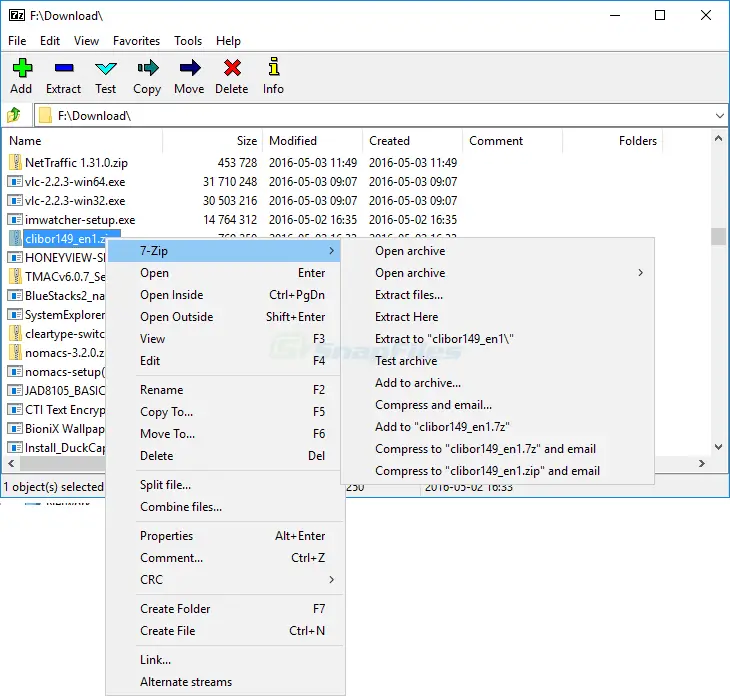
7-Zip is a premier free, open-source compression tool. It excels at handling 7z and ZIP files, delivering high compression ratios using the LZMA2 method. It offers 256-bit AES encryption to secure large files.
Beginners should note that while it can extract RAR archives, it cannot create new files in the proprietary RAR format. This is an important distinction when choosing a primary tool.
Read more: 7-Zip Review and Is 7-Zip Safe?
2. WinRAR: Best Choice for RAR Archives and Repair
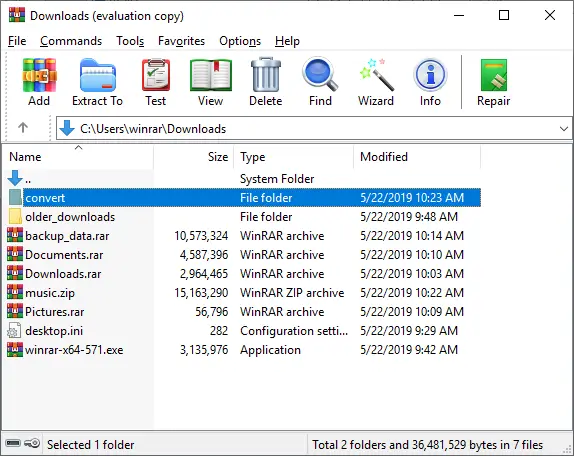
WinRAR is the go-to tool when you need to create RAR archives, split large files into multi-volume parts, or try to repair damaged archives using recovery records. It also supports AES-256 encryption for password-protected archives.
WinRAR is paid software with a trial period. For safety, keep it updated to the latest version to avoid past security issues.
Read more: Is WinRAR safe to use?
If you’re in Pakistan and want a genuine license with local support, you can buy WinRAR from BreTech here: WinRAR License.
3. PeaZip: Advanced Features and 200+ Format Support
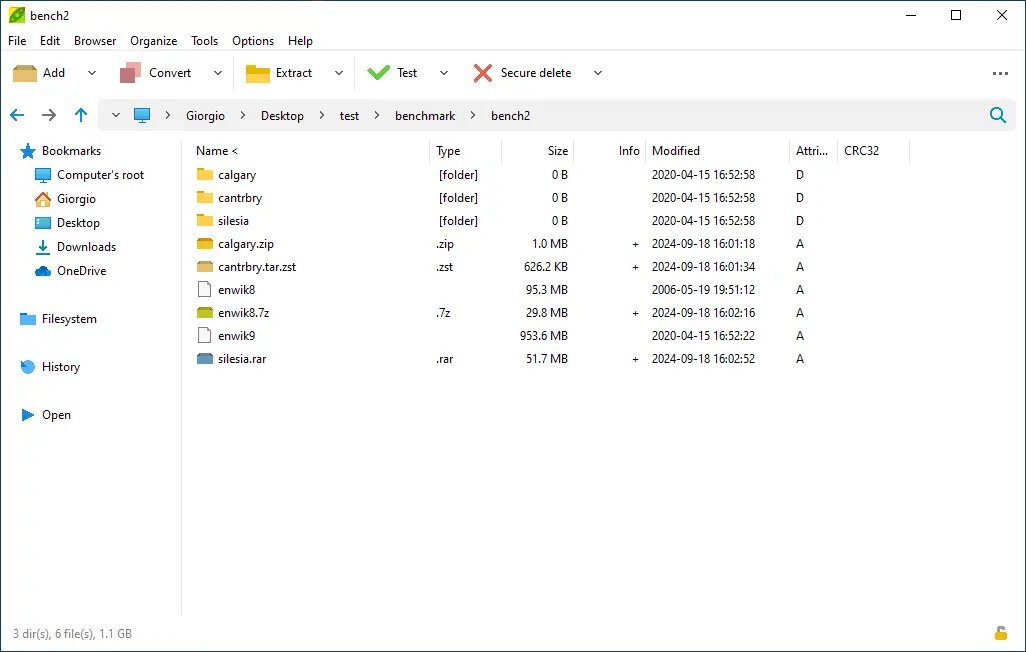
PeaZip is an open-source archiver for Windows, macOS, and Linux that supports 200+ formats for opening/extraction. It’s a strong option if you want an advanced interface plus security-focused utilities.
It includes hash/checksum tools for integrity checks, along with encryption options and a built-in workflow that can store/archive passwords safely.
Read more: Is PeaZip safe?
4. Bandizip: Fast and User-Friendly Option
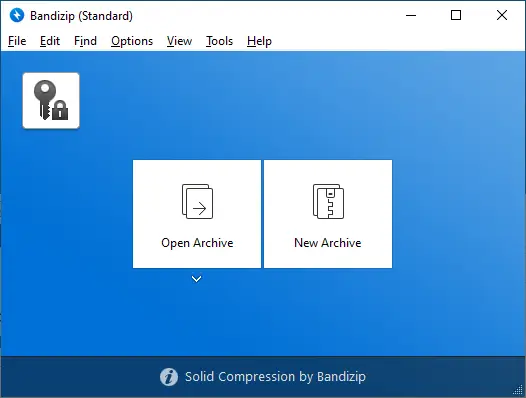
Bandizip is a modern archiver with a clean interface and fast performance, especially for common formats like ZIP and 7z. It’s a good fit if you want a simple Windows-friendly workflow.
Bandizip has different editions. The free Standard edition covers core compression/extraction, while the Professional edition adds extra features (and higher multi-core thread limits). Make sure the feature you mention matches the edition.
Read more: Bandizip Review
5. Ashampoo ZIP Pro 4: Complete Suite for Professionals

Ashampoo ZIP Pro 4 is a full-featured archive suite for users who want more than basic ZIP compression. It supports a wide range of archive types and adds convenience features for managing, encrypting, and sharing files.
It also includes multi-core performance support and 256-bit encryption for protected archives. Position it as a paid all-in-one option for users who want a richer toolbox than free archivers.
Read more: Ashampoo ZIP Pro 4 Review or Ashampoo ZIP Free Review
If you’re in Pakistan and prefer a full paid archiver suite, you can buy Ashampoo ZIP Pro from BreTech here: Ashampoo ZIP Pro.
6. WinZip: Best Paid Alternative for Cloud Integration
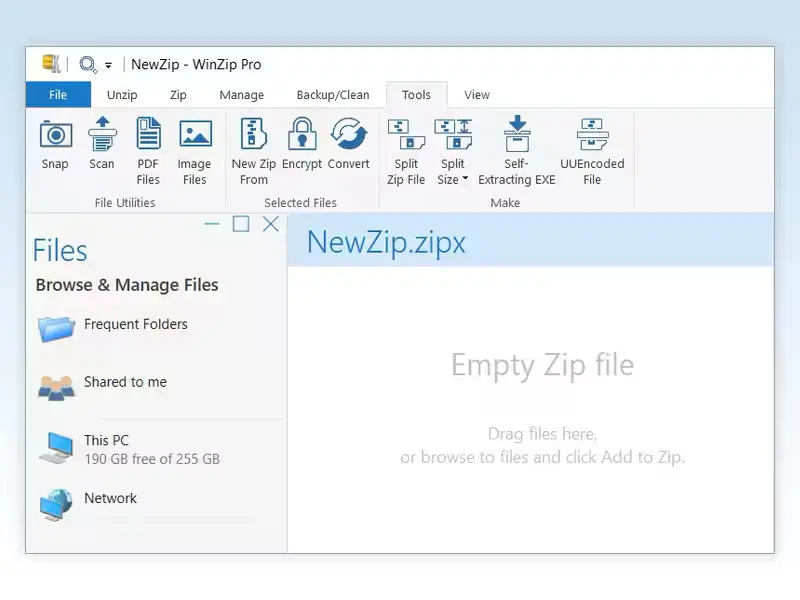
WinZip is a long-running paid compression tool focused on a polished workflow and cloud sharing features. It’s mainly a ZIP creator, but it can also open/extract many other formats (including RAR and 7z), which helps when dealing with mixed archives.
It includes AES-256 encryption and extra utilities like file sharing helpers and conversion tools. If the reader wants cloud integration plus a familiar UI, WinZip fits—but for pure compression value, free tools may be enough.
To read a comparison of WinZip against other options, check out our WinZip Review
If you want a paid archiver with local PKR billing and support, you can also buy a genuine license from BreTech here: WinRAR license.
How to Compress Files and Handle Large Files
Compress Files Using Right-Click and Drag-and-Drop
One of the simplest ways to compress files is by using the right-click menu in your operating system. After installing a tool like 7-Zip or WinRAR, you can right-click a file or folder and select “Compress to ZIP” or “Add to archive.”
Drag-and-drop functionality allows you to drag files into an open archive window, adding them to the compressed file. These methods offer ease of use for basic file compression tasks, even for large files.
Basic Command Line Compression (Simple Use Cases)
For more advanced users, the command line interface provides powerful options for file compression. Using commands like 7z a archive.7z files (for 7-Zip), you can compress files directly from the command line.
This method is useful for scripting and automating compression tasks. Basic command-line knowledge can significantly enhance your ability to manage large files and create custom archives quickly.
Handle Large Files (Splitting Archives and Choosing Format)
When dealing with large files, consider splitting the archive into smaller parts. Most compression tools offer the option to create multi-volume archives, making it easier to share files or store them on removable media.
Choosing the right format is also crucial; the 7z format generally provides better compression for large files. Proper file management techniques can help streamline the process of file compression and decompression.
Encrypt Compressed Files Safely
Encrypt an Archive (Password Basics)
To encrypt an archive, setting a strong password is the foundational step. Most compression software, including 7-Zip, WinRAR, and PeaZip, allows you to add a password when you compress files.
This password acts as the key to unlocking the archive during file compression and decompression. Choosing a password that is difficult to guess is crucial for maintaining the security of your large files.
AES Encryption and “Encrypt File Names” (What It Protects)
Advanced Encryption Standard (AES) is a robust encryption algorithm supported by many compression tools. When creating an archive, select AES-256 encryption (if available) to ensure the highest level of security.
The option to “encrypt file names” adds an extra layer of protection, preventing unauthorized users from seeing the contents of the archive. This feature enhances overall file management security.
Choose the Right Compression Format for Security and Sharing
Selecting the appropriate compression format can significantly impact security and file sharing efficiency. The 7z format, known for its robust AES encryption, is ideal for securing sensitive data.
While legacy ZIP encryption is weak, modern tools can use strong AES. For maximum security, 7z is preferred. When sharing, choose the right compression format depending on your needs and the recipient’s software capabilities.
Best Practices for Using Compression Tools Safely
Download Compression Software Safely (Avoid Fake Installers)
Downloading compression software from untrusted sources poses significant risks. Malicious actors often create fake installers that bundle malware with the compression tool. Always download programs like 7-Zip, WinRAR, and PeaZip from their official websites.
Avoid third-party download sites to minimize the risk of installing compromised software. This ensures you get free compression without the added cost of malware.
Check HTTPS and Verify Checksum/Hash
Before downloading any compression software, ensure the website uses HTTPS to encrypt your connection, safeguarding against attacks. After downloading, verify the file’s checksum or hash (SHA-256, MD5) against the value provided on the official website.
Tools like 7-Zip can calculate these values, allowing you to confirm the file’s integrity and authenticity. This prevents the installation of malicious software.
Safe Extraction Workflow for Unknown Archives
When extracting an unknown archive, exercise caution. Scan the archive with a reputable antivirus program before extraction to detect potential threats.
Consider extracting the archive in a sandboxed environment or a virtual machine to isolate any malicious code. Regularly update your antivirus software to protect against the latest threats.
How to Uninstall a Compression Tool
Uninstall Compression Software on Windows
To fully uninstall compression software on Windows, start by using the “Apps and Features” section in the Settings menu. Locate the compression tool you wish to remove, such as 7-Zip or WinRAR, and click the “Uninstall” button.
Follow the on-screen prompts to complete the process. Ensure all components are removed to avoid residual issues with file management.
Clean Removal (Context Menu + File Associations)
A clean removal involves addressing context menu entries and file associations. Some compression programs add options to the right-click menu, which can persist after uninstalling.
Use a dedicated uninstaller tool to help remove these entries. Additionally, check and reset file associations to default or preferred programs to avoid conflicts when opening archives like ZIP files or RAR files.
When Reinstalling Fixes Problems
Reinstalling a compression tool can fix various issues, such as corrupted installations or conflicts with other software options. If you experience problems like archives not opening or errors during compression and decompression, reinstalling might resolve the issue.
Ensure you download the latest version from the official website for the best tools and performance.
Final Verdict: Choosing the Best File Compression Tool
The best compression tool depends entirely on your specific needs. For users seeking a free compression program with high compression capabilities and robust encryption, 7-Zip is an excellent choice. WinRAR remains valuable for those frequently dealing with RAR files, despite its trial license. PeaZip offers a wide range of advanced features, while Bandizip stands out for its ease of use.
For most users, starting with 7-Zip is a solid recommendation. It’s a free compression option, open-source, and supports the popular 7z format and ZIP files. If you frequently encounter proprietary RAR files, then consider installing WinRAR alongside it.
Evaluate your specific needs for file compression, file sharing, and file management to choose the right software. Don’t forget to consider essential features like encryption when securing large files and managing sensitive data.
If you’re in Pakistan and prefer official activation instead of risky cracked installers, browse Archive & Compression Software in Pakistan on BreTech.
FAQs
Q: What are the usual size limits when sharing large archives?
A: Email and chat apps often enforce strict size limits, so compressing first helps. For big uploads (multi-gigabytes), split archives or use cloud file sharing options.
Q: Is “lossy compression” used by ZIP/RAR/7z archivers?
A: Not really. ZIP and RAR tools rely on lossless compression to reduce the size of files without changing them. Lossy compression applies to media like MP3/JPEG/video.
Q: What’s the best compression method for saving storage space in 2026?
A: If you need maximum savings, 7z (LZMA2) is often the best compression method for many files. For compatibility, ZIP is safer. Choose based on storage and speed needs.
Q: Which compression tools in 2026 work on Windows and Linux?
A: 7-Zip and PeaZip are popular choices. If you need a tool that supports both platforms and supports various compression formats, those are strong picks for daily use.
Q: Do these programs create and extract both zip and rar files?
A: Many tools can create and extract ZIP, but creating RAR is usually tied to WinRAR’s licensed format. Most archivers can still extract RAR, and supports many formats overall.
Q: What security features like encryption should I look for?
A: Prioritize the ability to encrypt files with AES-256, plus “encrypt file names” when available. These security features like encryption protect sensitive amounts of data in shared archives.
Q: When does compression “not work,” even with free file compression tools?
A: If files are already compressed (MP4/JPEG/MP3), software can really only shave off a little. You may still need to compress folders for quick file management, bundling a wide variety of file types.
Further Reading
If you want deeper comparisons, safety checks, and full tool breakdowns, explore these guides:
- 7-Zip Review: Speed, Compression and Safety (2026)
- WinZip Review: Is It Still Worth It in 2026?
- 7z vs ZIP vs RAR: Which Format Should You Choose?
- Is 7-Zip Safe to Use? Security and Privacy Explained
- Bandizip Review: Fast File Compression Tool for Windows
For more helpful guides, visit our Software & Apps category.