Are you having trouble with your smart TV Wi-Fi during the busy 2026 holiday season? It can get really frustrating when your Wi-Fi is slow, you miss backups, and apps don’t work right. Don’t let these problems ruin your holiday movie nights with family and friends.
This guide will help you fix your smart TV Wi-Fi connection step by step. You’ll learn the tools and actions to keep your streaming smooth and fun. Let’s tackle these connectivity issues together!
Key Takeaways
- Common causes of smart TV Wi-Fi problems include outdated hardware and network interference.
- Maintaining a solid understanding of Wi-Fi can help in diagnosing issues.
- A reliable connection may sometimes require support from your internet service provider.
- Distance and interference can degrade your smart TV’s Wi-Fi performance.
- Simple troubleshooting steps can often resolve connectivity issues.
Understanding Streaming Issues with Smart TVs

Streaming problems can really mess up your smart TV experience. Services like Netflix and Disney+ need a strong internet connection. Slow speeds or shaky signals can cause blurry pictures and annoying buffering.
These issues can ruin your viewing time. They make it hard to enjoy your favorite shows. It’s tempting to think you need a faster internet plan.
But, you might just need to tweak your current network. Try moving your router or adjusting its settings. Often, these small changes can make a big difference in streaming quality.
Checking your internet speed regularly helps you understand your connection. Knowing how your speed changes helps you fix smart TV Wi-Fi problems. By taking these steps, you can improve your streaming without spending more money.
How to Fix Smart TV Wi-Fi Connection

If your smart TV’s Wi-Fi connection is a problem, don’t worry. Simple steps can help you find and fix the issue. This guide will show you important checks to fix your smart TV’s internet connection.
Check Your Internet Speed
First, check your internet speed. Use online speed test tools to see if your connection is strong enough for streaming. Most streaming services need at least 25 Mbps for good playback.
If your speed is too low, talk to your Internet Service Provider. They can help you boost your connection.
Test Other Devices
Then, see if the problem is just with your smart TV. Try connecting other devices like smartphones, tablets, or computers to your Wi-Fi. If they work fine, it’s likely your smart TV that needs fixing.
Figuring out the problem helps you know what to do next. It ensures you can watch your favorite shows without interruptions.
Troubleshooting Smart TV Wi-Fi Issues
Having smart TV Wi-Fi problems can be really annoying, like when you want to watch your favorite shows. Luckily, there are a few easy steps to fix these issues.
First, try rebooting both your smart TV and router. This simple action can often fix small problems. Also, make sure your TV has the latest software. Updates can improve performance and solve connection issues.
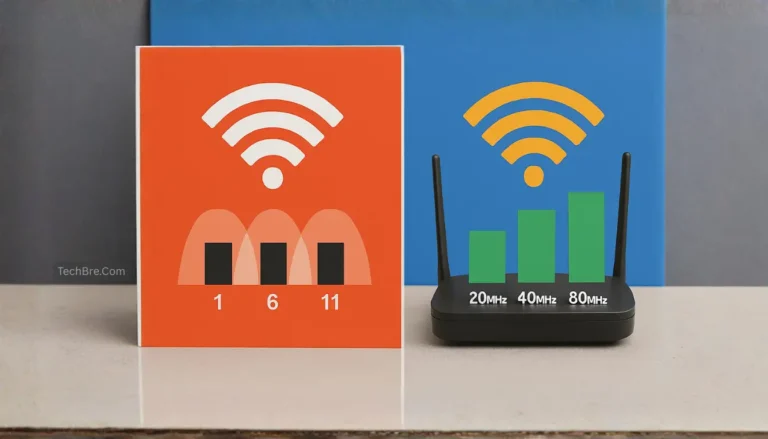
Double-check that you’ve entered the right Wi-Fi password. A small mistake can block your connection. If speeds are slow, try switching between the 2.4 GHz and 5 GHz bands. The 5 GHz band is faster but might not reach as far, causing problems if you’re far from the router.
Other devices like microwaves and cordless phones can also mess with your signal. Nearby networks can cause problems if they’re too close to yours. Try moving the router or changing its channel to get a better connection.
Smart TV Wi-Fi Setup Guide
Setting up your smart TV’s Wi-Fi is key for a great viewing experience. A strong connection means better streaming and fewer interruptions. Make sure you have your network name (SSID) and password ready.
Connecting to Wi-Fi
To connect your smart TV to Wi-Fi, just follow these steps:
- Go to the ‘Settings’ menu on your TV.
- Find the ‘Network’ or ‘Wireless Connection’ option.
- Pick your Wi-Fi network from the list.
- Type in your Wi-Fi password correctly.
- Confirm the connection.
If you’re having trouble, try resetting your smart TV’s Wi-Fi settings. This can fix any problems with your current setup.
Using Ethernet for Better Connectivity
For a more stable connection, use an Ethernet cable. Wired connections are often more reliable. Plug one end into your TV’s Ethernet port and the other into your router. This setup reduces interference and boosts streaming quality.
Maintaining Your Smart TV for Optimal Performance
Keeping your smart TV in good shape is key to its performance. If you ignore this, you might face problems like Wi-Fi not working. Make sure to update your TV’s software regularly. Updates often fix bugs and make your TV work better.
Rebooting your router and smart TV now and then is a good idea. It refreshes the connections. This can be very helpful when you’re having Wi-Fi problems. Regular reboots can also get rid of small issues and make your TV connect better.
Think about where you place your devices. Routers should be in the middle and up high, away from walls and stuff. Your smart TV should also be in a spot where it can reach the router easily. Checking your Wi-Fi signal strength often can help spot problems early. A strong signal means you can stream without interruptions.
By following these tips, you can make fixing Wi-Fi issues on your smart TV easier. And you’ll keep enjoying your shows and movies.
Conclusion
Smart TV Wi-Fi problems can be really frustrating. They ruin your plans to watch your favorite shows. But, knowing what causes these issues helps you fix them quickly.
Checking your internet speed and your smart TV’s settings are good first steps. Many solutions are available to help you.
Also, troubleshooting and keeping your network equipment in good shape is key. This ensures you can stream without interruptions. Regular maintenance of your smart TV and router can greatly improve your streaming experience.
Don’t worry, fixing these problems is easier than you think. With a bit of patience and the right actions, you can enjoy your movies without any technical issues. So, sit back, relax, and enjoy your favorite films, knowing your streaming setup is perfect.
FAQs
Q: What should I do if my smart TV Wi-Fi is not working?
A: First, try rebooting your TV and router. Make sure your Wi-Fi password is correct. Also, place your smart TV and router in the best spots to avoid interference.
Q: How can I check my internet speed for my smart TV?
A: Use an online speed test tool to check your internet speed. Make sure it’s fast enough for streaming services like Netflix and Disney+.
Q: Why is my smart TV streaming service buffering frequently?
A: Slow or unstable internet speeds can cause buffering. Check your router’s position and update any software. Also, test other devices on your network for issues.
Q: How can I improve my smart TV Wi-Fi connection?
A: Try switching between the 2.4 GHz and 5 GHz frequency bands. Move your router to a better spot. Also, reduce interference from other networks and devices at home.
Q: What steps should I follow for setting up my smart TV’s Wi-Fi?
A: Have your network name (SSID) and password ready. Go to ‘Network’ settings on your TV, pick your network, and enter your credentials. For a stable connection, use Ethernet instead of Wi-Fi.
Q: How often should I update my smart TV’s software?
A: Update your smart TV’s software often. Manufacturers release updates to boost performance and security. Regularly check for updates to keep your TV running smoothly.
Q: Can resetting my smart TV’s Wi-Fi settings help?
A: Yes, resetting your TV’s network settings can fix connectivity problems. It lets you start over with your Wi-Fi setup.