Disclosure: We may earn a commission from links on this page. Learn more.
Free Optimization Software (2026): 13 Best Free PC Optimizer Tools for Windows
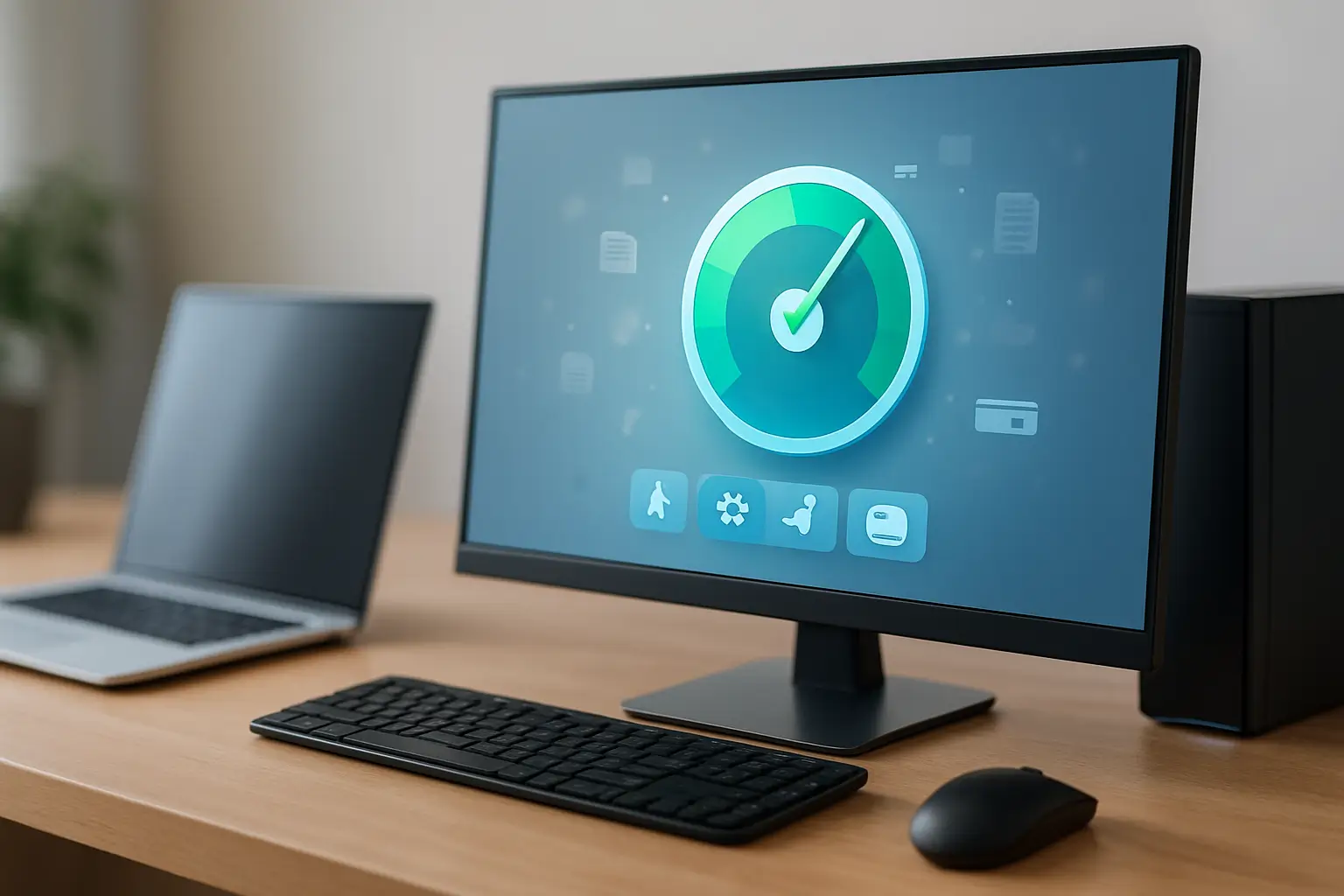
Free optimization software can help when your Windows PC starts feeling slow, noisy, or heavy. Over time, Windows 10 and 11 build up temporary files, app leftovers, and too many background programs, and that gradual buildup is what makes a laptop or desktop feel “older” than it really is.
A safe free PC optimizer can remove junk files, recover disk space, and reduce startup load without you changing dozens of settings one by one. Some tools also help you spot heavy background apps so your system feels smoother for browsing, office work, and basic gaming.
In this updated 2026 guide, you’ll find the best free PC optimizer tools for Windows, including official Microsoft options, lightweight cleaners, and freemium suites with optional upgrades, so you can pick one setup that fits how you use your PC.
Free optimization software can remove junk files, free storage, and reduce startup load on Windows 10/11. For safety, avoid aggressive registry cleaning and use one trusted tool, not many overlapping suites.
At a Glance: Which Free PC Optimizer Should You Choose?
If you are not sure which tool to start with, use this table. It points you to the right option without installing everything.
| If Your Main Problem Is… | Start With | Why It Fits |
|---|---|---|
| PC feels slow after months of use | Microsoft PC Manager | Safe, simple cleanup and startup control |
| Low storage space / “disk full” | Windows Built-In Tools | No install, quick cleanup and Storage Sense |
| Browser junk and quick tidy-up | CCleaner Free | Easy cleanup you can run occasionally |
| You want more tools in one place | Glary Utilities Free | Many maintenance tools with more control |
| You want one-click automation | Advanced SystemCare Free | Simple scan and tune-up style workflow |
| You want privacy-focused cleaning | BleachBit | Open-source style cleaner with deeper app cleanup |
How Free Optimization Software Helps Speed Up Your PC
Clean Unnecessary Files and Free Disk Space
Free optimization software helps speed up your PC by removing unnecessary files that make Windows slow over time. It works like a smart drive cleaner for your laptop or desktop, deleting temporary data, old system files and leftover installers so you recover valuable disk space and improve efficiency.
Optimize Startup Apps and Background Services
Most free PC optimizers also help you optimize startup apps and background services. Instead of changing every setting manually, you get simple management tools that automatically eliminate programs you do not need running all the time, so your operating system feels lighter and more responsive.
Handle HDD Defrag and Leftovers (Use Carefully)
Some tools include optional cleanup features for leftovers and basic system tidy-up. If your PC uses a mechanical hard drive (HDD), a safe disk defragmentation tool can improve responsiveness by reorganising fragmented files.
Be cautious with registry cleaning. If you do not understand what a setting changes, skip registry options and focus on junk cleanup and startup management instead.
What Free Optimization Software Does
Free optimization software focuses on improving real Windows performance issues. These tools help:
- Remove temporary files and browser junk
- Clean up system caches and old logs
- Disable unnecessary startup apps
- Free RAM and reduce background processes
- Defragment hard drives (HDDs only)
- Improve responsiveness, boot speed and stability
Windows already includes some of these features, but third-party tools offer deeper cleaning, automation and specialized features for gaming or privacy.
Quick Comparison: Best Free PC Optimizers (2026)
If you want a safe starting point, focus on tools that clean junk files, free storage, and reduce startup load on Windows 10/11. One good tool is enough for most PCs, and Windows built-in cleanup should always be your first step.
Use this quick comparison to pick one tool that matches your need, then continue to the full list below for details and screenshots.
| Tool | Best For | Beginner-Safe |
|---|---|---|
| Microsoft PC Manager | Simple cleanup + startup control | Yes |
| Windows Built-In Tools | No extra installs, safe cleanup | Yes |
| CCleaner Free | Occasional junk and browser cleanup | Yes |
| Glary Utilities Free | More control and extra utilities | Medium |
| Advanced SystemCare Free | One-click tune-up with extras | Medium |
| BleachBit | Privacy-focused and open-source cleaning | Medium |
Best Free Optimization Software for Windows in 2026
Below are the best free PC optimizer tools for Windows in 2026, starting with the safest options first and then the more advanced suites.
1. Microsoft PC Manager (Official Free Optimization Software)
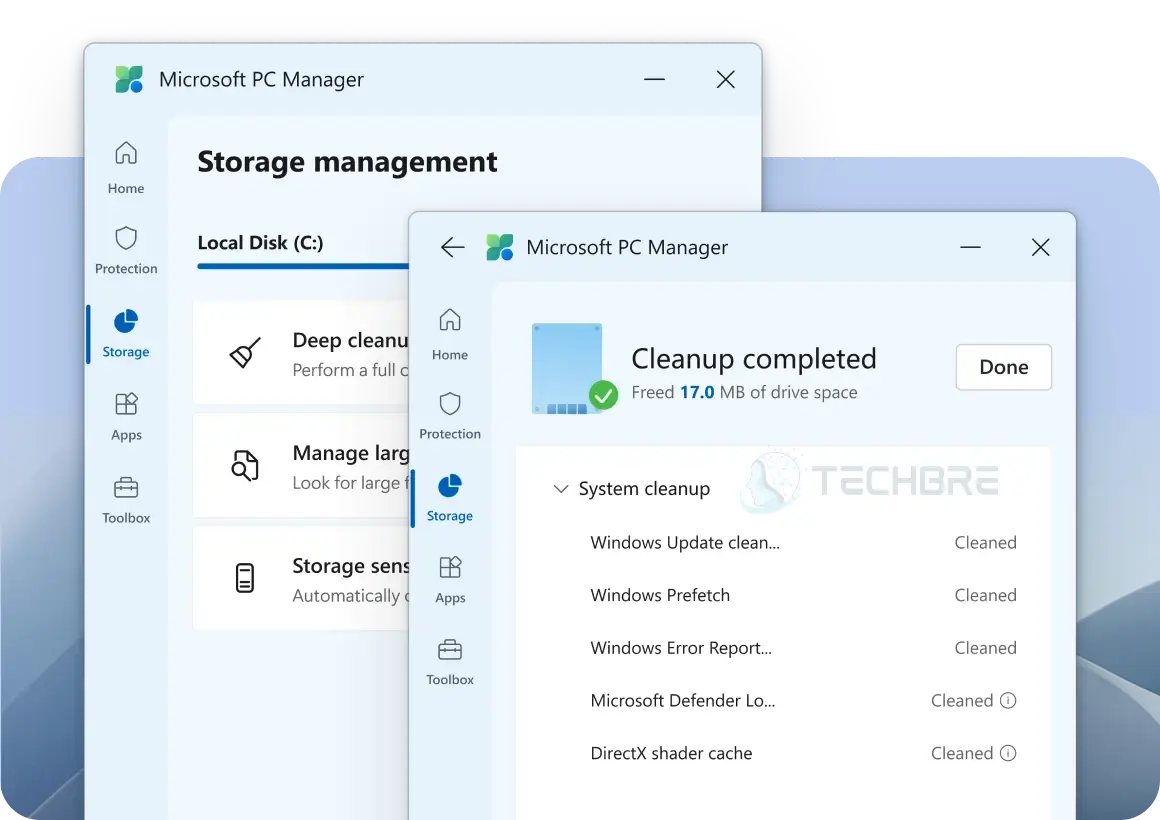
Microsoft PC Manager is the safest starting point because it’s built and maintained by Microsoft. It combines cleanup, startup control and basic security checks into a single clean interface.
Key features:
- One-click boost to clear temporary files
- Startup app manager
- Browser cache cleanup
- Built-in Windows Defender integration
- Fully free and officially supported
The Bottom Line: Ideal for users who want a simple, trustworthy, and official free PC optimizer.
2. Windows Built-In Tools (Disk Cleanup, Cleanup Recommendations, Task Manager)
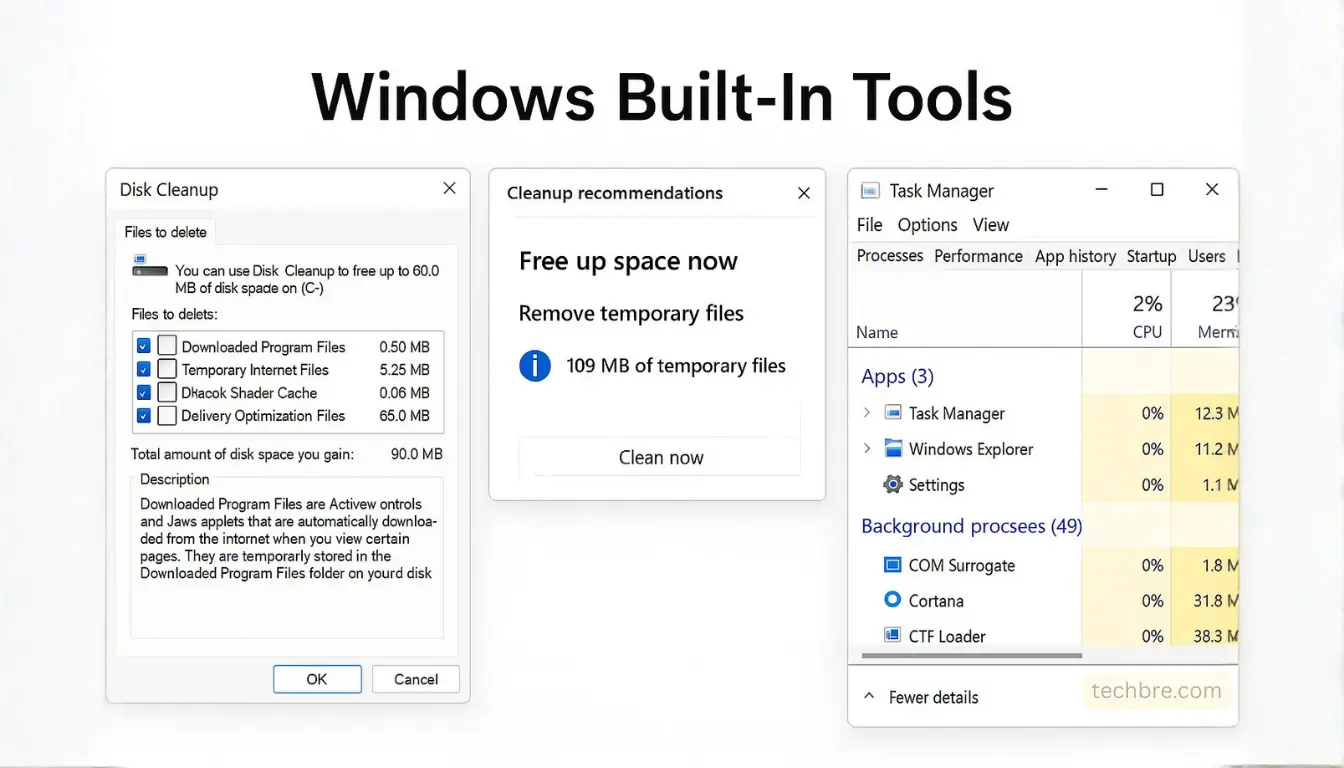
Before downloading anything, Windows already provides several free optimization tools:
Key features:
- Disk Cleanup or Cleanup Recommendations to remove junk
- Task Manager to disable heavy startup apps
- MSConfig for service troubleshooting
- Storage Sense for automated cleanup
The Bottom Line: These built-ins are safe, lightweight, and often overlooked.
3. CCleaner Free: Trusted Free PC Optimizer
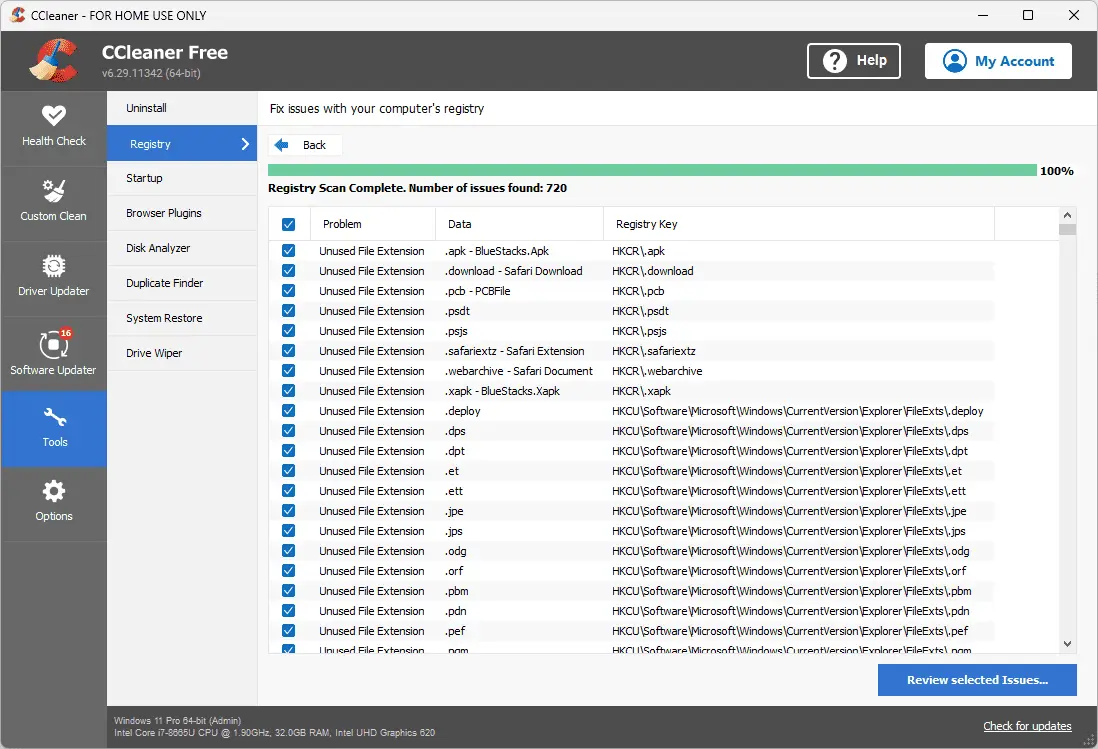
CCleaner remains one of the most widely recognized free PC optimizers. The free edition focuses on junk removal, browser cleanup and basic registry maintenance.
Key features:
- Cleans caches, logs and temporary files
- Simple interface for beginners
- Startup program manager
- Lightweight and quick
The Bottom Line: This is a great “general cleanup” tool to run occasionally to keep your system lean.
Download CCleaner Free | Upgrade to CCleaner Pro
4. Advanced SystemCare Free: All-In-One PC Optimizer
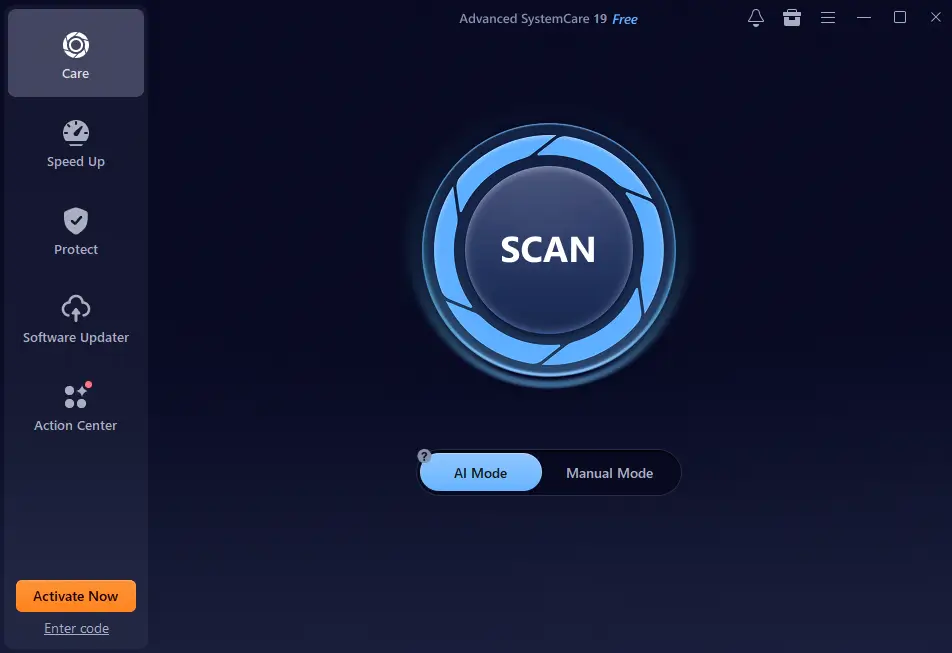
Advanced SystemCare Free provides a full suite of cleanup and optimization tools with a one-click scan. It’s one of the most complete free computer optimizer options for beginners.
Key features:
- Junk file cleanup
- Privacy traces removal
- Startup optimization
- Basic performance tune-up
The Bottom Line: Good balance between automation and control.
Download Free Version | Buy Pro Version
5. Glary Utilities Free: Multi-Tool PC Optimization Suite
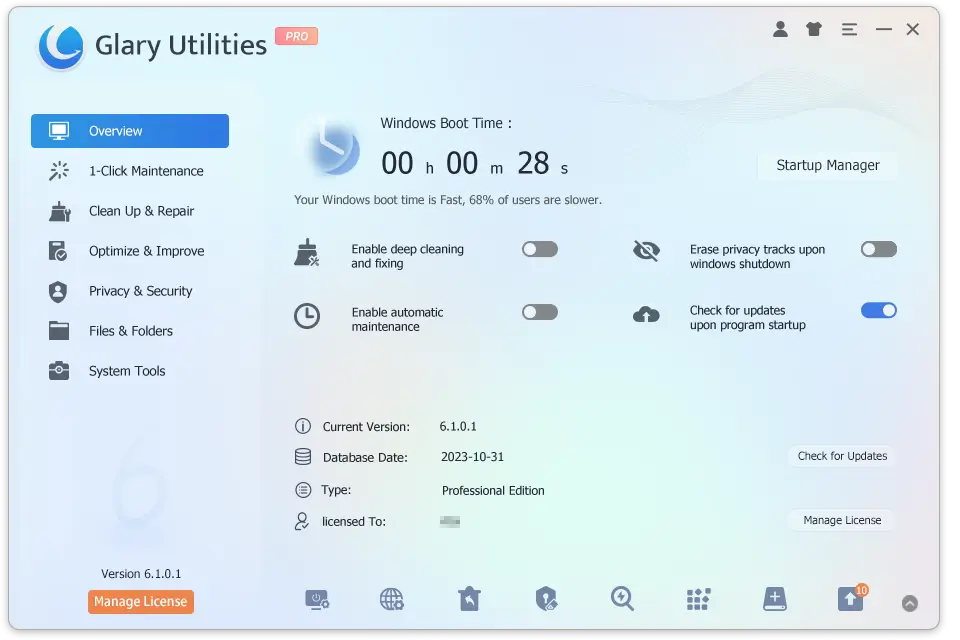
Glary Utilities Free offers over 20 tools for cleanup, performance tuning and system maintenance. It’s ideal for users who want more control than CCleaner provides.
Key features:
- One-click maintenance mode
- Disk cleanup and registry repair
- Startup and context menu manager
- File shredding and disk usage tools
The Bottom Line: Great for users who like many functions in one application.
Download Free Version | Buy Pro Version
6. BleachBit: Open-Source Optimization Software
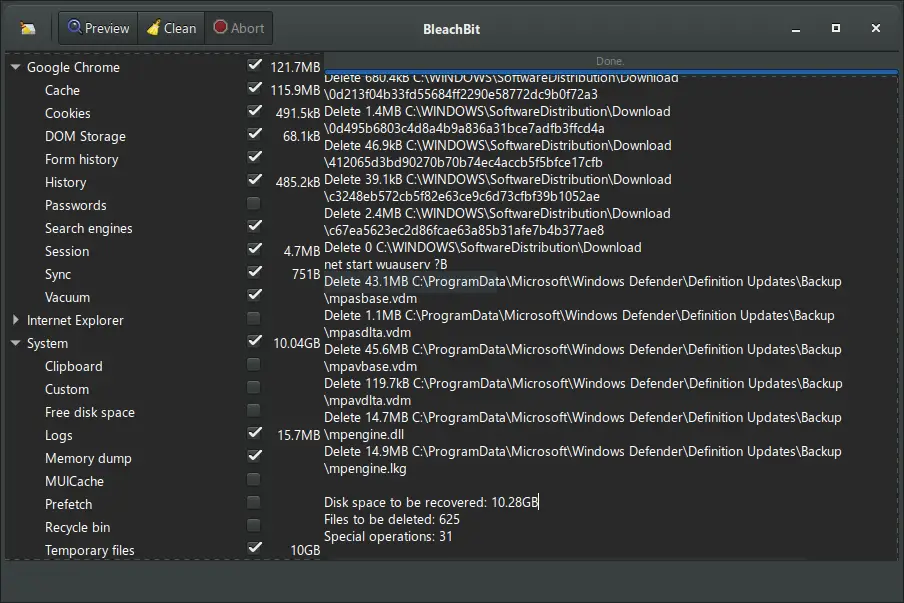
BleachBit is a free, open-source cleaner that removes application caches, logs, browser data and other leftovers. It’s trusted by privacy-focused users and power users.
Key features:
- Deep cleaning for many apps
- Secure file deletion
- Open-source transparency
- Lightweight and fast
The Bottom Line: Excellent for users who prefer open-source tools.
7. Wise Disk Cleaner: Lightweight Junk Cleaner
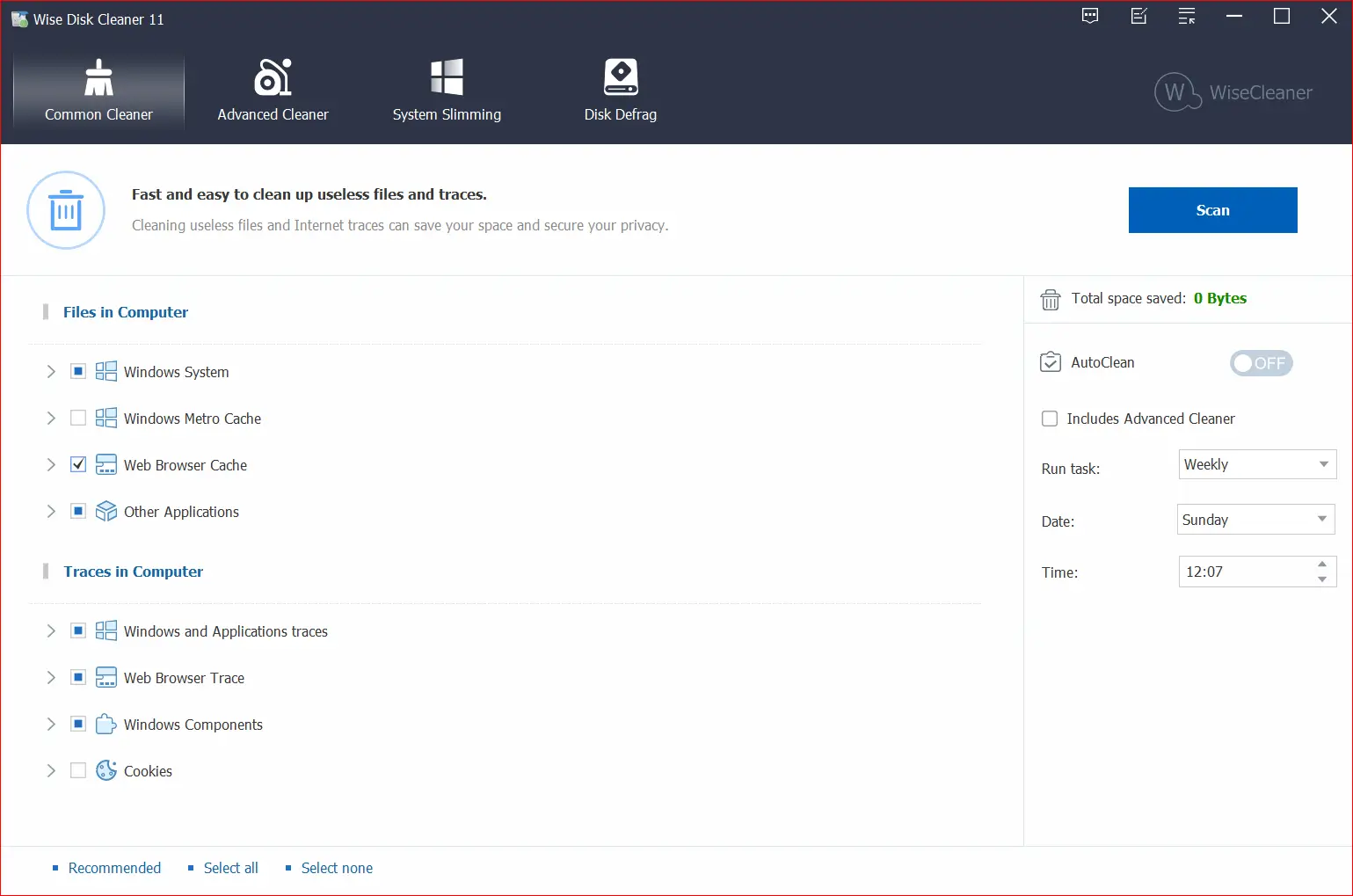
Wise Disk Cleaner is a simple free PC optimizer focused on freeing storage space and cleaning browser history.
Key features:
- Temporary file cleanup
- Browser cache and history removal
- Scheduled automatic cleaning
- Built-in defrag for HDDs
The Bottom Line: Good for users who want a quick, lightweight cleanup tool.
8. Auslogics Disk Defrag: HDD Performance Booster
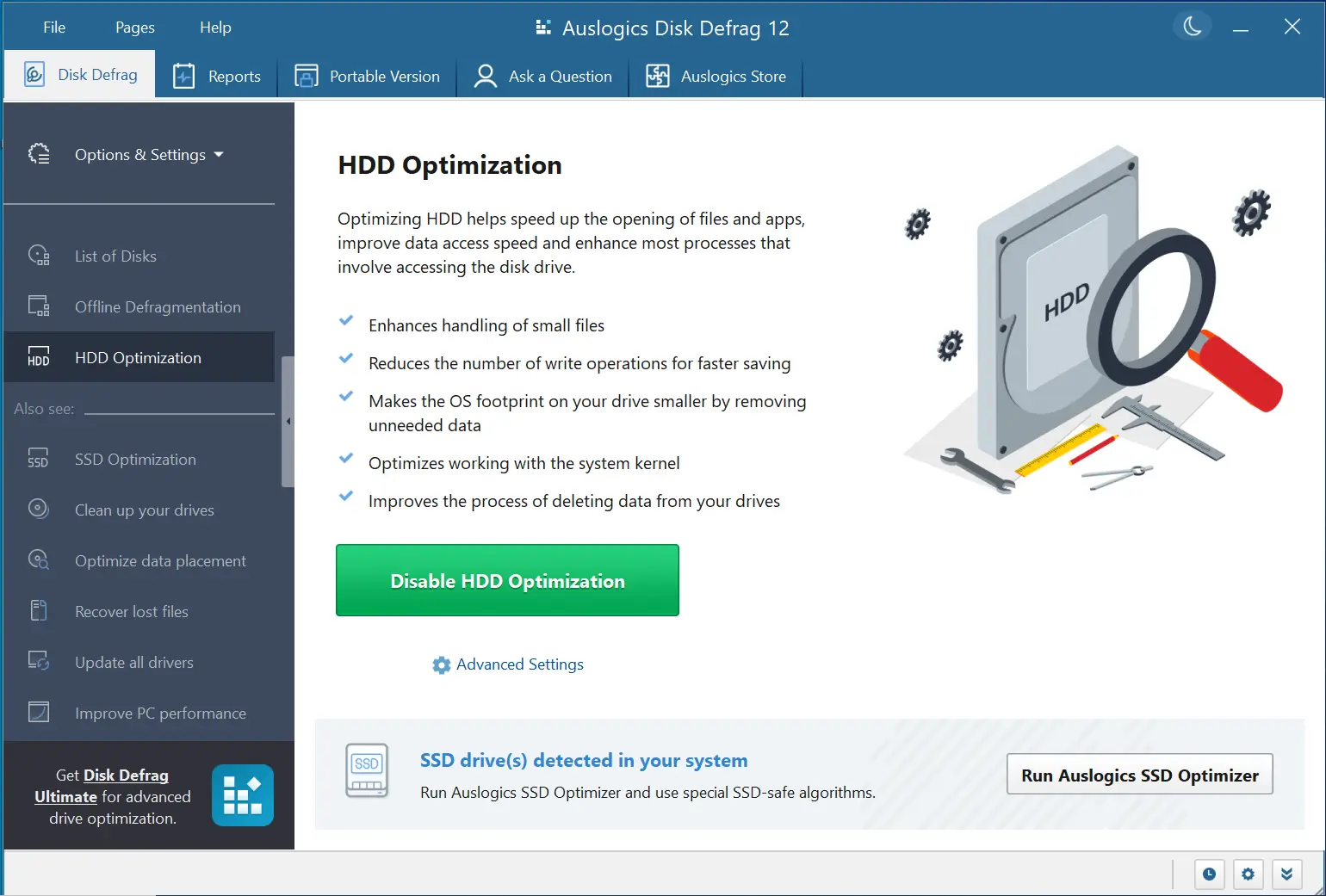
If your computer still uses a mechanical hard drive, Auslogics Disk Defrag improves responsiveness by reorganizing fragmented files.
Key features:
- Fast HDD defragmentation
- Free space consolidation
- Scheduled maintenance
- Visual disk map
The Bottom Line: Only use for HDDs, not SSDs.
9. IObit Uninstaller Free: Deep Software Removal
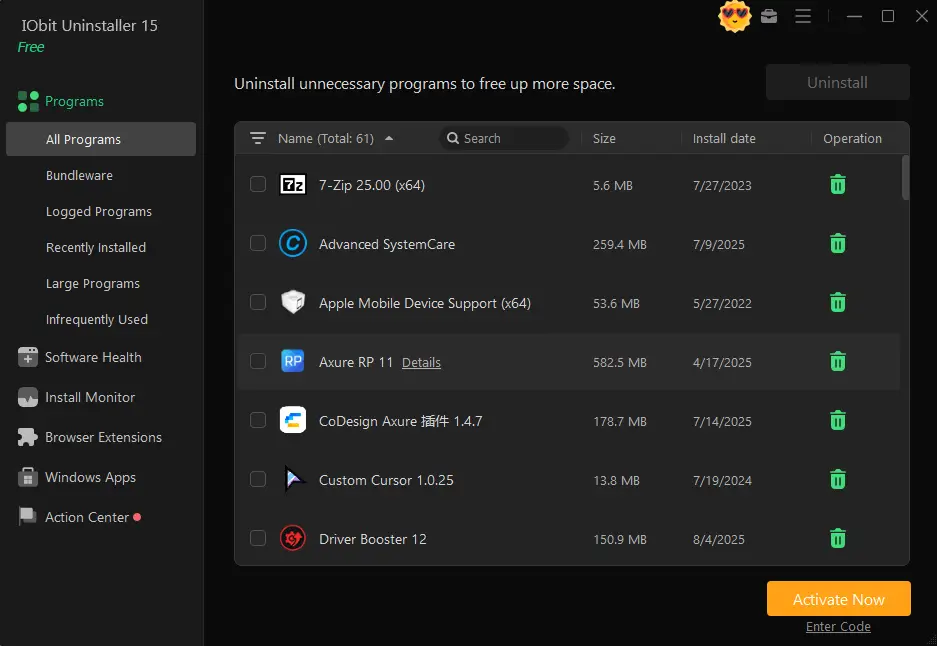
IObit Uninstaller Free helps remove unwanted programs and their leftover files, which prevents long-term system slowdown.
Key features:
- Deep cleanup of uninstall leftovers
- Removal of stubborn apps
- Browser plugin cleanup
- Real-time install monitoring
The Bottom Line: Keeping software bloat under control is a core part of optimization.
Download Free Version | Buy Pro Version
10. Razer Cortex: Free Game Optimizer for Windows
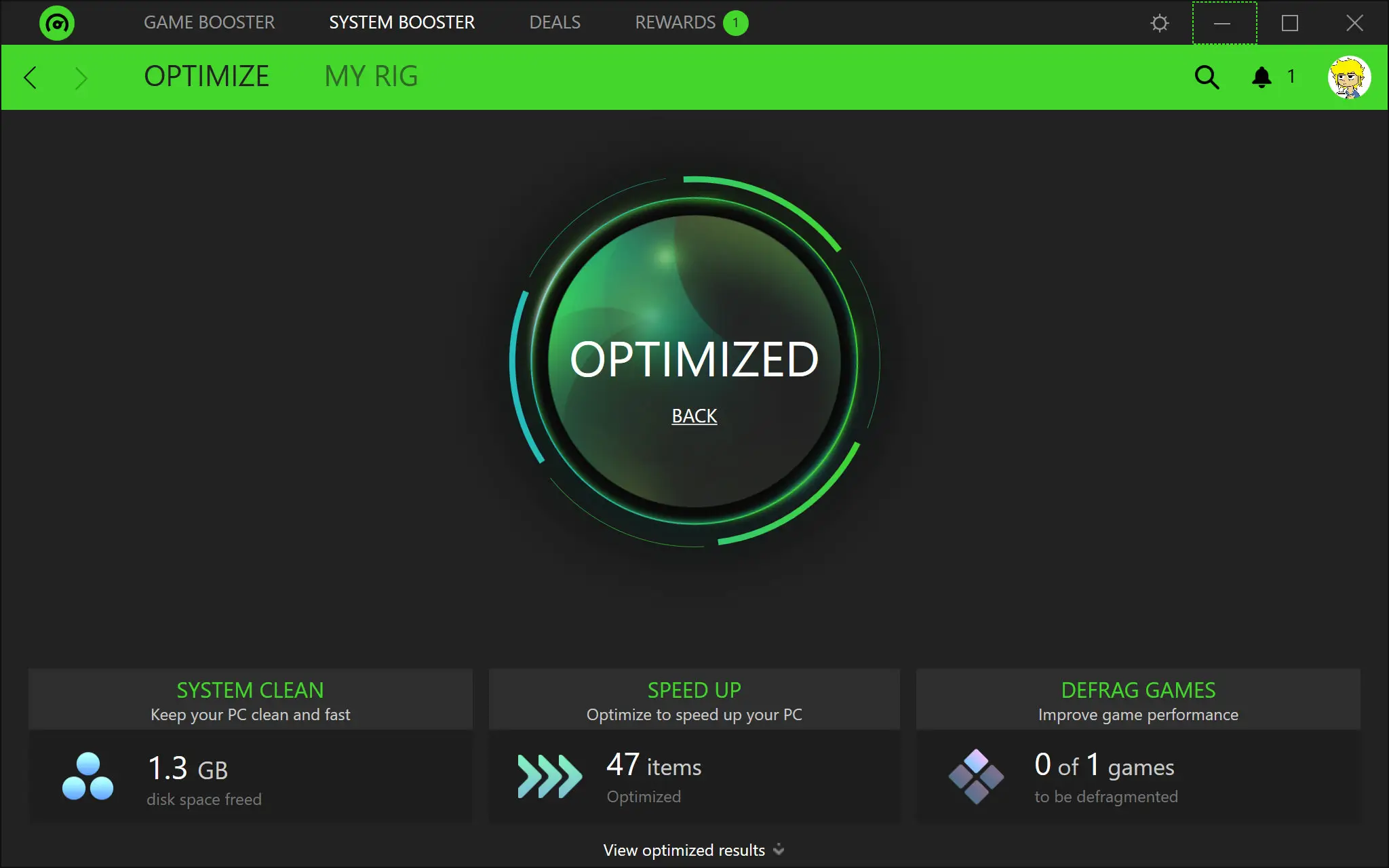
Razer Cortex temporarily frees system resources to increase game performance. It’s one of the best free PC optimizers for gamers.
Key features:
- Auto-shuts down background processes
- Frees RAM and CPU for games
- FPS monitoring
- Game-specific optimization profiles
The Bottom Line: Smoother gameplay on low- to mid-range PCs.
11. System Ninja: Simple Free Computer Optimizer
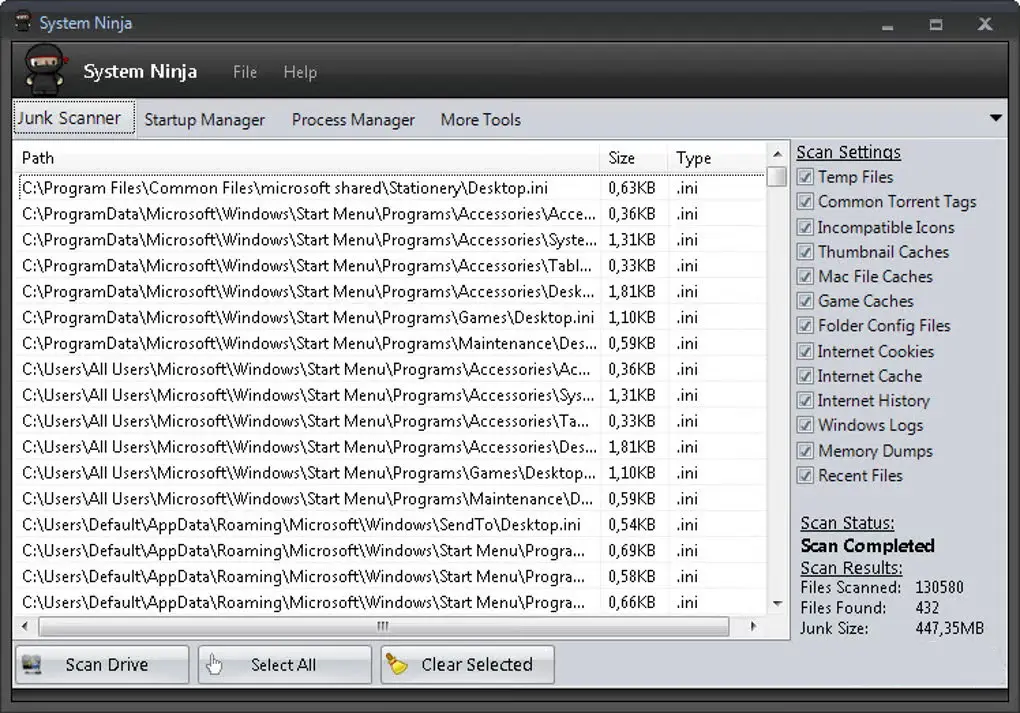
System Ninja is a small but effective free optimization software tool for quick cleanup and system analysis.
Key features:
- Junk file removal
- Startup manager
- Process monitoring
- Hardware/software insights
The Bottom Line: Good for lightweight, fast maintenance tasks.
12. Ashampoo WinOptimizer Free: Freemium All-Rounder
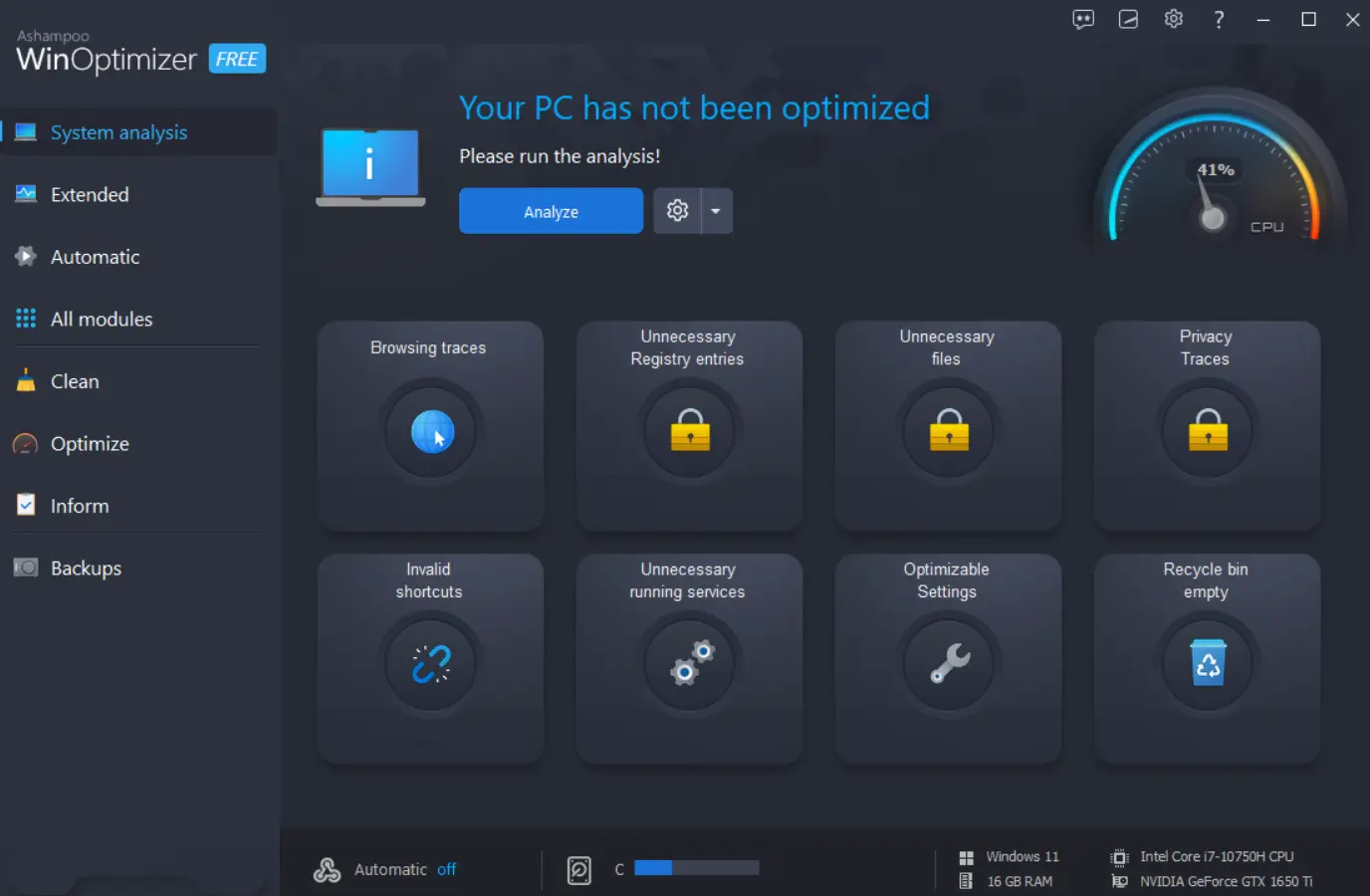
Ashampoo WinOptimizer Free offers many useful modules for cleanup and tuning. It’s a strong alternative to Advanced SystemCare or Glary Utilities.
Key features:
- Junk and browser cleanup
- Startup and service manager
- Privacy tools
- Basic tuning recommendations
Useful for users who want an upgrade path to a paid version later.
The Bottom Line: Useful for users who want an upgrade path to a paid version later.
Download Free Version | Buy Pro Version
13. System Mechanic Free Edition (Freemium)
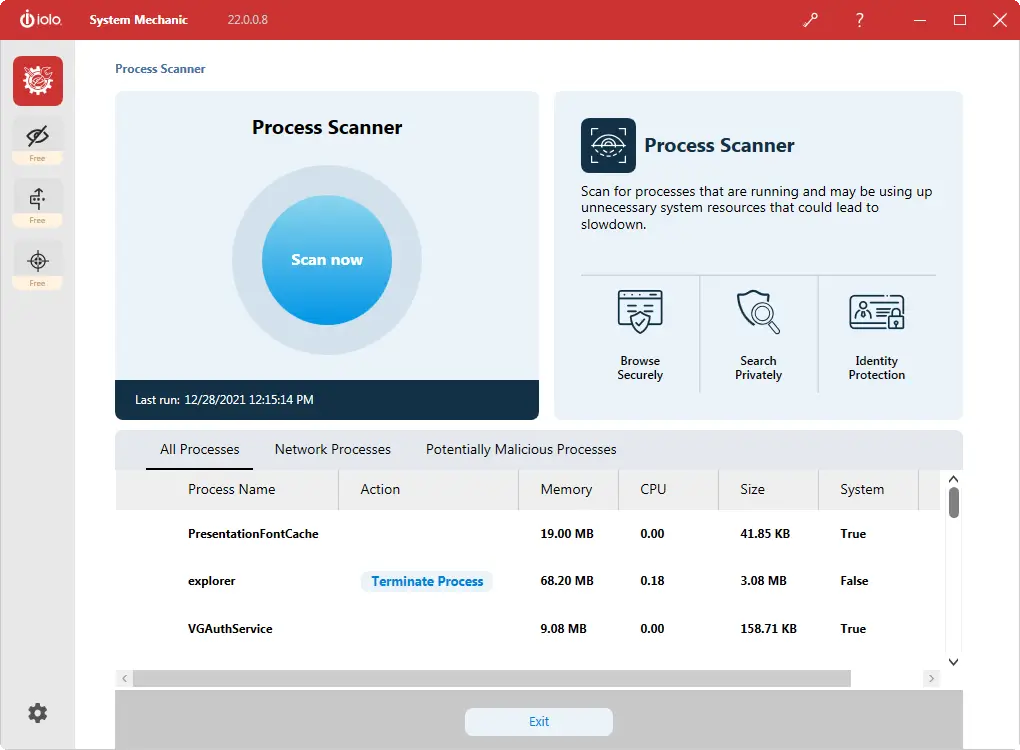
System Mechanic is a well-known optimization suite. The free edition offers limited cleanup, but enough to test the product’s capabilities.
Key features:
- Automated maintenance
- System tune-up features
- Real-time resource optimization
- Optional upgrade paths
The Bottom Line: Best for users who want a more advanced, long-term optimization package.
Download Free Version | Buy Pro Version
What to Avoid in Free PC Optimizers
Avoid tools that promise unrealistic “instant speed boosts” or push too many pop-ups and add-ons. Do not run multiple optimizers together, because they can overlap and cause problems.
If a tool offers registry cleaning, treat it as optional. For most users, junk cleanup and startup control are the safest improvements, and Windows built-in tools should always be your first step.
Best PC Optimizers: A Safe Monthly Routine
For most people, the best PC optimizers are the ones you use lightly and consistently, not the ones you run every day. Pick one main cleaner for junk files, use Windows built-in cleanup once in a while, and keep startup apps under control.
A simple routine is enough: run cleanup once or twice a month, review startup apps when your PC feels slow, and uninstall programs you do not use. If you have an HDD, defragment occasionally, but avoid defrag on SSDs.
How to Use Free Optimization Software Safely
Even the best PC optimizers must be used carefully. Follow these safety guidelines:
- Create a restore point before major changes
- Avoid aggressive registry cleaning unless needed
- Change one thing at a time and observe results
- Download only from official developer websites
- Avoid tools that promise unrealistic performance boosts
Free optimization software improves performance, but it cannot fix old hardware. If your PC uses an HDD or has low RAM, upgrading those parts will make a huge difference.
Conclusion: Choosing the Best Free Optimization Software
Free optimization software will not magically turn old hardware into a gaming beast, but it can make a real difference to your PC’s performance. Cleaning unnecessary files, controlling startup apps and fixing simple issues in your operating system often gives you the “fresh install” feeling without reinstalling Windows.
You don’t need every tool from this list. Pick one main free PC optimizer you understand and trust, such as Microsoft PC Manager, CCleaner Free or Glary Utilities, and run it once or twice a month. If you game a lot, add a focused booster like Razer Cortex; if you use an HDD, use a safe disk defrag tool occasionally.
The key is consistency and safety. Download only from official sites, avoid aggressive “fix everything” settings, and create a restore point before big changes. With the right habits and a good free computer optimizer, you can speed up your PC, keep Windows 10 or 11 feeling smooth, and get more life out of your current laptop or desktop.
FAQs
Q: What is the best free optimization software for Windows 10 and Windows 11 in 2026?
A: Microsoft PC Manager and CCleaner Free are the safest starting points for most Windows 10 and Windows 11 users. They focus on basic cleanup and improving your PC’s performance without making things too complex. If you want more extensive features, tools like Glary Utilities Free or Ashampoo WinOptimizer Free add extra tuning options with optional pro version upgrades.
Q: Are free PC optimizers and drive cleaner tools safe to use?
A: Yes, as long as you download them from official websites and avoid unknown tools with unrealistic promises. Use restore points or built-in recovery features before major changes, and be careful with options that alter low-level system or registry settings you do not fully understand.
Q: Can free optimization tools and simple setting changes improve gaming performance?
A: Yes, gaming tools like Razer Cortex can free RAM, block unneeded background processes and give games more CPU time, which can improve smoothness on some systems. They work best when you also use sensible in-game settings and Windows Game Mode, but they cannot replace a faster graphics card or processor.
Q: How often should I run a free PC optimizer for ease of maintenance?
A: Most people only need to run a cleaner once or twice a month to delete junk files and keep things tidy. Heavy users, content creators and gamers who install lots of apps or large games may prefer weekly runs, especially on laptops with smaller drives.
Q: Do I need more than one PC optimizer or any cloud-based cleanup tools?
A: No, one general free optimization software tool plus Windows built-in cleanup features is enough for most users. You can add a specialist tool, such as a disk defrag utility for HDDs or a game booster for smoother play, and keep your backups stored safely on an external drive or cloud service instead of relying on multiple overlapping cleaner suites.
Further Reading
If you want to go beyond “free” picks and compare what paid optimizers do better (and when they’re not worth it), these guides will help:
- How to Optimize Your Windows 11 PC
- Best PC Optimizer Software
- IObit Advanced SystemCare Review
- Glary Utilities Review (2026)
- Iolo System Mechanic Review
- Glary Utilities Pro vs Advanced SystemCare
For more helpful guides, visit our PC & Laptop Optimization category.