Disclosure: We may earn a commission from links on this page. Learn more.
Glary Utilities Review 2026: Features, Performance, and Real Results

Glary Utilities review 2026 starts with a simple question: can this toolkit really speed up your Windows 10 or 11 PC without putting it at risk? Many “PC cleaners” push deep registry scans or even SSD defrag. Those moves can quietly break apps or shorten drive life.
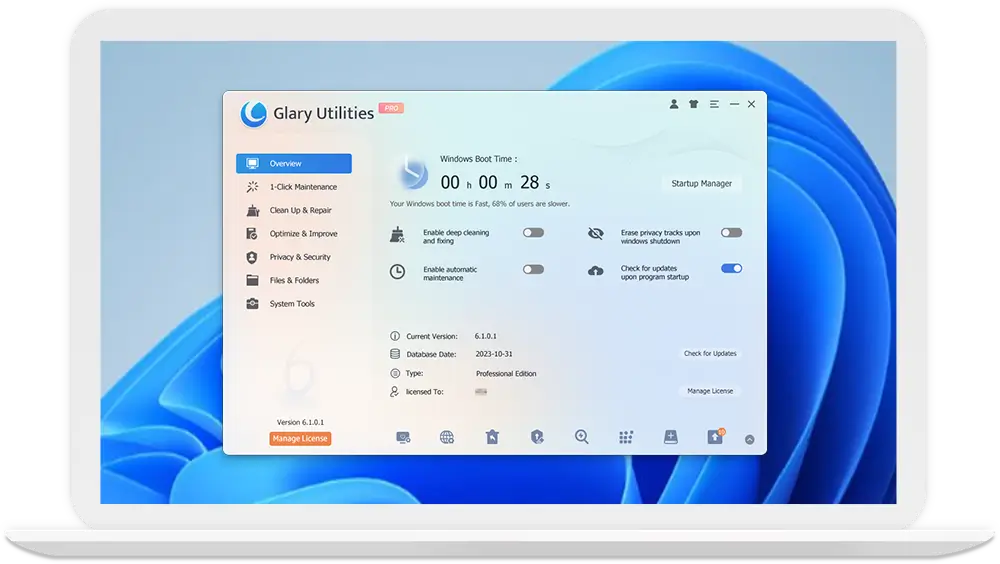
Used with a light touch, Glary Utilities 6 works more like a safe maintenance dashboard than a risky “Fix All” button. One-Click Maintenance, Disk Cleaner, Startup Manager, and privacy tools can reclaim space and improve boot times. They also help cut background clutter that slows everything down.
This review shows how to use Glary Utilities for real gains, not hype. You’ll see when it helps, when to stop, and how it compares with tools like CCleaner and Advanced SystemCare. The goal is simple: a faster PC without dangerous tweaks.
Disclosure: TechBre may earn a commission if you buy through these links (at no extra cost to you).
Buy Glary Utilities Pro
- Glary Utilities PRO Site License – 1 Year Subscription
- Glary Utilities PRO
- Glary Utilities PRO Technician
Want to try for a bigger discount?
If you’re price-checking, you can also browse the latest GlarySoft deals (offers may change or expire):
Key Takeaways
- Use One-Click Maintenance for quick wins; avoid aggressive registry cleaning.
- Create a restore point before major changes to protect your system.
- Expect faster scans, better boot control, and cleaner app leftovers in version 6.
- Do not defrag SSDs; reserve defrag for HDDs only.
- Glary Utilities competes well with CCleaner and Wise tools for everyday cleanup.
- Download only from official sources to reduce risk and ensure update support.
- Targeted cleanup beats “fix everything” buttons for stability and speed.
What’s New in Glary Utilities 6 for 2026: Version Changes and Upgrades
Glary Utilities 6 brings steady cleanup, smarter detection, and safer control for Windows 10 and 11. It offers broader app coverage, quicker scans, and clearer status cues, matching GlarySoft’s positioning as an all-in-one PC optimization suite.
Continuous Disk Cleaner improvements and broader app support
Disk Cleaner now supports Windows updates, system download cache, and Memory Dump files. This helps you reclaim space more easily without digging through folders. It also improves support for Chromium-based browsers and popular forks such as Brave and Vivaldi.
App-specific cleaning adds profiles for Nitro Pro 14 and Foxit PDF Editor 2024. It also supports RealPlayer 24 and MAGIX Video Pro X16. Legacy traces like Macromedia Flash 8 are recognized as well, which helps reduce leftover clutter from older installs.
Tracks Eraser upgrades for modern browsers and apps
Tracks Eraser mirrors the broader app support, allowing you to wipe history, cache, and cookies across Firefox variants and the latest Chromium builds. Cleaning rules were tuned to reduce false positives while keeping privacy cleanup tasks simple.
Support extends to apps like Foxit Phantom 13, RealPlayer 24, MAGIX Video Pro X16, and Camtasia Studio 24. This helps you get consistent results across work and media tools.
Registry Repair and Quick Search refinements
Registry Repair improves scanning logic to catch broken references and orphaned entries with fewer risky hits. The interface was refreshed, and automatic scanning options make light maintenance easier for busy users.
Quick Search upgrades its indexing and classification, speeding up file discovery while clarifying statuses in the results pane. You can locate documents, installers, and large items faster, which pairs well with Disk Cleaner improvements noted in independent testing. PCMag’s Glary Utilities Pro review
Startup, Uninstaller, and Empty Folder Finder Optimizations
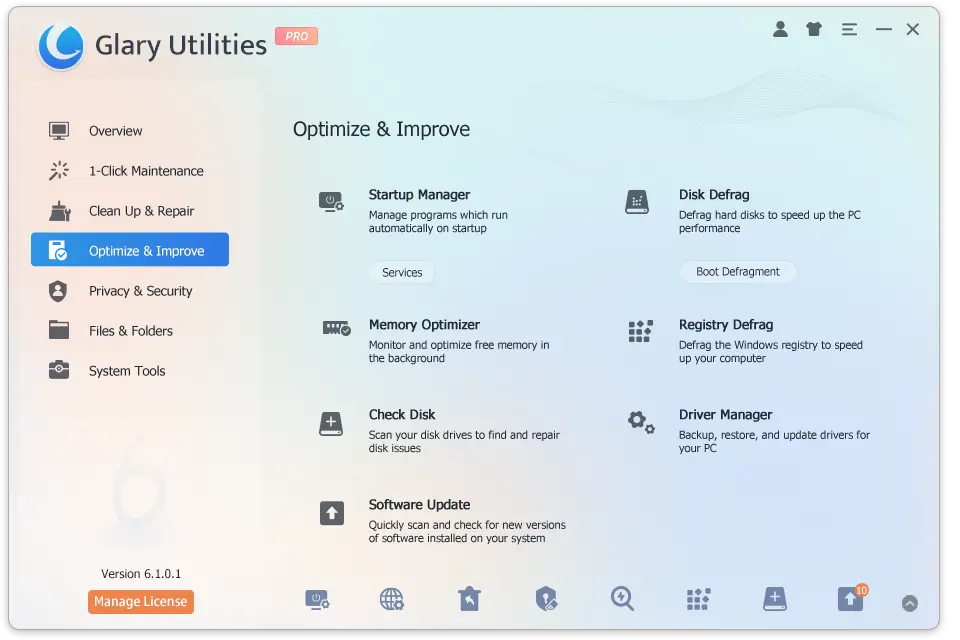
Startup Manager adds clearer review and undo controls, plus better boot-time guidance. This helps you trim delays without breaking essential services. Recommendations are more conservative to keep your system stable.
Uninstaller Manager sharpens leftover detection, icon recognition, and language handling. This makes complex removals less tedious. Empty Folder Finder now supports multi-select actions and export, so you can validate before you delete.
User experience updates: GUI tweaks, scanning speed, and stability
You’ll notice smoother progress bars, saner defaults, and fewer stalls during long scans. One-Click Maintenance benefits from algorithm polish, while Disk Defrag gains more precise analysis and gentler automatic behavior on supported drives.
Nearly every module receives small UI and bug-fix passes that add up to a calmer workflow. These incremental touches echo what careful testers highlight in a thorough glary utilities review and help tie today’s release cycle back to benchmarks from glary utilities review 2021.
| Area | What Changed | Why It Matters | Real-World Example |
|---|---|---|---|
| Disk Cleaner | Added support for Windows update debris, caches, and memory dumps; broader browser/app coverage | Frees more space with less manual digging | Removes leftover Windows updates and Brave/Vivaldi cache in one pass |
| Tracks Eraser | Expanded rules for modern browsers and creative apps; accuracy tweaks | Cleaner privacy sweeps with fewer misses | Clears Edge Dev and Firefox traces without touching saved sessions |
| Registry Repair | Safer detection logic and refreshed UI; optional auto-scan | Reduces risk while fixing common registry clutter | Flags orphaned COM entries without aggressive deletions |
| Quick Search | Faster indexing, better classification, clearer statuses | Quicker file discovery and review | Finds large ISOs and recent downloads in seconds |
| Startup Manager | Improved review/undo and boot-time guidance | Faster starts with safer choices | Disables nonessential auto-launchers while keeping drivers |
| Uninstaller | Better leftover detection and icon/language handling | Cleaner removals with fewer remnants | Removes trial tools and scrubs residual folders/keys |
| Empty Folder Finder | Multi-select, export, and smarter deletion flow | Quicker housekeeping and verification | Exports candidate list, reviews, then bulk-deletes |
| UX and Stability | GUI polish, progress cues, faster scans, calmer defaults | Less friction and fewer scan interruptions | Smoother One-Click run while streaming or working |
Core Features Breakdown: One-Click Maintenance, Cleanup, and System Care
In this review, we explore the tools that keep Windows running smoothly. The suite offers a simple way to fix common issues, clean up, and check for safety. We’ll discuss the good and bad of Glary Utilities, aiming for a fair review.
One-Click Maintenance for fast tune-ups
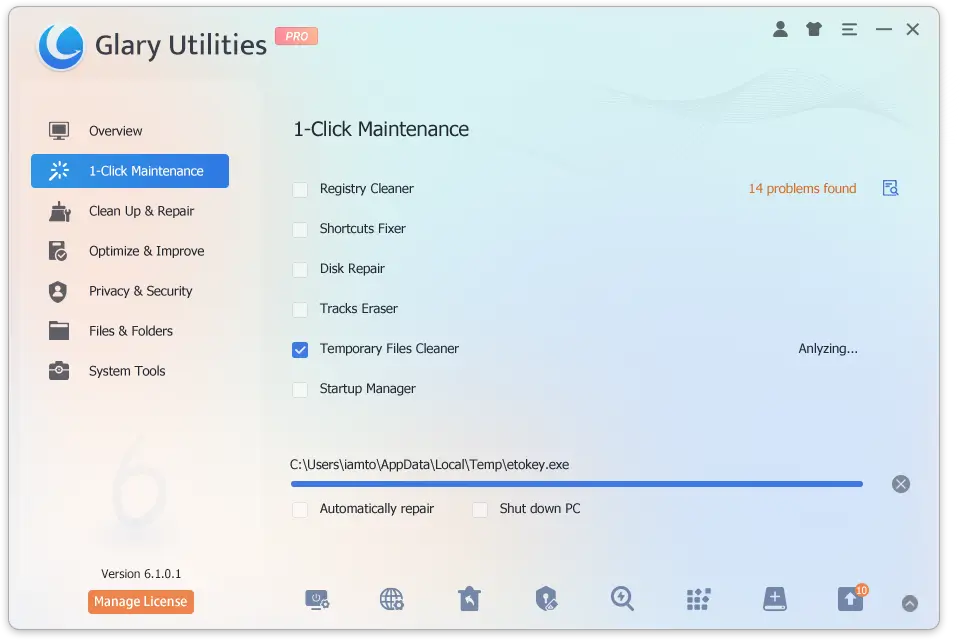
Use One-Click Maintenance when your PC feels slow but you’re short on time. It combines light cleaning and simple fixes. Version 6.4.0.7 made it safer, and you can schedule it monthly to avoid over-cleaning.
This method is quick, safe, and effective. It’s a standout feature in any Glary Utilities review for its ease and results.
Disk Cleaner and Disk Analysis for reclaiming space
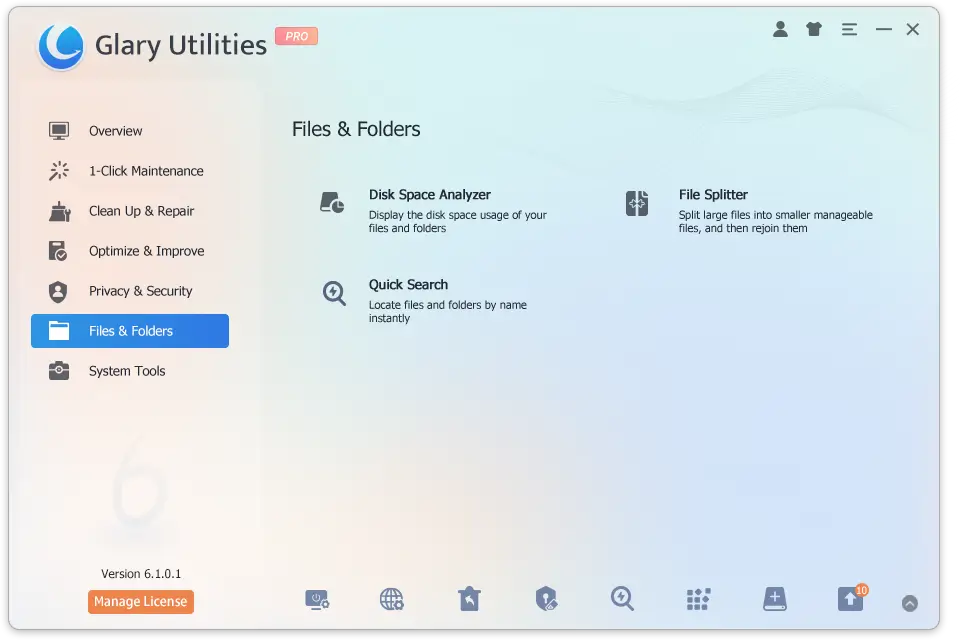
Disk Cleaner removes temp files, caches, and more. It supports many apps and browsers. It even recognizes Foxit PDF Editor 2024 and Camtasia.
Disk Analysis shows what’s taking up space. Updates in 6.8.0.12 and 6.2.0.5 make it easier to find and delete large folders. It’s a key feature for cleaning up storage.
Registry Repair and Registry Defrag considerations
Registry Repair got better in 6.29.0.33, with fewer false positives. Registry Defrag improved in 6.8.0.12 and 5.207.0.237.
There are pros and cons to using these tools. Light cleaning is safe, but aggressive cleaning can break apps. Always create a restore point first and only defrag if you see bloat.
Startup Manager, Process Manager, and Context Menu Control
Startup Manager got updates in 6.27.0.31 and 6.22.0.26. It helps disable slow items and roll back changes. Earlier updates improved boot times and scans.
Process Manager now groups processes and shows CPU usage. Context menu cleanup and Quick Search make finding files faster. These updates are praised in any balanced review.
File Shredder, File Undelete, and Privacy Tools
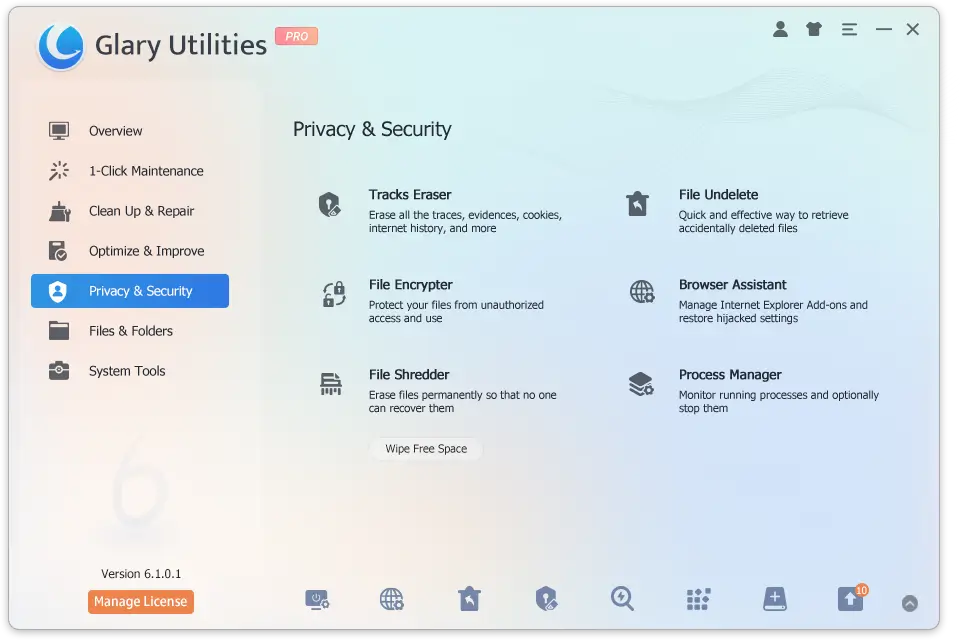
File Shredder securely deletes files, with UI and right-click updates in 6.2.0.5. File Undelete scans improved in 6.24.0.28 to recover more safely. Wipe Free Space algorithms were updated to reduce traces.
Tracks Eraser covers modern browsers, and Duplicate Cleaner got usability tweaks. The toolkit is wide-ranging, but can be overwhelming for beginners. This is a fair point in any Glary Utilities review.
Glary Utilities Review: Real-World Performance on Windows 10 and 11
Want to see how system care boosts Windows 10 and 11? This review dives into real-life speed, storage gains, and stability. It shows how small updates add up, as many Reddit threads and reviews agree.
Everyday gains: freeing storage, faster boot, smoother multitasking
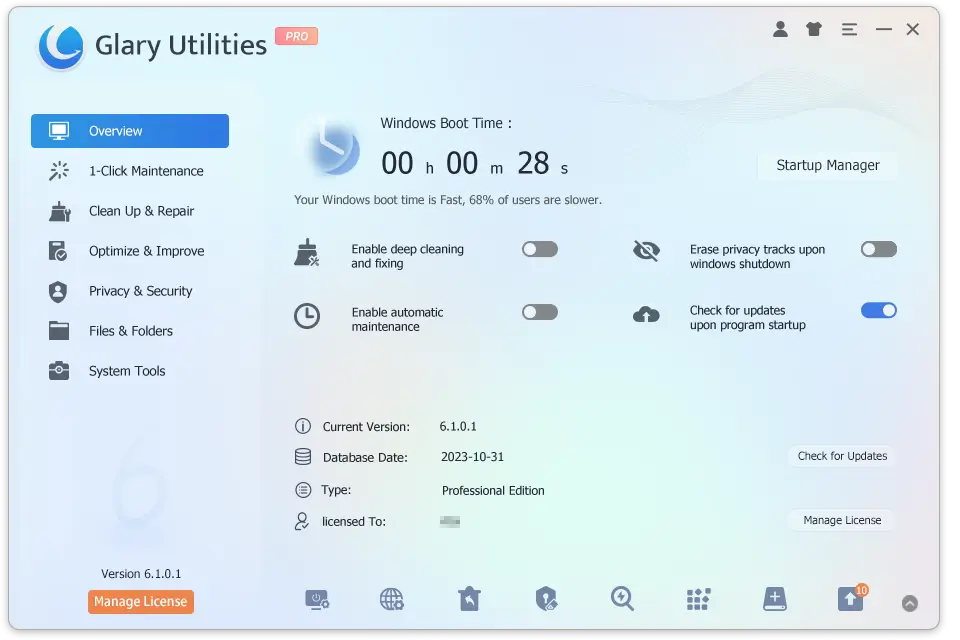
Clear out temporary files, browser caches, logs, and old installers to free up space quickly. Trim startup apps to speed up boot times. Keep only what you need.
Use One-Click Maintenance weekly for quick wins. Pair that with Startup Manager and Process Manager to control background tasks. These steps are key for steady results, as the best reviews suggest.
Impact of continuous algorithm optimizations across releases
Version 6 updates improve scan speed, detection, and interface clarity. Disk Cleaner and Tracks Eraser find more junk with fewer false positives. Uninstall leftovers are flagged better, and Quick Search and progress displays are snappier.
Over the 6.x cycle, these updates add up. You spend less time waiting, and maintenance runs smoother. This is a common theme in careful reviews and balanced Reddit discussions.
When to use defrag on HDDs and skip on SSDs
Defrag only traditional hard drives to regroup data and free up space. Leave solid-state drives alone. Windows Drive Optimizer handles TRIM on SSDs.
Glary’s Disk Defrag got algorithm tweaks in versions like 6.13.0.17 and 5.206.0.235. Use it for HDDs, and let Windows manage SSDs for longevity and stability.
Safety practices: restore points and conservative registry cleaning
Create a restore point before big changes, then tweak one thing at a time. Avoid aggressive registry cleaning; remove only what you understand. Stick to the official download to avoid bundled extras or tampered installers.
These habits are standard PC care. They also reflect the safest path to steady gains, as the best reviews advise.
How it compares in common workflows like gaming and content creation
For gaming, a lean startup and routine cleanup free up RAM and CPU for smoother play. Add Windows Game Mode, and if needed, use a specialist like Razer Cortex for boosts. Expect faster level loads when disk clutter drops.
For creators, clear large caches and stale project folders, then run Disk Analysis to spot space hogs. This keeps Adobe Creative Cloud apps, DaVinci Resolve, and Blender workflows moving. A grounded review and many Reddit posts agree: monthly maintenance pairs well with real hardware upgrades.
| Scenario | What to Tweak | Expected Effect | Risk Level |
|---|---|---|---|
| Daily browsing and office | Disk Cleaner, Startup Manager | Faster launch, fewer hangs | Low |
| Gaming sessions | Trim startups, clear caches, optional Razer Cortex | More free RAM/CPU, steadier FPS | Low |
| Content creation | Disk Analysis, remove old project files | More working space, quicker renders | Low |
| Old HDD systems | Defrag HDD only, skip SSD | Faster file access on HDD | Medium if misapplied |
| System hygiene | Restore point, light registry cleanup | Safer rollbacks, fewer errors | Low |
Comparisons and Alternatives: Glary Utilities vs CCleaner and Other Optimizers
You want your Windows PC to stay fast and clean, not overloaded with overlapping tools. This section compares Glary Utilities vs CCleaner and other popular optimizers, so you can see where Glary fits, when it’s the better all-in-one choice, and when a specialist cleaner might make more sense.
Best use cases: Glary Utilities Free and Pro positioning
Glary Utilities Free offers over 20 tools for cleaning up space and more. It’s great for those who want detailed control. The Pro version adds automation and support at a good price.
Free is best for those who like to do things themselves. Pro is for those who want easy upkeep and support. Most reviews say Glary is easy to use but deep in features.
Glary Utilities vs CCleaner: one-click cleaning and feature depth
CCleaner Free is simple and quick, focusing on removing junk files and cleaning browser data. It’s a good choice if you just want a light, straightforward cleanup tool you can run in a few clicks.
Glary Utilities goes further with One-Click Maintenance, Startup Manager, Process Manager, and privacy tools. Choose CCleaner for a basic tidy-up, and Glary when you want a full suite to manage cleanup, startups, and deeper system care from one place.
Where Advanced SystemCare, Ashampoo WinOptimizer, and Wise tools fit
IObit Advanced SystemCare Free offers a full tune-up. Ashampoo WinOptimizer Free has many modules and an upgrade path. Wise Disk Cleaner and Wise Care 365 focus on storage and privacy.
These tools are good alternatives if you like their features. Compare their tasks, schedulers, and how they handle app leftovers before switching.
Built-in Windows options: Disk Cleanup, Storage Sense, Drive Optimizer
Windows has safe basics like Disk Cleanup and Storage Sense. Task Manager helps with startup control. Drive Optimizer is for defragging.
Third-party suites like Glary add more features. They clean apps and remove privacy traces. Many reviews say these extras save time, mainly for app managers.
When to add specialists like Razer Cortex or Auslogics Disk Defrag
Razer Cortex frees up RAM and CPU for gaming. Use Auslogics Disk Defrag for mechanical drives. IObit Uninstaller removes stubborn programs.
Use one main suite and one specialist. Avoid too many cleaners or modules. This balanced approach is good advice from any careful review or comparison.
Changelog Highlights That Matter: From 5.x to 6.x Stability and Support
Glary Utilities 6 focuses on steady improvements, not flashy extras. If you upgraded from 5.x, you’ll notice broader app coverage, faster scans, and a smoother, simpler interface.
Cleaning now reaches more modern browsers and tools, plus Windows update files, download cache, and memory dumps. That means less clutter and more free space after each run.
Core modules like Registry Repair, Quick Search, Startup Manager, and Uninstaller Manager are safer and clearer, with better leftover detection and undo options. Disk Defrag, Disk Analysis, Wipe Free Space, and Duplicate Cleaner also feel faster and more stable, so maintenance on Windows 10 and 11 is calmer and more predictable.
Conclusion
Glary Utilities 6 is a solid toolkit for Windows 10 and 11. It offers a mix of quick fixes and detailed tools for cleaning up, managing startups, and more. Regular use of these tools can really make a difference.
It’s important to use Glary Utilities wisely. Avoid defragmenting SSDs and be cautious with registry cleaning. Always create a restore point before making big changes. Make sure to download from the official site.
Compared to other tools, Glary Utilities has a wide range of features and updates often. Windows’ built-in tools like Disk Cleanup are still good to have around.
For easy maintenance, run One-Click Maintenance once a month. Check startup items every three months. Use Disk Analysis to find and remove big files. Many people on glary utilities review Reddit agree with these steps.
Overall, Glary Utilities offers steady improvements without being too complicated. It’s a reliable choice for keeping your system running smoothly.
Further Reading
- Is 7-Zip Safe?
- Is WinRAR Safe to Use?
- IObit Advanced SystemCare Review
- Glary Utilities Pro vs Advanced SystemCare
- Free Optimization Software: 13 Free PC Optimizers (2026 Guide)
FAQs
Q: Is Glary Utilities 6 safe for Windows 10 and 11, and what should you avoid?
A: Yes, Glary Utilities 6 is safe when you use it with a light touch. Always create a restore point before you run big cleanups. Avoid aggressive registry cleaning, do not defrag SSDs, and stick to official downloads from GlarySoft to avoid bundled or tampered installers.
Q: What real performance gains can you expect from Glary Utilities?
A: You can usually free up several gigabytes by clearing temp files, caches, old installers, and leftover Windows updates data. Trimming startup apps speeds up boot time, and Process Manager can reduce background load so everyday browsing, Office work, and light gaming feel smoother.
Q: What’s new in Glary Utilities 6 for 2026 compared with earlier 5.x releases?
A: Glary Utilities 6 adds wider browser and app coverage, faster and more accurate scans, better leftover detection after uninstalls, and a cleaner interface. Recent 6.x builds extend Disk Cleaner to Windows updates, system download cache, and memory dumps, while Tracks Eraser gets updated rules for newer Chromium browsers.
Q: How does One-Click Maintenance work, and how often should you run it?
A: One-Click Maintenance bundles safe cleanup and light fixes into a single pass. It checks for junk files, simple registry clutter, and basic privacy traces, then lets you review results. For most people, running it once or twice a month is enough; combine that with a quarterly review of startup items for long-term gains without over-tuning.
Q: Should you use Registry Repair, Registry Defrag, and Disk Defrag?
A: Use Registry Repair only for obvious orphaned entries and always with a restore point saved. Skip Registry Defrag unless you’re troubleshooting a very specific issue on an older HDD-based system. Use Disk Defrag on mechanical hard drives only, and let Windows Drive Optimizer handle SSD maintenance so you don’t shorten SSD lifespan.
Q: How does Glary Utilities compare to CCleaner and other PC optimizers?
A: CCleaner Free is excellent for quick junk removal and simple browser cleanup. Glary Utilities goes wider with One-Click Maintenance, Startup and Process managers, Quick Search, Uninstaller leftovers, privacy tools, and more. Alternatives like Advanced SystemCare, Ashampoo WinOptimizer, and Wise utilities are good too, but Glary stands out for its breadth and frequent updates.
Q: Are Windows built-in tools like Disk Cleanup and Storage Sense enough on their own?
A: Windows built-ins are a safe baseline: Disk Cleanup or Storage Sense for junk, Task Manager for startup control, and Drive Optimizer for disk maintenance. For many casual users, that may be enough. Glary Utilities becomes useful when you want deeper app-aware cleaning, better leftovers after uninstalls, easier privacy cleanup, and convenient automation from a single dashboard.