Disclosure: We may earn a commission from links on this page. Learn more.
Is PeaZip Safe? Review + How to Use PeaZip for File Compression and Encryption
Is PeaZip safe to use? For most people, yes—but only if you treat file compression and encryption like a security task, not a quick click. The real risk usually isn’t PeaZip itself; it’s the common mistake of downloading it from random sites or unpacking an unknown archive into the wrong folder without checking what’s inside.
This guide gives you a clear security review of PeaZip, plus the safest way to use it for file compression and encryption in 2026. You’ll learn which file formats it supports, how to compress a folder cleanly, how to encrypt archives properly, and the best practices that help you stay protected.
Is PeaZip Safe? Security Review (Risks & Best Practices)
Quick answer: Is PeaZip safe to use?
PeaZip, as an open-source compression software, is generally safe to use. However, like any software, potential risks exist.
It is crucial to download PeaZip from the official website to avoid malicious versions. Always maintain updated antivirus software and exercise caution when handling archives from untrusted sources to ensure secure file management.
Potential risks (malicious archives, fake downloads, macros/scripts)
Potential risks usually come from what’s inside the archive, not PeaZip itself. A malicious archive can hide dangerous files (EXE, MSI, JS, LNK) or Office documents that may contain macros.
Fake downloads from unofficial sites are another risk. To stay safe, scan archives before extraction and avoid opening any unknown file types.
Best practices to stay protected (safe download, scan, open carefully)
To stay protected, enhance your security with this compression tool by following a few key practices, including:
- Always download PeaZip from its official website and scan all downloaded archives with a reputable antivirus program before extraction.
- Exercise caution when opening files from unknown sources and employ secure file handling practices, such as verifying the sender and using strong passwords.
Introduction to PeaZip
What is PeaZip?
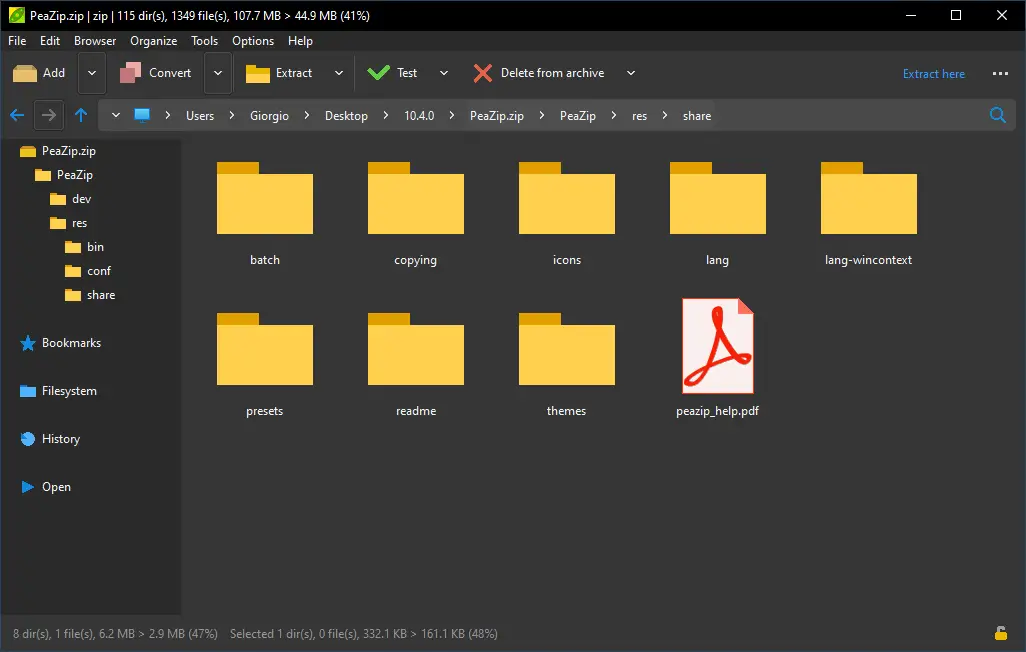
PeaZip is a free, open-source file compression and encryption utility. It works as an archive manager that can create and extract many formats.
PeaZip supports Windows and Linux (and also macOS), and it’s popular for users who want a flexible tool for secure file handling.
Who develops PeaZip?
PeaZip is developed and maintained by Giorgio Tani as an open-source project. It’s free to use for personal and professional use, and the code is publicly available.
Key features of PeaZip
Here are some of the key features that PeaZip offers:
- The ability to create archives in various formats like 7z, zip, and tar.
- Strong encryption using algorithms like AES for secure file storage.
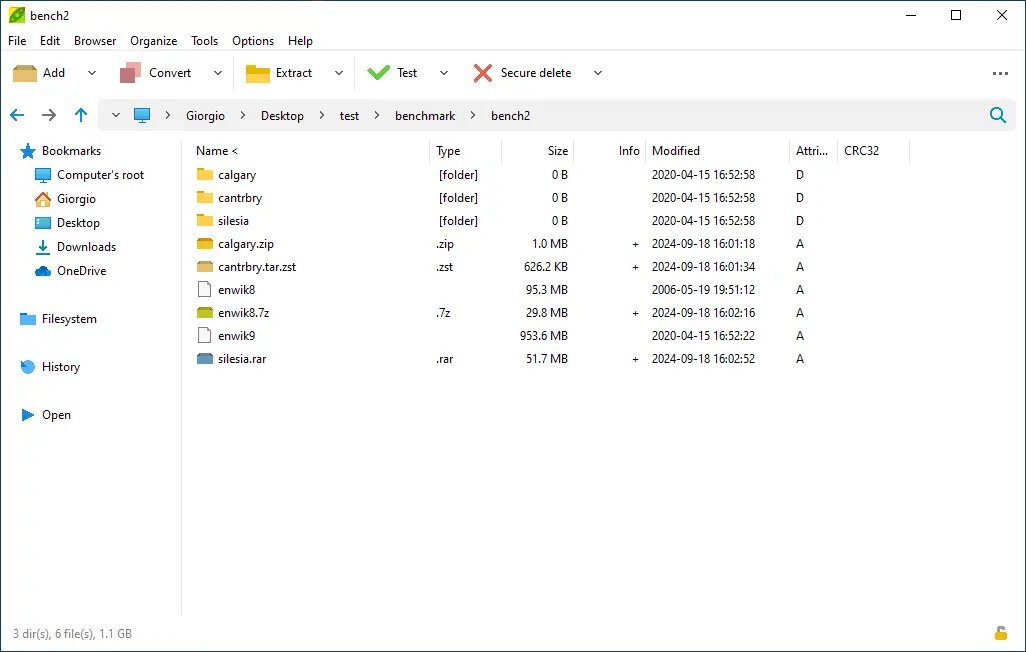
Additional features include file splitting, secure file deletion, password management, and integration with Windows Explorer and file manager.
Supported file formats (compression + extraction)
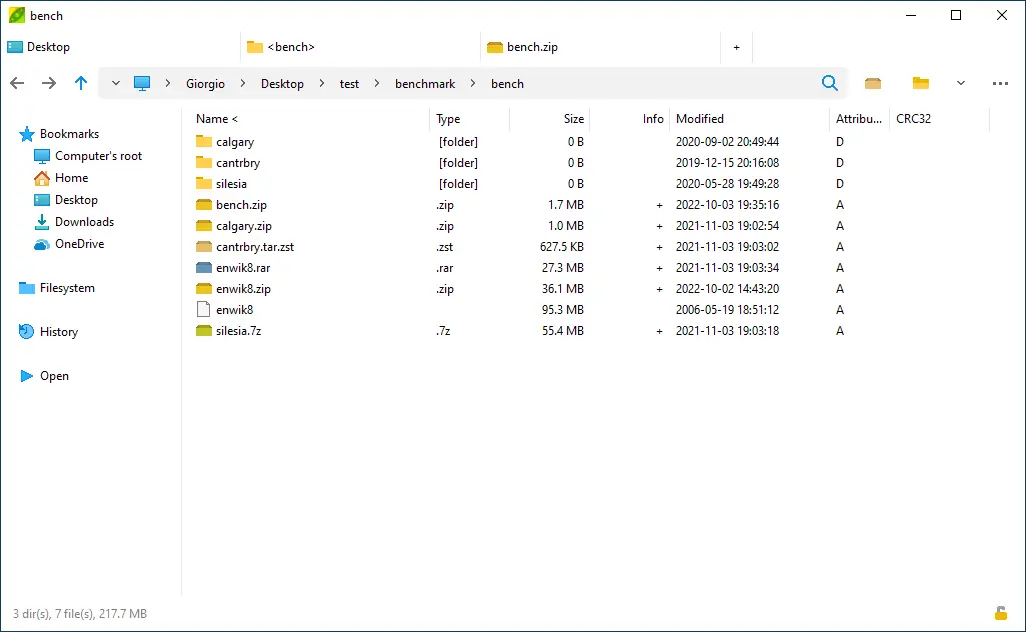
PeaZip is a cross-platform, user-friendly desktop archive manager (a GUI frontend) for zip files and other compressed files. It supports drag and drop, and also offers command line options for advanced archive management.
PeaZip can create 7z, ZIP (WinZip/Windows built-in compatible), TAR, zstd and its pea format, and extract many formats including RAR, WIM, and XZ. Creating RAR usually requires the proprietary WinRAR rar.exe backend, while extracting RAR is supported directly.
Best practice: extract unknown archives to a new temp folder first, then review files before opening.
How to Use PeaZip for File Compression
Step-by-step: compress a folder or files
To compress a folder or files using PeaZip, begin by selecting the desired files or folder. Right-click and choose “Add to archive” from the context menu.
In the PeaZip window, select the desired output archive format (e.g., zip, 7z, or tar). Adjust compression settings as needed, and then click “OK” to initiate the file compression process. PeaZip offers ease of use.
File compression formats (7z vs ZIP vs TAR)
PeaZip supports multiple file compression formats, each with its advantages.
7z offers a high compression ratio and supports strong encryption, making it ideal for secure file storage. ZIP is widely compatible and easy to use, making it suitable for general archiving. TAR is commonly used on Linux systems and often combined with gzip or bzip2 for compression. The pea archive format offers even more flexibility.
Advantages of file compression (size, sharing, backup)
File compression offers several advantages. In particular, it provides benefits such as:
- Reduced file size, making it easier to share files via email or cloud storage.
- Compressed archives consume less storage space, which is beneficial for backups.
Compression can also speed up file transfers and reduce bandwidth usage, especially when sharing large files. PeaZip supports splitting.
PeaZip Encryption
How to encrypt files using PeaZip
To encrypt files using PeaZip, start by adding the files to an archive. In the archive settings, select an encryption algorithm such as AES.
Enter and confirm a strong password for the archive. Optionally, you can use a keyfile for added security (password + keyfile can act like two factor authentication for supported encrypted archives). Ensure the “encrypt file names” option is selected for maximum protection. PeaZip makes encryption easy.
File compression and encryption together (what to choose)
When combining file compression and encryption, consider your specific needs. For maximum security and high compression, 7z with AES encryption is a good choice. ZIP with password protection offers broader compatibility but may be less secure.
Evaluate the trade-offs between compression ratio, security, and compatibility to choose the best method. PeaZip supports secure file compression and encryption.
Encryption algorithms used in PeaZip (high-level)
PeaZip employs robust encryption algorithms like AES (Advanced Encryption Standard) and Twofish for secure file storage. AES is a widely used symmetric-key encryption algorithm known for its strength and efficiency.
Twofish is another strong encryption algorithm that provides a high level of security. These algorithms ensure that your data remains protected. Standard PeaZip employs up to 256-bit encryption.
Best practices for encrypted archives (password tips)
For encrypted archives, use strong, unique passwords that are at least 12 characters long. Include a mix of uppercase and lowercase letters, numbers, and symbols.
Avoid using easily guessable words or personal information. Consider using a password manager to securely store and generate complex passwords. Never share your password with anyone. Change your password regularly for added security when you use PeaZip.
Using PeaZip Without Installation
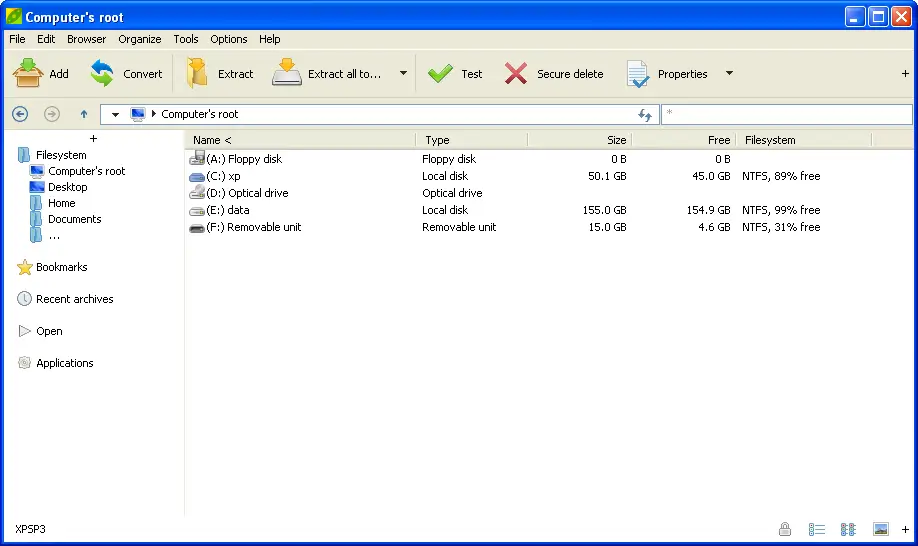
Portable version of PeaZip
The portable version of PeaZip lets you run the tool without installation—useful on shared PCs or systems where you don’t have admin access.
You can run it from a USB drive or a local folder and still compress or encrypt files. (Windows Explorer integration is mainly tied to the installed version, not the portable one.)
How to run PeaZip from USB
To run PeaZip from USB, download the portable version from the official website. Extract the downloaded archive to your USB drive.
Then, simply run the PeaZip executable file from the USB drive. The program will run without requiring any installation on the host computer. The portable version retains all the features of the installed version, including file compression and encryption.
When portable is useful (work PC, lab, travel)
The portable version of PeaZip is useful in various scenarios. It is ideal for use on work computers where you may not have administrative privileges to install software.
It is also handy in computer labs, during travel, or any situation where you need a compression tool on the go. The portable version ensures you can always access your favorite file compression and encryption tool on any computer, while keeping your data secure and private. PeaZip supports a range of file formats.
PeaZip Review
What PeaZip does well (speed, formats, UI)
PeaZip excels in several areas, making it a strong contender in the file compression software market. Its speed, particularly when handling large archives, is commendable.
It supports a wide range of file formats, ensuring compatibility with various archive types. The user interface offers ease of use while providing advanced features for experienced users, which is great in file compression.
Common user feedback (pros/cons)
User feedback often highlights PeaZip’s pros, such as its open-source nature, strong encryption capabilities, and support for numerous file formats. Some users appreciate the portable version for its flexibility.
Cons may include a slightly steeper learning curve for beginners and occasional interface quirks. Still, it is a great compression tool for file compression and encryption.
Comparative safety notes (PeaZip vs 7-Zip vs WinRAR)
When comparing PeaZip, 7-Zip, and WinRAR, all are generally safe if downloaded from official sources. However, PeaZip and 7-Zip benefit from being open-source, allowing for community security audits.
WinRAR, while proprietary, has a long track record. All three require caution when handling archives from untrusted sources. Never extract such archives without proper virus scanning. PeaZip supports extraction for most archives.
Where to Download PeaZip Safely
PeaZip official site (what to check before download)
The safest place to download PeaZip is from its official website. Before downloading, make sure the site uses HTTPS to ensure a secure connection. Check for the latest version number and release date to confirm you’re getting the most up-to-date software. Also, review the checksum or hash provided to verify the integrity of the downloaded file.
How to verify you got the right installer (basic checks)
After downloading the PeaZip installer, verify its integrity using checksums or hash values provided on the official website. Compare the hash of your downloaded file with the official hash to ensure they match. This confirms that the file hasn’t been tampered with during the download process and that you’re using a safe version. This also gives you peace of mind using the tool.
How to remove PeaZip (uninstall)
On Windows, uninstall PeaZip from Settings → Apps → Installed apps, then restart File Explorer if the right-click menu still shows.
If you used the portable version, just delete the PeaZip folder from your PC/USB. If any file associations remain, reset them in Windows default apps.
Final Verdict: Is PeaZip Safe to Use in 2026?
PeaZip is a robust file compression and encryption tool with a strong feature set for secure file management. Its open-source nature, wide format support, and easy workflow make it a practical choice when you need reliable compression and protected archives.
PeaZip is recommended for users who want a free compression tool with strong encryption, and it suits both beginners and advanced users. It works across Windows, Linux, and macOS, and it’s especially useful if you regularly handle different archive formats.
If you prefer a simpler, more streamlined interface, you may like other tools better—but PeaZip is still worth considering for its flexibility and format support.
Further Reading
Want to compare PeaZip with other safe compression tools? Check out these helpful posts:
- Best File Compression Software (2026 guide)
- Wondershare PDFelement Review 2026
- 7z vs ZIP vs RAR: Choose the Right File Compression Format
- 7-Zip Review
- Is 7-Zip Safe?
- Bandizip Review
- WinZip Review
For more helpful guides, visit our Software & Apps category.
FAQs
Q: Is PeaZip safe to use?
A: Yes—PeaZip is generally safe to use when you download it from the official source, scan unknown archives, and extract files to a new folder before opening anything inside.
Q: Does PeaZip focus on security?
A: Yes. PeaZip includes a focus on security through features like encryption, optional password + keyfile protection, hashing tools, and safe handling options for archives.
Q: Can PeaZip open ZIP files made by WinZip?
A: Yes. PeaZip can extract ZIP files created by WinZip and other tools. If a ZIP file is encrypted, you may need the correct password, and compatibility depends on the encryption method used.
Q: Does PeaZip support two factor authentication?
A: Yes. PeaZip can use two factor authentication for encrypted archives as password + keyfile (not an SMS/app code).
Q: Does PeaZip support self-extracting archives?
A: PeaZip can create self-extracting archives for supported formats, depending on the output type and system configuration. Self-extracting archives can be convenient for sharing with users who don’t have an archive tool installed.
Q: Does PeaZip have management features beyond compression?
A: Yes. PeaZip includes management features like archive conversion, file hashing, secure deletion, and browsing tools that help you work with multiple archives more efficiently.
Q: Can PeaZip save disk space on every file?
A: Not always. Compression savings depend on file type. Text and documents often compress well, but already-compressed files like videos and many images may see minimal size reduction.
Q: Can PeaZip handle multiple archives at once?
A: Yes. PeaZip can work with multiple archives using tabbed browsing and batch operations, which helps when you need to compress, extract, or test many files in one workflow.
Q: Does PeaZip help find duplicate files?
A: PeaZip includes tools that can help locate duplicate files using hashing and comparisons, which can support cleanup and better file organization.
Q: What is the safest way to extract an unknown archive?
A: Extract it into a new folder first, scan the extracted files, and avoid opening risky file types (like EXE, MSI, JS, or LNK) unless you trust the source.