Disclosure: We may earn a commission from links on this page. Learn more.
Smart Security Cameras Guide for Beginners (2026 Home Setup Tips That Actually Work)
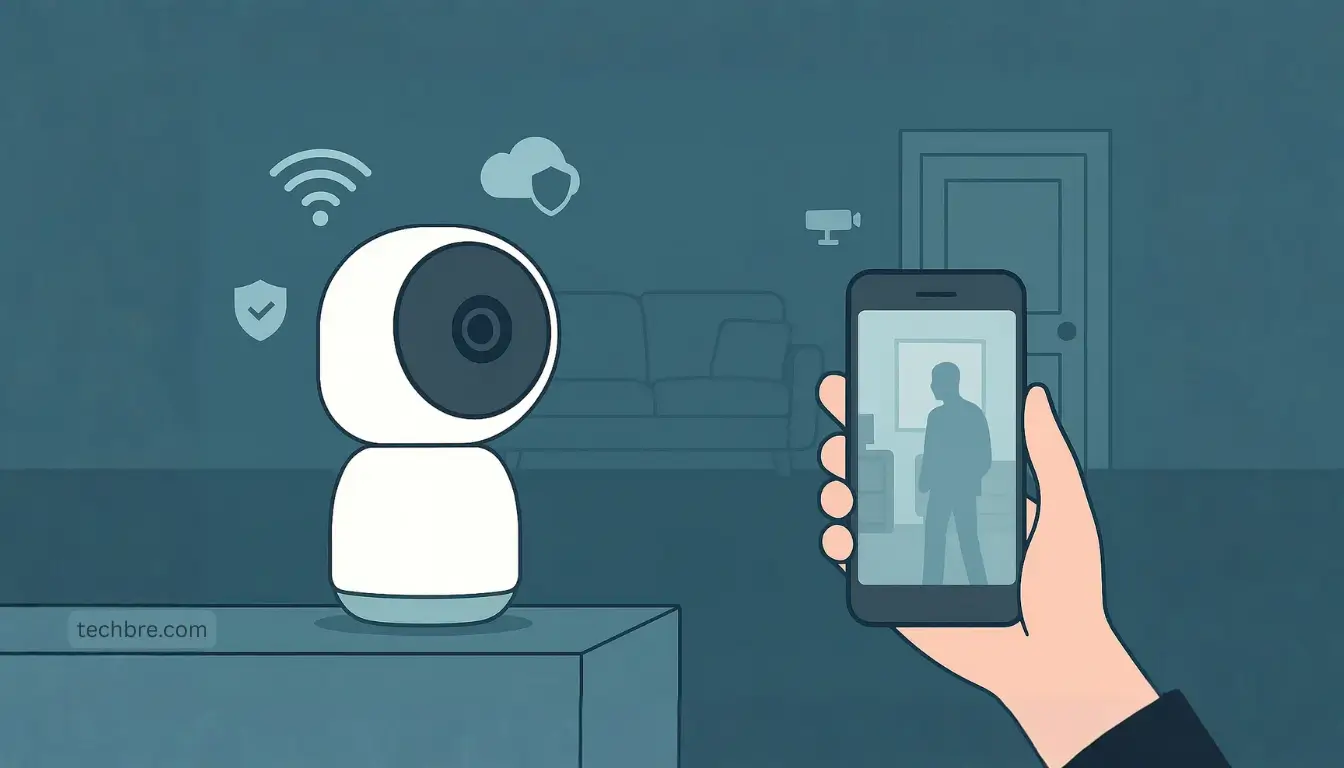
Smart Security Cameras Guide for Beginners is your shortcut to building a home camera setup that actually works, instead of another confusing tech project. Most people buy cameras badly, place them worse, and then blame the device when things go wrong.
In this guide, we will walk through a simple, step-by-step plan so your cameras truly protect your home instead of just adding more notifications.
If you want detailed product picks and deeper testing, you can explore our dedicated Smart Security Cameras category on Smart.TechBre, where we review real devices in everyday homes.
Smart Security Cameras Guide for Beginners: What’s the Short Answer?
Smart Security Cameras Guide for Beginners in 2026 comes down to three things: fix your Wi-Fi, choose the right camera for each space, and plan storage and privacy before you install anything.
If you just need the short version:
- Fix your Wi-Fi first so cameras stay online and do not freeze.
- Choose the right type of camera for each job (outdoor, baby room, pets, fall detection, off-grid).
- Plan storage and privacy up front so you are not surprised by cloud fees or risky sharing later.
The rest of this guide explains each step in plain language, with examples from our own smart home setups.
Beginner warning: the number one flaw in smart security camera setups is weak Wi-Fi. Fix this first, or your new camera will constantly freeze and send false alerts.
Smart Security Camera Mistakes Beginners Make (And the Real Problem)
The enemy is not the camera hardware. The real problem is the idea that buying one or two popular smart cameras is enough to secure a home.
Common flaws we see:
- Cameras placed where they miss important angles, doors or walkways.
- No thought given to Wi-Fi coverage, so streams constantly drop.
- Users sign up for free trials and then get locked into subscriptions they never planned for.
- Privacy settings never adjusted, so too many people can access feeds or recordings.
The solution is to treat smart security cameras as part of a small security system: Wi-Fi, placement, storage and privacy all working together. Once you do that, the cameras you already own start to feel much more reliable.
Step 1 – Fix Your Wi-Fi Before Adding More Cameras
Smart cameras are almost useless if your Wi-Fi is weak at the front door, garage or backyard.
Focus on three basics:
- Router location: keep it as central and as high as possible, away from metal cabinets and thick walls.
- 2.4 GHz vs 5 GHz: most cameras prefer 2.4 GHz for range, even if your phone prefers 5 GHz.
- Mesh Wi-Fi if needed: larger homes and townhouses often need mesh Wi-Fi for stable coverage.
If your cameras constantly go offline or show “poor connection”, it is almost always a Wi-Fi coverage issue, not a camera defect. Fixing this first will save you hours of frustration later.
Step 2 – Choose the Right Type of Smart Security Camera
Different jobs need different cameras. Here is how to think about the main use cases, with real examples from our smart home content on Smart.TechBre.
Outdoor Cameras and Blind Spots
Outdoor cameras are your first line of defence, but poor placement can leave big gaps. You want to see:
- Main entry doors
- Driveways and walkways
- Back gates or garden entrances
Our detailed guide How to Place Outdoor Security Cameras to Eliminate Blind Spots — Our 4 Smart Steps shows how we walk around a property, map blind spots, and adjust angles so motion alerts actually matter.
If outdoor coverage is your main goal, start with that process before buying extra cameras you may not need.
Indoor PTZ Cameras for Baby Monitoring
For nurseries and kids’ bedrooms, a simple fixed camera can work, but pan-tilt-zoom (PTZ) models give you more flexibility.
You can pan across the room without moving the mount, zoom in to check breathing or see what a toddler is doing, and reuse the same camera in another room later.
In How We Use a Pan-Tilt-Zoom Indoor Camera to Monitor Our Baby we explain why we chose PTZ for baby monitoring and how we set up notifications so we do not get spammed all night.
Indoor Cameras for Pets and Daily Life
Pet owners often want cameras for two reasons:
- To check on pets while at work or travelling.
- To catch mischief and protect furniture, shoes or bins.
Our roundup Our 6 Best Indoor Wi-Fi Cameras for Pet Monitoring focuses on cameras that handle motion smoothly, work well with home Wi-Fi, and have app features that actually help, not just look good in screenshots.
If your main goal is pet monitoring, you do not need outdoor-grade hardware. A good indoor Wi-Fi camera with reliable notifications is usually enough.
Fall Detection and Vulnerable Family Members
For older adults or anyone at risk of falling, the priority is fast detection, not just high-resolution video.
In CareTech Atlas: Our Best Smart Devices for Fall Detection we look at smart cameras and sensors that specialise in fall detection and caregiver alerts. These tools are about dignity and independence as much as security.
If you are caring for parents or grandparents, invest in devices that can recognise falls and send alerts quickly, instead of relying only on basic motion clips.
Off-Grid and No-Wi-Fi Locations (4G LTE Cameras)
Sometimes you need cameras where there is no fixed internet at all:
- Remote cabins or farms
- Construction sites
- Parking lots or storage areas
That is where 4G LTE cameras matter. They use mobile data instead of home Wi-Fi, often powered by solar panels.
Our guide 4G LTE Cellular Security Camera — NO WIFI, Solar Security That Actually Works explains how we test LTE cameras, what to watch for with data plans, and how to avoid overspending on cloud storage.
If you recognise your situation in any of these examples, start with that type of camera first instead of buying a generic one-size-fits-all kit.
Step 3 – Plan Storage: Cloud Plans vs Local Recording
Every smart security camera needs somewhere to store clips. If you ignore this part, you often end up with either no history when you really need footage or with expensive cloud subscriptions you did not plan for.
Most systems offer three main options:
- Cloud storage: easiest to use and quick to access from your phone, but with ongoing monthly fees and dependence on the vendor’s servers.
- Local storage on microSD: cheaper over time and more private, but you must manage cards and accept that a stolen camera can take the card with it.
- NVR or base station: a hub that records multiple cameras locally, ideal for larger systems but more complex to set up.
Before you buy, decide:
- How many days of history you really need.
- Whether you are happy paying ongoing subscription fees.
- Which events matter most, such as people, packages, pets or vehicles.
Choosing storage first prevents nasty surprises after the trial period ends.
Step 4 – Protect Privacy, Accounts and Shared Access
Smart security cameras see private spaces in your home. Treat them like any other high-risk online account and not just another gadget.
Take these steps:
- Use strong, unique passwords for camera accounts and your home Wi-Fi.
- Turn on two-factor authentication where available, especially for accounts that control locks or alarms.
- Limit sharing so only people who truly need access can see live feeds or recordings, and review that list regularly.
- Check default settings and turn off features you do not use, such as always-on audio recording or broad sharing options.
Privacy is not about turning cameras off. It is about making sure the right people see the right things and nobody else.
Step 5 – Example Starter Smart Security Camera Setups
Here are three simple setups you can copy or adapt for your own home.
Small Apartment Starter Setup
- One indoor Wi-Fi camera pointed at the front door.
- Optional second camera covering living room windows or balcony doors.
- Cloud storage for short history or microSD if you want to avoid subscriptions.
This setup is ideal if you rent and cannot install wired outdoor cameras or drill through external walls.
Family Home Starter Setup
- One outdoor camera or video doorbell covering the front door and driveway.
- One indoor PTZ camera in the main living area or children’s room.
- Storage split across local microSD and a low-cost cloud plan for key events.
Combine this with better Wi-Fi coverage and you cover most real-world risks for a typical family home.
Remote or Off-Grid Setup
- One or more 4G LTE solar cameras aimed at gates, storage, driveways or construction areas.
- Data plans sized for motion-based clips, not continuous recording.
- Local SD cards as backup if mobile coverage is unreliable.
This is the setup to copy if your biggest worry is theft or vandalism at locations with no broadband.
For more detailed examples and tested product picks, check out the full guides under our Smart Security Cameras category on Smart.TechBre.
When to Upgrade from “Just Cameras” to a Full Smart Security System
You know it is time to go beyond basic cameras when:
- You are managing more than four or five cameras across different apps.
- You need shared access for family members or caregivers in different locations.
- You want integrations with locks, lights or alarms, not just push notifications.
At that point, look for ecosystems that:
- Support your existing cameras or offer easy migration paths.
- Provide one app and one subscription that genuinely simplifies your life.
- Integrate well with the voice assistant you already use, whether that is Google Assistant, Alexa or Siri.
You do not have to build the perfect system on day one. Start with a few solid cameras, then grow into a fuller setup as your needs become clearer.
Smart Security Cameras Checklist (Copy This Before You Buy)
Use this short checklist as your pre-purchase filter:
- Is my Wi-Fi strong where I want to place the camera?
- Do I know which type of camera I need (outdoor, indoor, baby, pet, fall detection, LTE)?
- Have I chosen a storage plan that fits my budget and history needs?
- Are my passwords and accounts secure, with two-factor authentication where possible?
- Do I understand how this camera will integrate with the rest of my smart home?
If you can tick these boxes, you are already ahead of most first-time buyers.
For product-level comparisons, real-world placement examples and specialised guides for babies, pets, fall detection and off-grid sites, browse the latest posts in our Smart Security Cameras section on Smart.TechBre. That is where we get specific about models, features and long-term reliability in real homes.
For more official guidance on locking down your devices, you can also review the U.S. Federal Trade Commission’s advice on how to secure your home security cameras.
Conclusion: Smart Security Cameras Guide for Beginners
Smart security cameras only work well when you treat them as part of a small system, not as a single gadget. Once you fix your Wi-Fi, choose the right mix of indoor, outdoor, baby, pet, fall detection or LTE cameras, and plan storage and privacy up front, the same hardware suddenly feels far more reliable.
Use this Smart Security Cameras Guide for Beginners as your base plan, then build out from there. Start small, protect the most important areas first, and add more cameras only when you understand what is missing.
When you are ready to compare specific models, head over to our Smart Security Cameras hub on our dedicated smart home site for hands-on guides that show how these devices behave in real homes, not just on spec sheets.
Further Reading
Want to keep improving your smart home and Wi-Fi setup? Check out these helpful guides:
- Set Up Mesh Wi-Fi for Smart Home
- Fix Slow 2.4 GHz Wi-Fi at Home (2026)
- Best Wi-Fi Channel Settings for 2.4 GHz and 5 GHz (2026)
- 2.4 GHz vs 5 GHz Wi-Fi: Which Should You Use?
- What Is a Smart Plug and How Does It Work?
- Smart Home Deals Under $50
- Best Routers for Smart Homes in 2026
Find more useful smart home articles covering cameras, plugs, lights, hubs, speakers, and everyday gadget advice in TechBre Smart Home & Gadgets
FAQs
Q: How many smart security cameras do I really need for my home?
A: Most small apartments can start with one indoor camera and one at the main door, while a typical house often needs a front-door camera plus one or two covering key indoor or outdoor areas. Start with the highest-risk spots first, then add more cameras if you still see gaps in coverage.
Q: Do I need very fast internet for smart security cameras?
A: You do not need the fastest internet plan, but you do need stable Wi-Fi where each camera is installed. A few Mbps of upload speed per camera is usually enough, as long as your router placement and Wi-Fi coverage are good and you avoid overloading the network with too many devices.
Q: Are cloud subscriptions required for smart security cameras?
A: Many cameras work without a subscription, but some features like long video history, advanced motion detection or rich notifications may require a paid plan. Always check what you get for free, what moves behind a paywall after the trial, and whether local storage on a microSD card or NVR can cover your needs instead.
Q: What is the difference between indoor and outdoor smart security cameras?
A: Outdoor cameras are built to handle rain, sun and temperature changes, and are usually designed to monitor doors, driveways or yards. Indoor cameras focus more on room coverage, pet or baby monitoring and quieter designs that blend into your home, and they are not meant to be exposed to weather.
Q: How can I keep my smart security cameras private and secure?
A: Use strong, unique passwords for your camera accounts and Wi-Fi, enable two-factor authentication where available, and review who has access to your live feeds and recordings. It also helps to disable features you do not use, such as always-on audio recording or public sharing links, so only the right people can see your footage.