Disclosure: We may earn a commission from links on this page. Learn more.
What Is a Password Manager and How Does It Work in 2026?
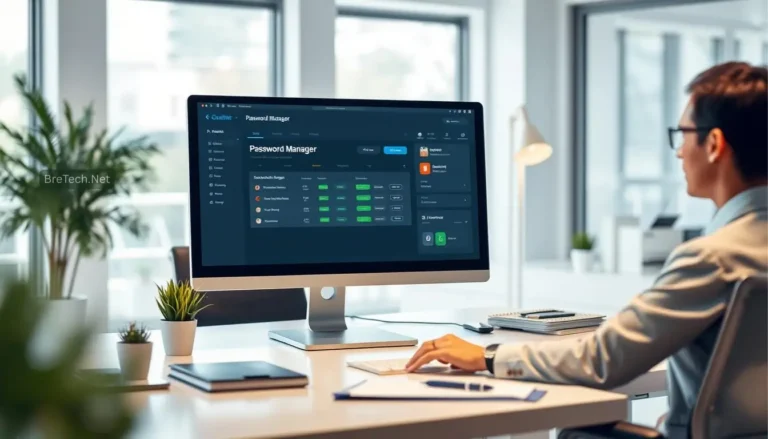
What is a password manager in 2026, and why does it matter for your everyday online life? If you’re tired of remembering dozens of logins, reusing the same simple password, or worrying about hacks, a password manager is the tool that fixes all of that.
Instead of memorising every password, you create one strong master password. The password manager keeps every other password in a secure digital vault, helps you generate new strong passwords, and fills them in automatically. That way you stay safer online without needing a perfect memory.
This guide explains what a password manager is, how it works behind the scenes, and which features actually matter for normal users in 2026.
Key Takeaways
- A password manager stores all your passwords in one encrypted vault and unlocks them with a master password.
- It can generate strong passwords, check password health, and warn you about data breaches.
- Autofill and cross-device sync make logging in much faster and less stressful.
- Good password habits plus a password manager greatly reduce the risk from weak or reused passwords.
What Is a Password Manager?
A password manager is software that stores your usernames and passwords in a secure, encrypted vault. You log into the vault with one master password instead of remembering every password for every site.
Once you are signed in, the password manager can:
- Save new logins when you create accounts
- Fill in usernames and passwords on websites and apps
- Suggest strong, random passwords when you sign up for something new
The goal is simple: better security and less frustration for you.
How Password Managers Store Credentials Securely
Under the hood, a password manager encrypts your data before it leaves your device. Modern tools use strong algorithms such as AES-256 or similar standards so that stored passwords cannot be read without your master password.
Key security points:
- Your passwords are stored in an encrypted password vault.
- The vault is locked with your master password, which you never share.
- Many services use a “zero-knowledge” design, meaning the company itself cannot see your passwords.
As long as your master password is strong and kept private, your saved passwords remain protected even if someone gains access to the encrypted data.
Benefits of Using a Password Manager
Using a password manager has two big benefits: stronger security and less hassle.
Stronger Passwords Without the Headache
Most people reuse short, simple passwords because they are easier to remember. That’s exactly what attackers count on.
A password manager can:
- Generate long, random passwords for every account
- Stop you from reusing the same password on multiple sites
- Help you update weak or old passwords over time
You only need to remember the master password; the tool remembers the rest.
Convenience of Autofill Across Devices
When you visit a login page, the password manager can recognise the site and offer to fill in your details. This works in your browser and, in many cases, in mobile apps too.
That means:
- Less typing on small screens
- Faster logins on websites you use daily
- Fewer “forgot password” resets
Once you get used to it, going back to typing everything manually feels painful.
Reducing the Risk of Password Reuse
Reusing passwords is one of the biggest security mistakes. If one site is hacked and your password leaks, attackers will try the same password on your email, banking, and social accounts.
A password manager encourages good password health by:
- Giving each account its own unique password
- Flagging reused or weak passwords
- Making it realistic to maintain dozens of different logins
Even if one site is breached, your other accounts are much safer.
| Benefit | Description |
|---|---|
| Strong password generation | Creates complex, unique passwords for each account |
| Autofill convenience | Fills in logins across devices so you don’t type everything manually |
| Reduces password reuse | Encourages unique passwords, limiting damage if one site is compromised |
Key Features of Password Managers
Not all password managers are identical, but most good ones share a few core features that make everyday use easier and safer.
Secure Password Storage
Secure storage is the core feature of any password manager. It encrypts your logins in a vault and keeps them protected behind your master password.
A solid tool should:
- Use strong, modern encryption
- Offer regular security updates
- Provide clear, transparent security documentation
Password Health Checks and Breach Alerts
Many tools now include password health dashboards. These can:
- Show which passwords are weak, old or reused
- Alert you if a saved login appears in a known data breach
- Encourage you to update risky accounts first
Some managers also offer dark-web or breach monitoring to warn you when it’s time to change important passwords.
Cross-Device Sync and Everyday Usage
Cross-device sync keeps your passwords available on:
- Desktop and laptop computers
- Phones and tablets
- Major browsers, via extensions
You can start a sign-up on your laptop, then log in later from your phone without copying anything by hand. This is one of the biggest day-to-day quality-of-life improvements.
How Password Managers Work in 2026
Understanding how password managers work makes it easier to trust them and use them correctly.
Master Password and Encryption
When you first set up a password manager, you create a master password. This is the only password you must remember, so it should be strong, unique and memorable for you.
Behind the scenes:
- The master password unlocks your encrypted vault.
- Your device encrypts and decrypts data locally.
- The vault (encrypted blob) may sync through cloud servers, but without the master password it’s unreadable.
The provider should never know or store your master password in plain text.
Biometric Logins and Mobile Access
On phones and some computers, password managers can use biometrics:
- Fingerprint unlock
- Face recognition
- Device PIN or secure hardware
This makes daily use fast and familiar while still respecting the underlying security of the master password. Biometrics simply unlock the vault; they don’t replace the need for a strong master password in the background.
Examples of Popular Password Manager Options
By 2026 there are many password managers on the market, ranging from simple free tools to advanced services with extra security features. A few widely used examples include:
- Bitwarden – Open-source, offers a strong free plan with cross-device sync and a low-cost premium tier.
- KeePass – Free, local-storage-focused manager that keeps passwords on your own devices if you prefer to manage sync yourself.
- Dashlane – User-friendly design with extras such as dark-web monitoring and additional privacy tools on higher tiers.
There are many more, but these examples show the range: from free and open-source to polished apps with extra services. The “best” password manager depends on your budget, how many devices you use, and how comfortable you are with technology.
Conclusion
A password manager is one of the simplest ways to make your online life safer and less stressful. Instead of juggling dozens of weak or reused passwords, you:
- Store everything in one encrypted vault
- Use a strong master password to unlock it
- Let the app generate and fill strong passwords for every site
In 2026, good password managers combine strong encryption, practical features like autofill and sync, and helpful tools such as password health checks and breach alerts. If you rely on online banking, shopping, streaming, or cloud services every day, using a password manager is one of the most effective upgrades you can make to your security.
Further Reading
- Best Password Managers in 2026
- Password Manager vs Browser Passwords in 2026
- Best Offline Password Managers in 2026
- Best Password Manager for Seniors in 2026
- Best VPN for Multiple Devices in 2026
- NordStellar Review 2026: Is This Security Suite Really Worth It?
- What is a password manager and how it protects your data
Want more safety and privacy tips? Explore Security, VPN & Privacy.