If your Windows 11 24H2 Wi-Fi keeps disconnecting, the biggest risk is random dropouts during calls, downloads, or work. A common mistake is blaming the router too early, when the real cause is often a Wi-Fi driver update or power saving behaviour after the 24H2 upgrade. This guide gives troubleshooting steps in the safest order, from quick settings to deeper fixes.
Windows 11 24H2 Wi-Fi Keeps Disconnecting: Start Here
First, note when disconnects occur: on battery, after sleep, during video calls, or while downloading. This helps confirm whether this is a Windows 11 24H2 Wi-Fi connection issue or simple router congestion.
Also test Ethernet for 10–20 minutes. If wired is stable but Wi-Fi keeps dropping, focus on the Wi-Fi driver, adapter settings, and channel interference rather than your ISP.
If you see “No internet, secured” or “Connected but no internet,” test a different device on the same Wi-Fi. If other devices work, the problem is likely on this PC.
Update or Roll Back Drivers Safely
Open Device Manager > Network adapters > your Wi-Fi adapter > Properties > Driver. Try Update driver first.
If the issue started right after a Windows Update, use Roll Back Driver to return to a stable version. This is common after moving from 23H2 to 24H2.
If Windows Update does not help, install the vendor package from Intel, Realtek, MediaTek, Qualcomm, or your laptop maker. Restart, then test again.
Optimise Wi-Fi Driver Power Management and Adapter Settings
In Device Manager > your Wi-Fi adapter > Power Management, uncheck Allow the computer to turn off this device to save power. This is a very common reason Windows 11 Wi-Fi keeps dropping on laptops.
Then go to Settings > System > Power and test Balanced or Best performance.
In the adapter’s Advanced tab, adjust settings carefully:
- Reduce roaming aggressiveness if your Wi-Fi keeps switching between access points.
- Try disabling auto band switching if 5 GHz is unstable.
- If your router is set to WPA3 and reconnects keep happening, test WPA2/WPA3 mixed mode on the router, then retest.
Reset Network Settings (24H2) and Clear Old Wi-Fi Profiles
Go to Settings > Network & internet > Advanced network settings > Network reset. This resets adapters and clears stale stack issues that sometimes appear after 24H2 upgrades.
Before a full reset, try these commands in Windows Terminal (Admin):
netsh winsock reset<br>netsh int ip reset
Restart the PC after running them.
Also forget and re-add your Wi-Fi network. This clears corrupted profiles that can cause Windows 11 24H2 “connected but no internet” behaviour.
Fix Router and Channel Issues (2.4 GHz vs 5 GHz)
Router settings can expose weak spots after a Windows upgrade, especially in busy flats and neighbourhoods.
If you are not sure which band to use, start by reading 2.4 GHz vs 5 GHz Wi-Fi: which one is more stable.
If your PC only drops on 2.4 GHz, use Fix slow 2.4 GHz Wi-Fi at home (2026) to fix common causes like interference and crowded channels.
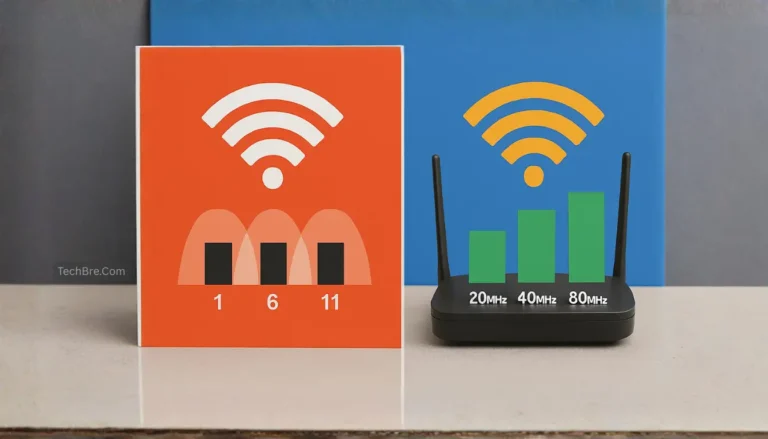
Set channels manually to reduce interference:
- 2.4 GHz: channel 1, 6, or 11
- 5 GHz: try a clean non-DFS channel if DFS events cause drops
For safe channel choices and a simple method to pick the least busy channel, follow Best Wi-Fi channel settings for 2.4 GHz and 5 GHz (2026).
If you use mesh, weak node placement can trigger frequent roaming that looks like a disconnect. Use Set up mesh Wi-Fi for smart home to tune placement and backhaul.
Check VPNs, Security Software, and Wi-Fi Services
Temporarily disable VPN clients and third-party firewalls to confirm they are not interfering. Some VPN network filters can trigger Windows 11 24H2 connected but no internet symptoms.
In Services, confirm WLAN AutoConfig is set to Automatic and is running.
Avoid running vendor Wi-Fi utilities and Windows Wi-Fi management at the same time. Pick one, or you may see profile conflicts and repeated reconnect loops.
Fix Sleep, Hibernate, and Fast Startup Disconnects
If Wi-Fi drops after sleep or hibernate, start with power settings.
In Power Options > Change plan settings > Advanced, set Wireless Adapter Settings > Power Saving Mode to Maximum Performance (for testing). If you don’t see Wireless Adapter Settings, skip this step.
Disable Fast Startup: Control Panel > Power Options > Choose what the power buttons do > Change settings that are currently unavailable > Turn on fast startup (unchecked)
If sleep-related drops continue, update BIOS/UEFI and chipset drivers from the PC manufacturer. These updates often improve power handling.
Troubleshooting Steps for a 169 IP Address (No Internet)
If your PC shows a 169.254.x.x IP address, it usually means it failed to get an IP from DHCP. This often appears as “No internet, secured.”
Try this order:
- Restart the router and the PC.
- Forget the network and reconnect.
- Disable and re-enable the Wi-Fi adapter.
- Run the netsh resets shown earlier.
- Test with a phone hotspot to confirm if the router DHCP is the cause.
If hotspot works but your router does not, focus on router DHCP settings, firmware, or interference.
Advanced Diagnostics and Logs
Use Event Viewer > Windows Logs > System and filter for WLAN, Network, and DHCP events. Repeated authentication errors can point to WPA mode issues or driver problems.
Run PowerShell:
Get-NetAdapter | <span class="hljs-keyword">Format</span>-Table <span class="hljs-keyword">Name</span>, <span class="hljs-keyword">Status</span>, DriverInformation
Generate a Wi-Fi report:
<span class="hljs-attribute">netsh wlan show wlanreport</span>
Compare the drop timestamps with router logs to see whether the disconnect starts on Windows or the router side.
Check the PC maker or Wi-Fi adapter vendor site for the latest drivers and updates.
When to Consider Hardware or Firmware Updates
Update router firmware from the manufacturer. Firmware bugs can show up after 24H2 changes, especially with Wi-Fi 6 features.
If your adapter is old, a modern Wi-Fi 6 or Wi-Fi 6E USB adapter is a clean test. Buy only from brands that clearly support Windows 11.
Common Mistakes
- Ignoring router firmware updates after the Windows 11 upgrade.
- Leaving “Allow the computer to turn off this device” enabled for the Wi-Fi adapter.
- Mixing vendor Wi-Fi utilities with Windows management at the same time.
- Using crowded auto channels without checking interference.
- Assuming ISP issues when only Wi-Fi drops, not Ethernet.
How to Choose the Right Fix Order
Start with reversible steps: forget and re-add the network, disable Wi-Fi power management, and test stability.
If stability improves, refine router channels and band settings next.
If drops continue, focus on drivers: update or roll back using vendor packages. Only then use Network reset and deeper sleep/Fast Startup changes.
When software steps fail, update router firmware or test with a known-good external Wi-Fi adapter to isolate hardware limits.
FAQs
Q: Why Does Windows 11 Wi-Fi Keep Disconnecting After the 24H2 Upgrade?
A: The 24H2 update can affect your Wi-Fi driver, power settings, or the way your Wi-Fi adapter handles roaming and sleep. Start with a reboot, then update or roll back the driver to resolve repeated Wi-Fi disconnects.
Q: Should I Reinstall the Wi-Fi Driver to Resolve Constant Wi-Fi Disconnects?
A: Yes, reinstalling the Wi-Fi driver may be necessary if updates did not help. In Device Manager, uninstall the Wi-Fi adapter, restart, then install the latest drivers from your laptop maker or the chipset vendor.
Q: How Do I Fix “No Internet, Secured” on Windows 11 When the Wi-Fi Connection Looks Fine?
A: This usually means the Wi-Fi connection is linked but network-related access failed, often due to IP or DNS issues. Reboot the router and desktop or laptop, forget the network password, reconnect, then run a network reset if it still can’t reach the internet.
Q: I Upgraded From 23H2. Is That Why My Wi-Fi Connection Is Unstable Now?
A: It can be. Moving from 23H2 to the 24H2 update can replace drivers or change power rules, which may trigger Wi-Fi disconnects on some systems. Updating or rolling back the Wi-Fi driver is often the fastest solution.
Q: Do Intel Wi-Fi Cards Need Intel Drivers, and How Do I Find the Right One?
A: If you have Intel Wi-Fi, using the Intel driver can be more stable than a generic one. Find your adapter name in Device Manager, then match it to the Intel driver version from Intel’s official pages or your PC maker’s support page.
Q: Why Is 5GHz Wi-Fi Unstable on My Dell Latitude but 2.4GHz Works?
A: On some Dell Latitude models, the Wi-Fi driver and router channel choices can affect 5GHz stability, especially after a Windows 11 upgrade. Try the latest drivers, test a different 5GHz channel, and check your router encryption mode if drops keep happening.
Q: Can My Wi-Fi Password or Encryption Policy Cause Repeated Disconnects?
A: Yes, a mismatch between router encryption and Windows 11 settings can cause reconnect loops. If your router uses WPA3-only, test WPA2/WPA3 mixed mode, reconnect using the correct password, and confirm the router policy is not blocking your device.
For more Wi-Fi fixes, router tips, and home network guides, visit our Networking & Wi-Fi posts.
Further Readings
If your smart plug keeps disconnecting or won’t respond, these guides cover the most common Wi-Fi and network fixes.