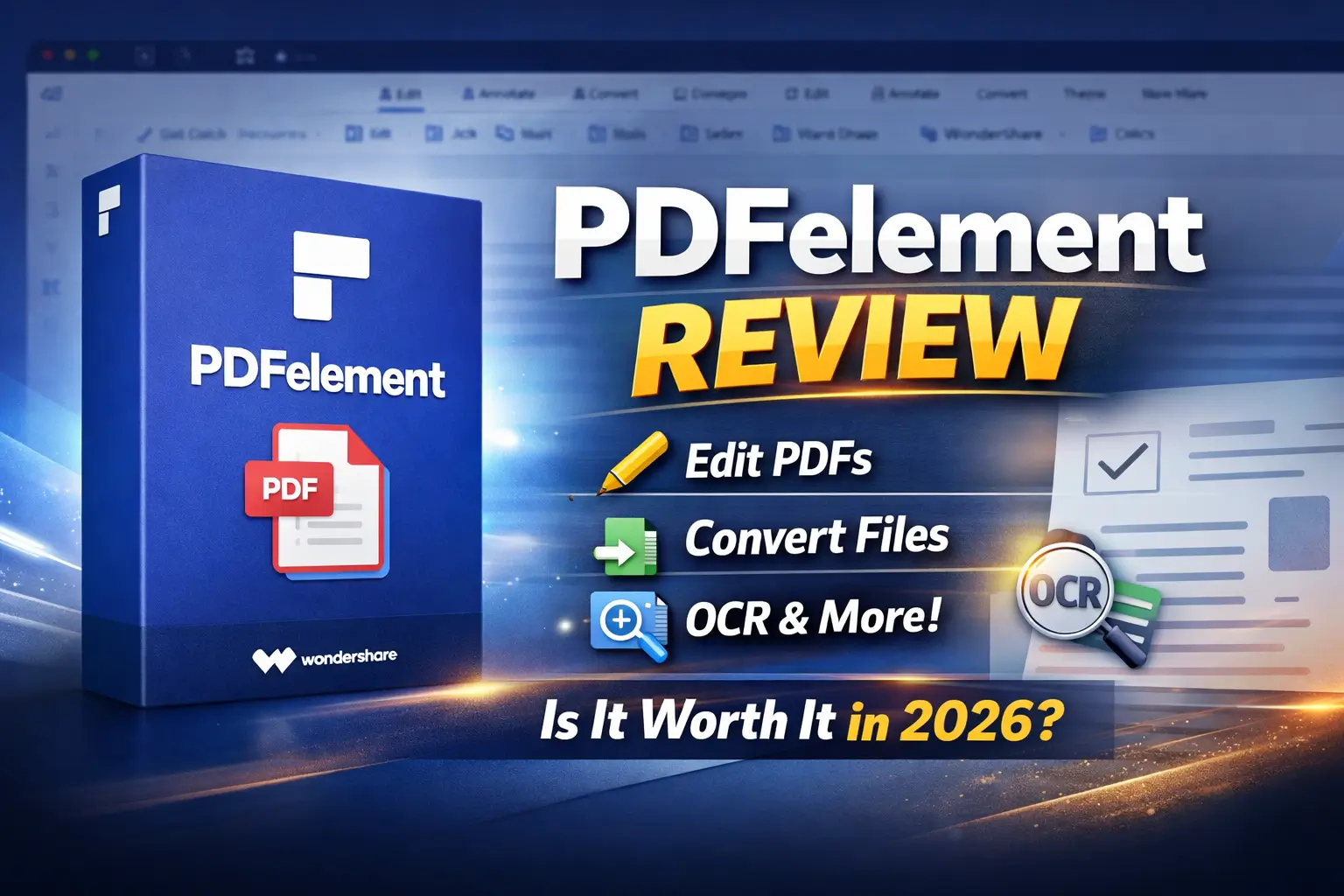
Wondershare PDFelement in 2026 is often used when you have a PDF that won’t cooperate. You need to fix a few lines of text, update a form, or combine pages, but basic viewers only let you read and sign.
A quick shortcut is using random online converters or cracked tools. That can create privacy risks, break formatting, or leave you with a file that looks fine on your screen but fails when you send it.
In this guide, we’ll look at how Wondershare PDFelement handles editing, conversions, OCR, forms, and security, and then share a clear PDFelement review to help you decide if it’s worth it for your daily PDF work.
Introduction to PDFelement
Overview of Wondershare PDFelement
Wondershare PDFelement is positioned as an alternative to Adobe Acrobat for people who want strong PDF tools with a simpler learning curve. It focuses on everyday tasks like editing, converting, commenting, organizing pages, and securing documents, with optional extras like OCR and AI-assisted tools depending on the plan.
Importance of PDF Editors in 2026
The PDF format remains a standard for documents, contracts, forms, and sharing files across devices. In 2026, a good PDF editor still matters because many workflows depend on PDFs that need quick edits, accurate conversions, and safe sharing without breaking formatting.
What to Expect from This Review
This PDFelement review looks at the interface, editing tools, conversions, OCR, forms, security features, AI options, and pricing considerations. It also covers where PDFelement can feel limited, and when alternatives might suit you better.
User Interface and Experience
Design and Layout of Wondershare PDFelement
PDFelement’s interface puts most core tools on the Home screen using large, clickable tiles. Inside a document, it uses a Microsoft Office-style toolbar with key sections such as commenting, editing, converting, security, and page management. Selecting a section opens a second toolbar with options for that specific task.
Each document opens in its own tab. A left-side panel gives quick access to page thumbnails, bookmarks, comments, attachments, and search, which makes navigation easy for longer PDFs.
Usability and Accessibility Features
The interface is designed to help you reach common tools in a couple of clicks, and it generally succeeds. If you’ve used Word or similar desktop apps, the menus will feel familiar. Advanced tools are available, but the layout still keeps basic tasks clear.
One downside is limited customization. If you don’t like large tiles and icon-heavy menus, the design may feel a bit fixed.
Comparison with Adobe PDF Editor
Comparing PDFelement and Adobe Acrobat is common because Acrobat is the “default” choice in many workplaces. Acrobat typically offers deeper enterprise workflows and integrations, but it can cost more and feel heavier for basic editing.
PDFelement focuses on giving most everyday PDF features at a lower learning curve. The better choice depends on whether you need enterprise-grade workflow tools, or just solid editing and conversions.
Features and Functionality
AI-Powered PDF Editing Tools
PDFelement includes AI features for tasks like summarising, translating, grammar checking, and interacting with document content. These features can be useful when you want quick help without switching apps.
AI use may be token-based or limited by plan, so it’s worth checking how AI access works before relying on it for frequent use.
Full-Featured Options Available
PDFelement includes a wide range of PDF editing tools. You can:
- Edit text in-line or within text boxes (depending on the PDF)
- Add, remove, and adjust images
- Insert links and adjust document backgrounds
- Add headers and footers, plus watermarks
It supports Bates numbering and includes annotation tools like highlights, sticky notes, stamps, signatures, shapes, and freehand markup. You can adjust fonts, colors, and formatting for annotations.
For sharing and storage, it can connect to services like Dropbox, OneNote, Box, Google Drive, and Wondershare Cloud (availability can vary by version/region).
Conversion options include exporting PDFs to Word, Excel, PowerPoint, EPUB, Pages, HTML, RTF, and text formats, and creating PDFs from images, HTML, and text files.
PDFelement also supports page management (split, merge, reorder), password protection, permission controls, and digital signatures. OCR is available for scanned documents so you can extract text and make scans searchable, but OCR quality depends on scan clarity.
Additional Features and Tools
Beyond editing, PDFelement includes tools for OCR, batch actions, form creation, compression, and adding watermarks, headers, and footers. These extras are useful for repeated document tasks and for preparing files before sharing.
Pros and Cons of PDFelement
Advantages of Using Wondershare PDFelement
PDFelement’s main strengths are its practical feature set and easy-to-learn layout. It covers most common PDF tasks in one place, including editing, annotation, conversions, form work, and basic security tools. For many users, it can deliver strong value compared to more expensive PDF suites.
Disadvantages and Limitations
PDFelement isn’t perfect for every workflow. AI features may not be included in every plan, and token limits can raise costs if you use them heavily. OCR can also struggle with low-quality scans or unusual fonts.
If you need highly advanced enterprise features or strict compliance workflows, you may want to compare it with other premium editors.
User Feedback and Reviews
Many users like PDFelement because it balances features and price, and it’s easier to pick up than some advanced PDF suites. Common positives include editing tools, conversion options, and form handling. Some users mention plan differences and AI limits as things to check before buying.
Safety and Security
Is PDFelement Safe to Use?
PDFelement includes standard security tools used in many PDF editors, such as password protection and permission controls. For the safest experience, download it from the official Wondershare source and keep it updated, especially if you work with sensitive files.
Data Protection Features
PDFelement supports password protection, permission settings, and digital signature options. It also includes batch encryption tools in some versions, which can help when you manage multiple files.
Comparative Analysis with Other PDF Editors
Adobe Acrobat and other major PDF editors offer similar core security features. PDFelement’s advantage is that it combines common security tools with a simpler workflow for everyday users. The best option depends on what security features you need and how strict your document workflow is.
Final Verdict: Should You Buy PDFelement?
PDFelement offers strong value if you want a capable PDF editor for everyday work like editing, converting, organising pages, working with forms, and handling basic security tasks. It’s a good choice for users who want a feature-rich editor without the learning curve of more complex suites.
If you need advanced enterprise workflows or strict compliance features, it’s worth comparing alternatives. For most personal and small-business use, PDFelement should cover what you need.
FAQs: Wondershare PDFelement Review
Q: Is there a free trial for PDFelement in 2026?
A: Yes, PDFelement usually offers a free trial so you can test document editing, convert PDFs, and basic tools. The free trial version may add limits or watermarks, so check the trial screen before saving a final PDF file.
Q: Is PDFelement a subscription, or can I buy a one-time license?
A: PDFelement commonly comes in subscription plans (often a yearly plan), and some versions also offer a lifetime license. What you see can vary by region and promotion, so compare the one-time option vs the subscription before you buy.
Q: Can PDFelement convert PDFs to Word, Excel, and other file formats?
A: Yes. In most paid plans, PDFelement can convert PDFs into common file formats like Word, Excel, PowerPoint, and more. Results depend on how complex the PDF document is, especially tables and fonts.
Q: Does PDFelement work on Windows, Mac, iOS, and other devices?
A: PDFelement is designed as a cross-platform PDF editor, with strong support for Windows users and Mac. Mobile options like iOS can depend on your plan and account, so check what your subscription includes if you need phone or tablet access.
Q: How good is PDFelement OCR for scanned PDFs?
A: PDFelement includes optical character recognition to pull text from scanned documents, and it can be very helpful for forms and archives. OCR “high accuracy” depends on scan quality, lighting, and language, so test your sample scan in the free trial first.
Q: What AI tools does PDFelement include, and are they limited?
A: Some versions include AI tools like an AI assistant for summarising, translating, and rewriting text within the PDF. AI tools may use tokens, credits, or plan limits, so review the AI section in your editor’s account before relying on it daily.
Q: Is PDFelement a good alternative to the best free PDF editors?
A: If you only need reading, basic annotate, or light edits, the best free PDF editors can be enough. PDFelement is better when you frequently add and edit text, manage your document’s pages, convert files, compress PDFs, or handle pdf forms with fewer steps.
Further Reading
If you’re considering Wondershare PDFelement for editing PDFs, it also helps to know which tools are best for compressing large files and building a simple paperless workflow. These posts will help:
- Best File Compression Software (2026 guide)
- 7z vs ZIP vs RAR: Choose the Right File Compression Format
- 7-Zip Review 2026: Is This Free File Archiver Any Good?
- Is PeaZip Safe? Review + How to Use PeaZip for Files
- Bandizip Review 2026: Is This Archiver the Best Choice?
- Best Mind Mapping Software for Productivity in 2026
For more software reviews and buying advice, visit our Reviews category.
Disclosure: This post may earn a small commission if you purchase through links, at no extra cost to you.