Disclosure: We may earn a commission from links on this page. Learn more.
Best Password Managers in 2026: Features and Pricing Guide
Best Password Managers in 2026 matter when one leaked login turns into a scary chain of resets across email, banking, and work accounts, and you realise you reused the same password too often.
A risky habit is trusting browser-saved passwords as your main system, then losing access when you switch devices, share a computer, or need to check what’s weak and reused.
The safer move is a password manager that generates unique passwords, stores them in an encrypted vault, and syncs across your devices with secure sharing for family or team use.
A good password manager creates strong passwords, autofills them safely, and alerts you when a login is weak or reused. Pick one that supports your devices, offers secure sharing if you need it, and has clear export options in case you switch later. If you use passkeys, choose a manager that supports them well.
Quick Picks: Top Password Managers in 2026
Best Password Managers in 2026 at a glance. Use this quick table to jump to the option that fits you best.
| Password Manager | Best For | Key Highlight |
|---|---|---|
| Bitwarden | Best value for most users | Strong basics, works across devices |
| 1Password | Families | Great sharing and family controls |
| NordPass | Simple modern app | Clean UI and helpful checks |
| Keeper | Teams and security control | Permissions and admin tools |
| Proton Pass | Privacy-focused users | Aliases and privacy-led ecosystem |
Note: Plan details and free-plan limits can change over time, so check the vendor’s current pricing page before you import your full password vault.
Best Password Managers in 2026: Quick Overview
Why You Need a Password Manager in 2026
Most of us have dozens of password-protected accounts across email, banking, shopping, streaming, and work. Remembering a different password for every site is not realistic, so reuse creeps in.
When one site gets hit by a data breach, reused logins can expose other accounts fast. A password manager helps you replace reuse with strong, unique passwords that you do not need to memorise.
How a Secure Password Manager Protects Your Logins
A password manager stores your logins inside an encrypted vault and autofills them on your desktop app, mobile app, and browser extension. You remember one master password, and the app handles the rest.
Many services also flag weak or reused passwords, warn you about breached sites, and help you update old accounts. That makes password hygiene easier to maintain over time.
How Password Managers Work and Key Features
How Password Managers Work Behind the Scenes
A password manager encrypts your vault and keeps it locked until you unlock it with your master password (and often a second factor). On most apps, you can also use biometrics like Face ID or fingerprint to unlock safely on mobile.
Syncing across devices lets you use the same vault on Windows, macOS, Android, and iOS. Good services also support secure export and import, so you are not trapped if you switch later.
Password Manager Features That Matter Most
Start with the basics that you will use every day:
- Password generator for strong, random passwords
- Autofill that works reliably across major browsers
- Password health reports for weak password and reuse checks
- Secure notes for recovery codes and important details
- Cross-platform apps for desktop and mobile
If you are moving toward passkeys, check whether the manager supports creating, storing, and syncing passkeys across your devices. Also check how it handles fallback when a site still needs a traditional password.
Premium Extras Worth Paying For
Premium plans usually add features that matter for families and small business use:
- Password sharing and shared vaults
- Emergency access or account recovery options
- Extra security alerts and monitoring tools
- Advanced admin controls for teams (audit logs, roles, off-boarding)
Free trials can be helpful for testing these, but trials may have limits. Always read the plan page before you import everything.
Best Password Managers 2026: Individual Reviews
Below are short, practical reviews to help you compare how each app feels and what it’s best at.
1. LastPass: Familiar For New Users
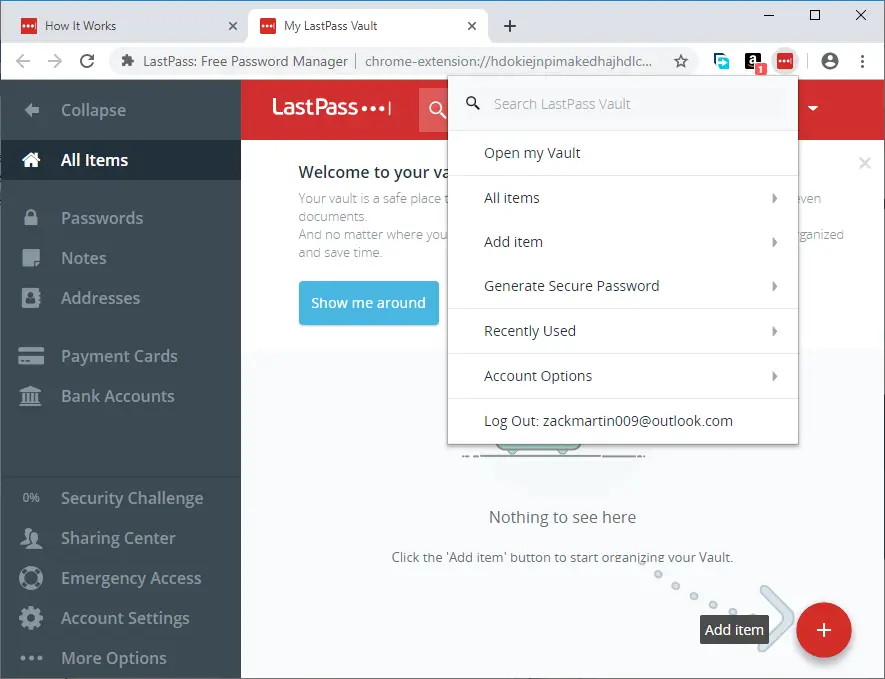
LastPass is easy to understand if you are new to password managers. Setup is usually quick, and autofill works well once your browser extension is configured.
It’s best when you want a straightforward app that helps reduce password reuse. Before committing, confirm current free-plan limits and device rules, since these can change over time.
- Simple dashboard and onboarding
- Autofill and password generator
- Sharing options on paid plans
- Extra security features vary by plan
Ideal for: beginners who want a quick start
Free plan or trial limits: free plans are often limited, so check current device and sharing rules.
Get started: Try LastPass free | See LastPass plans
2. NordPass: Clean Design With Helpful Checks
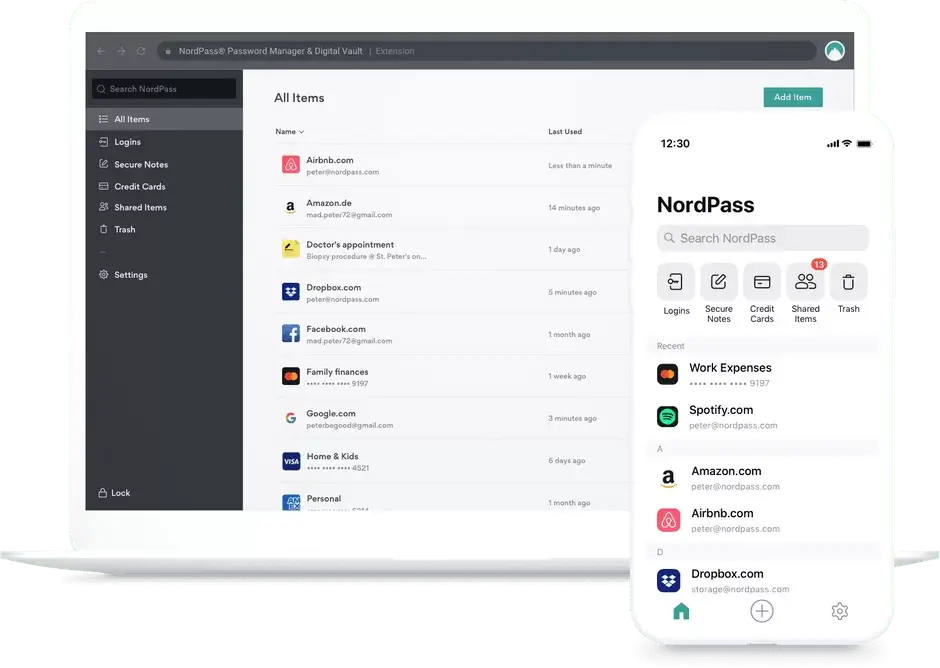
NordPass focuses on a modern interface that feels simple on both desktop and mobile. It’s built for people who want password management without a steep learning curve.
It can also include password health-style checks and breach alerts on certain plans. If you use multiple devices, confirm how many can stay logged in on the plan you choose.
- Clean apps and extensions
- Password health tools on some tiers
- Breach alerts on some tiers
- Good cross-platform support
Ideal for: users who want a clean app experience
Free plan or trial limits: free tiers may limit device use or active logins, so check current plan details.
Get started: Try NordPass free | See NordPass plans
3. 1Password: Strong For Families And Power Users
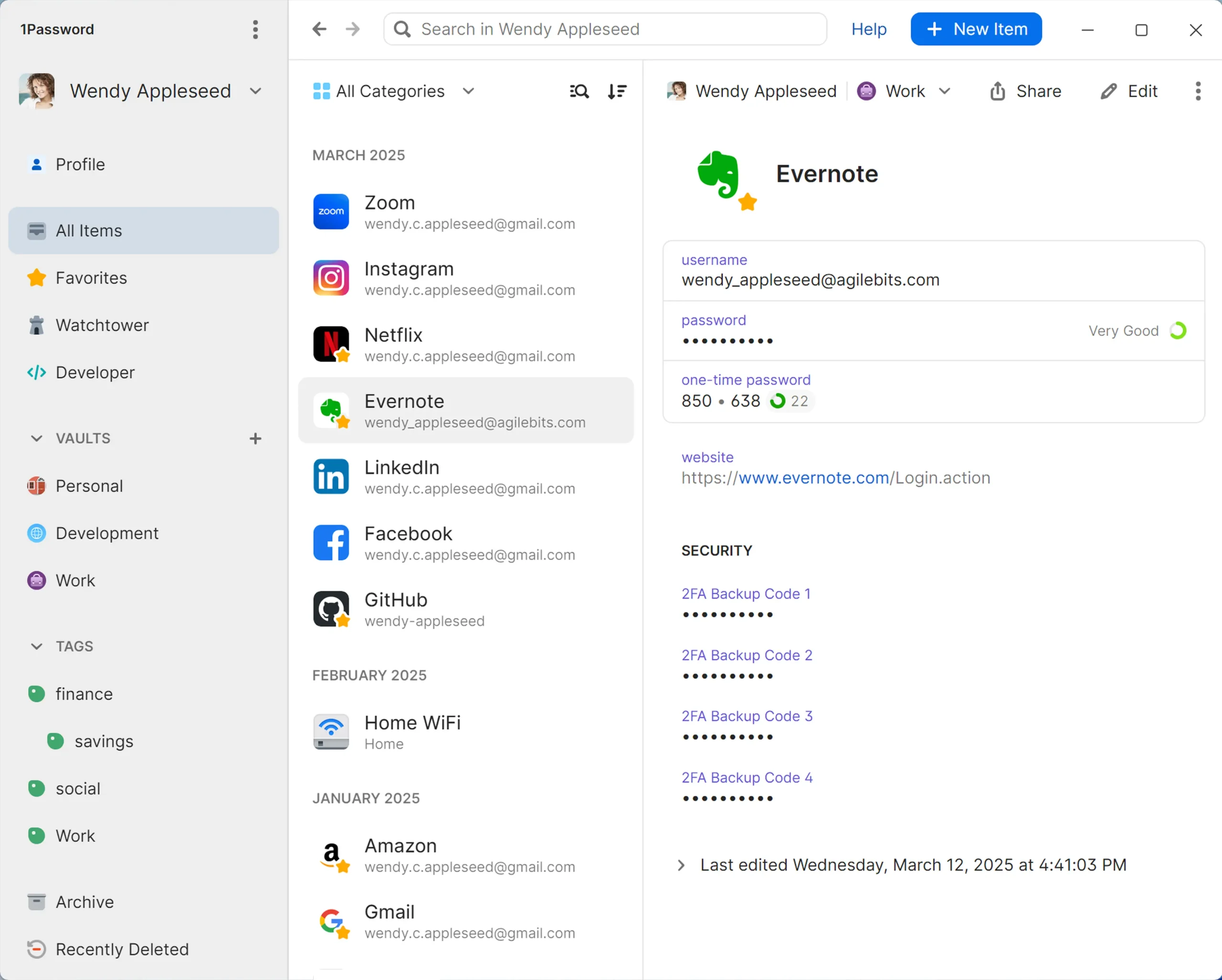
1Password is a popular pick for people who want a polished experience and strong password sharing features. The family plan setup is one of its biggest strengths.
It also highlights weak password issues and security risks through built-in alerts. If you travel often, Travel Mode can help limit vault access when needed.
- Excellent family plan workflow
- Shared vaults and strong sharing controls
- Security alerts and account checks
- Great apps across platforms
Ideal for: families and power users who want a smooth daily app
Free plan or trial limits: typically offers a trial, but no permanent free plan.
Get started: Start 1Password trial | See 1Password pricing
4. Keeper: Deep Control For Security And Teams
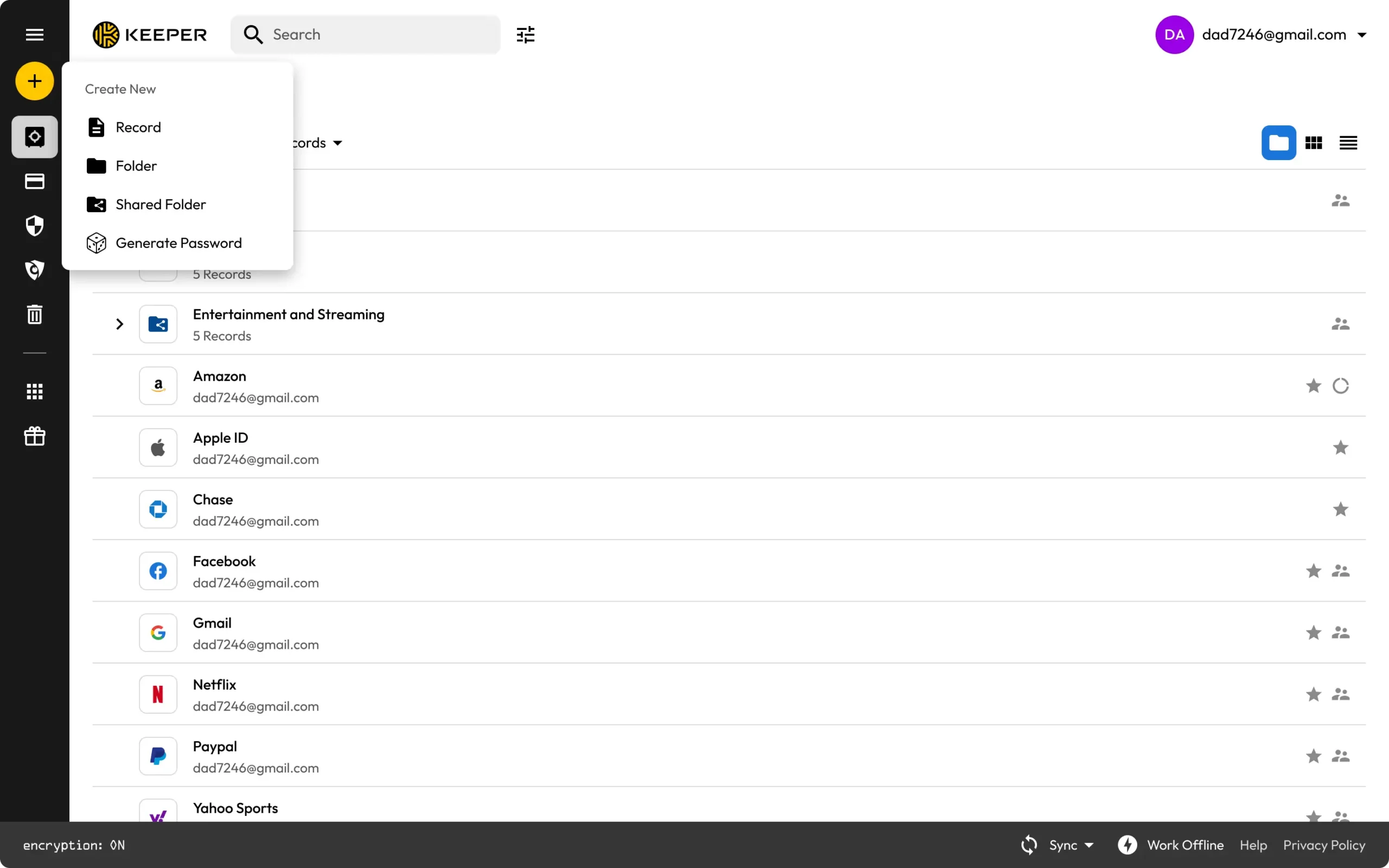
Keeper suits people who want more control and admin options, especially for small business password management. It’s often chosen by teams that care about permissions, audits, and structured access.
For individuals, it still works well day to day, but it can feel more “enterprise” than simpler apps.
- Strong permission and role options
- Audit and reporting features for teams
- Secure sharing and shared vault tools
- Cross-device support
Ideal for: security-focused users and teams that need more control
Free plan or trial limits: trials and plan limits vary, so check current offerings.
Get started: Try Keeper | See Keeper plans
5. Bitwarden: Best Value For Most People
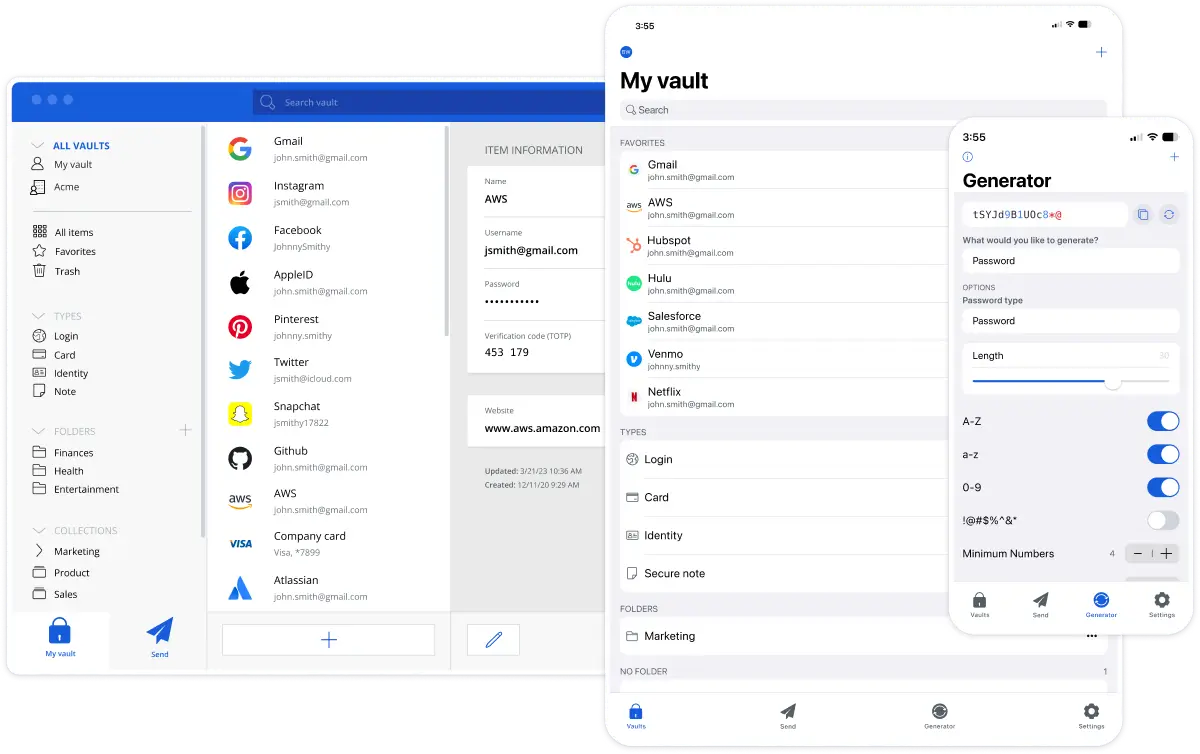
Bitwarden is a strong choice if you want a reliable password manager without paying a high monthly fee. Many users also like its open-source approach.
It covers the essentials well: password storage, syncing across devices, a password generator, and solid autofill. Paid upgrades usually add extra security features rather than basic use.
- Strong core features at low cost
- Works across many platforms and browsers
- Good for budgeting and long-term use
- Simple sharing options on paid plans
Ideal for: users who want the best value and wide device support
Free plan or trial limits: free versions are often generous, but some extras require paid tiers.
Get started: Try Bitwarden free | See Bitwarden plans
6. Dashlane: Convenience Features In One App
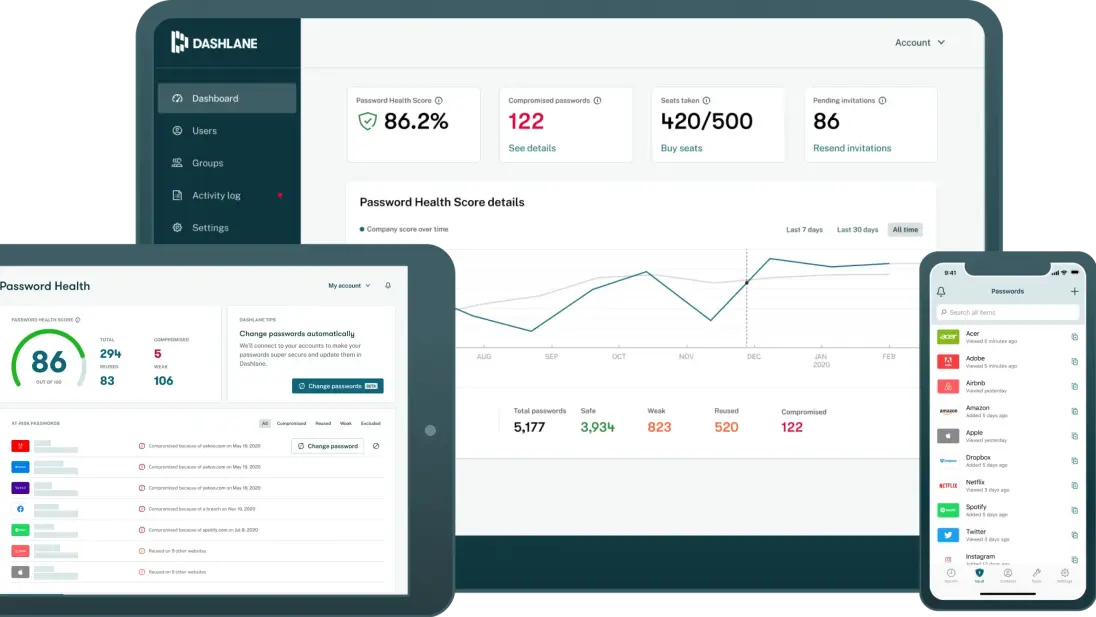
Dashlane is often picked by people who want a “do it all” feel, with monitoring and convenience tools baked into the experience.
Because plan details can change, treat any free plan and its limits as something to double-check before importing your full password vault.
- Smooth apps and autofill
- Password health-style reporting
- Monitoring tools on paid plans
- Extras vary by region and plan
Ideal for: users who want an all-in-one app feel
Free plan or trial limits: free and trial options can change, so confirm current availability before switching.
Get started: Try Dashlane | See Dashlane plans
7. Proton Pass: Privacy-Led And Simple
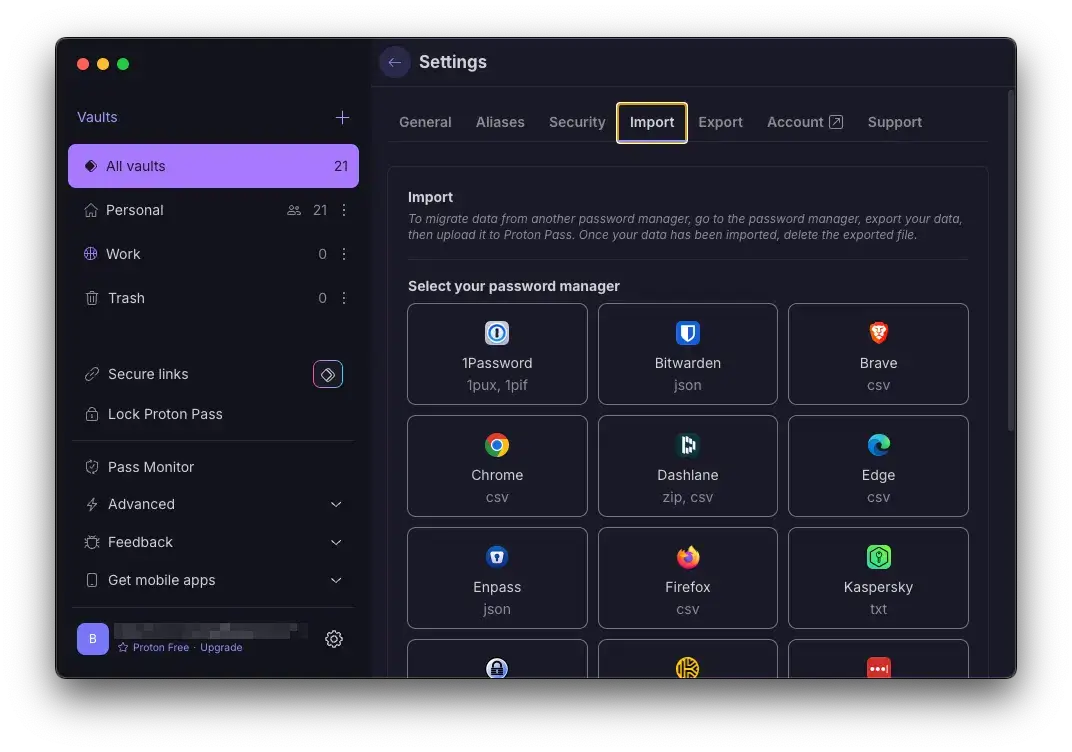
Proton Pass fits well if you already use Proton services and want a privacy-first ecosystem. It also leans into practical extras like aliases for cleaner sign-ups.
It’s a good option for everyday password use if you want a simple UI and a privacy-focused approach.
- Alias features for cleaner sign-ups
- Works well inside the Proton ecosystem
- Simple apps for daily use
- Sharing features depend on plan
Ideal for: privacy-first users who want a simple daily tool
Free plan or trial limits: free tiers may have feature limits, confirm before switching fully.
Get started: Try Proton Pass free | See Proton Pass plans
8. Enpass: Local-First And Offline-Friendly
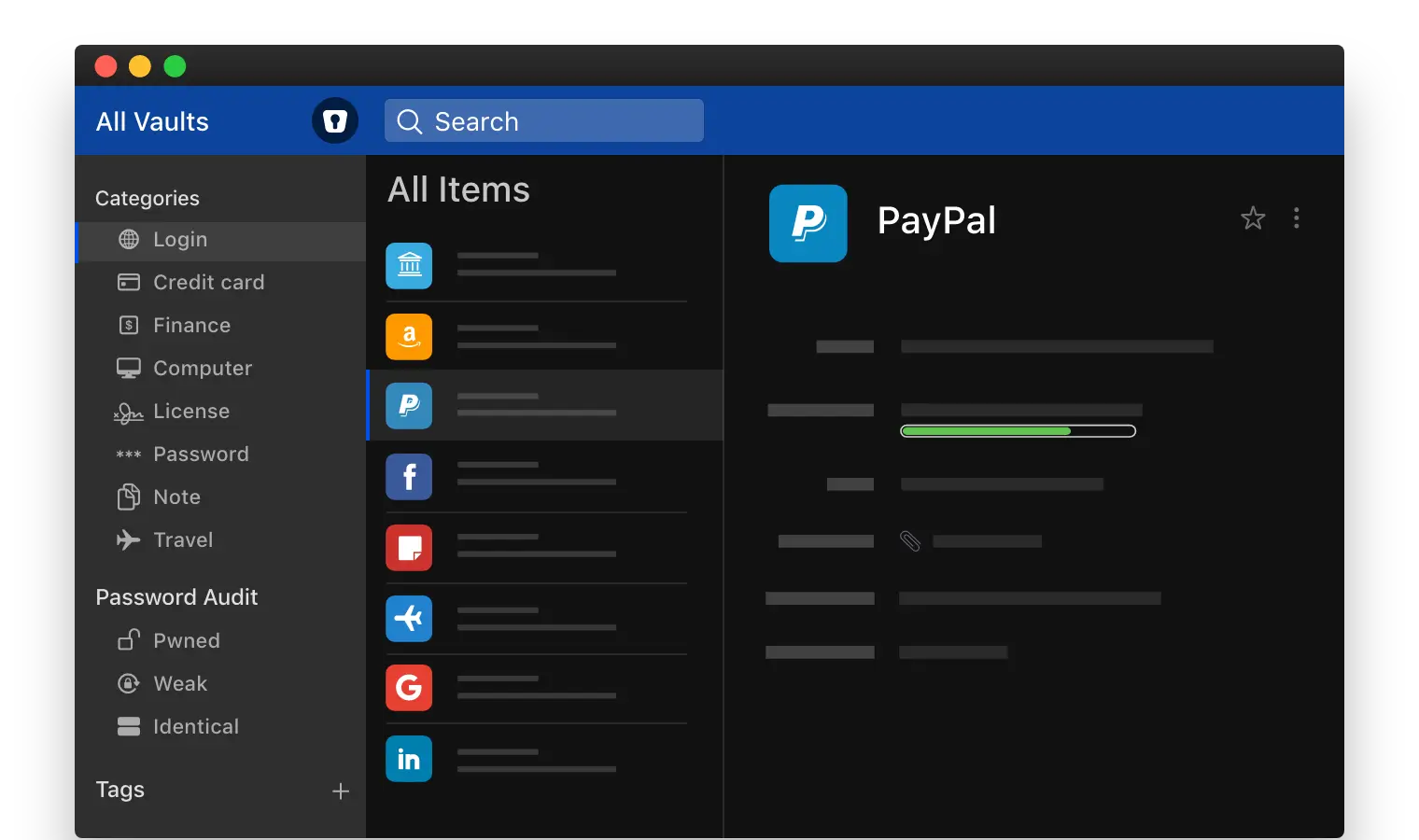
Enpass appeals to people who prefer local vault storage and offline workflows. If you are cautious about cloud syncing, this can feel more under your control.
Local-first tools also mean you are responsible for backups and device security. Recovery depends on how you store and protect your vault.
- Local vault storage options
- Offline-friendly workflow
- Good for users who like control
- Sync method depends on your setup
Ideal for: people who prefer a local vault and offline use
Free plan or trial limits: some platforms have limits, so check current edition rules.
Get started: Download Enpass | See Enpass options
9. RoboForm: Best For Form Filling
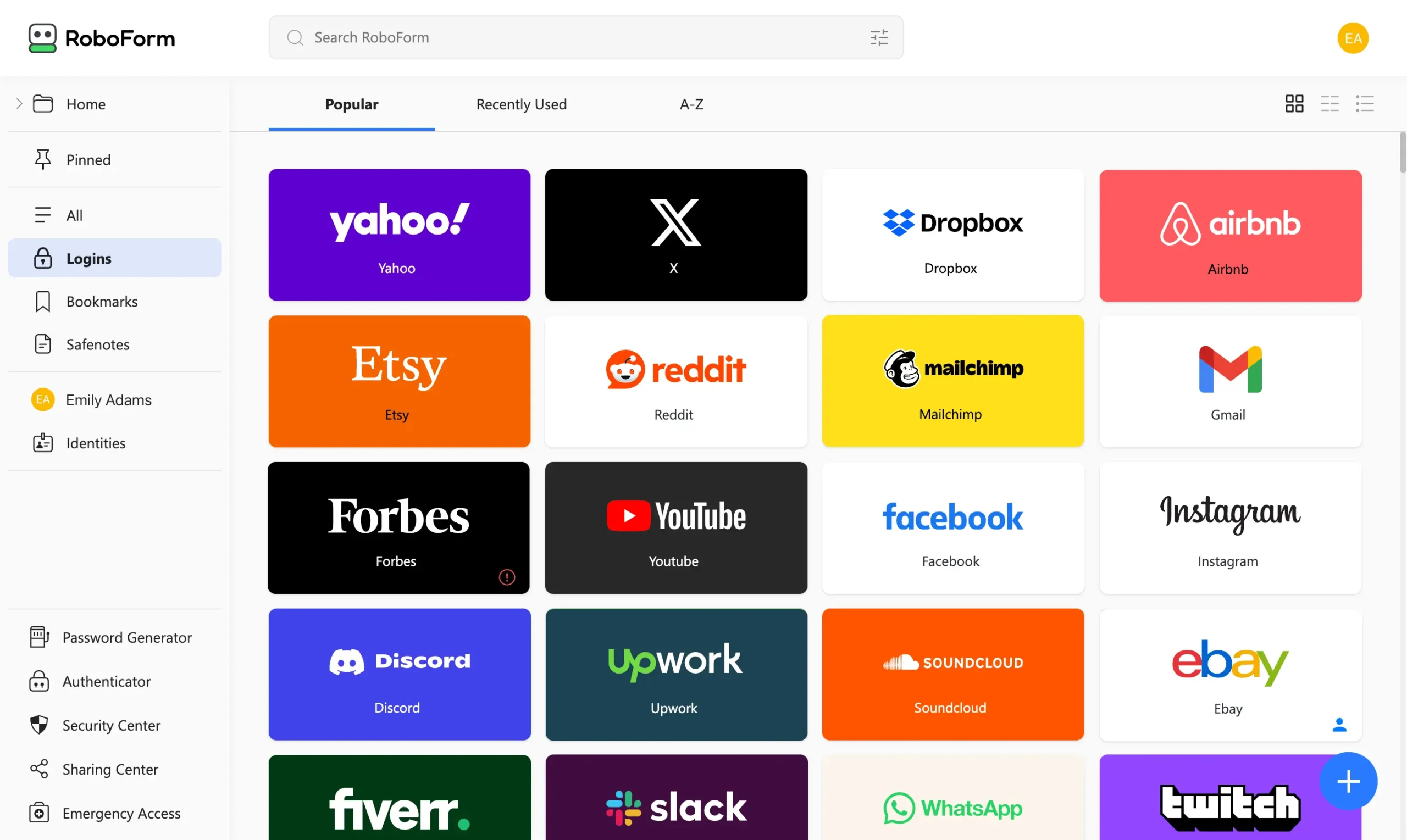
RoboForm is known for strong form filling and simple login workflows. If you deal with long checkout forms or admin portals, it can save real time.
It’s often priced competitively compared to premium-only rivals and works well across common browsers.
- Excellent form filling
- Solid autofill and password storage
- Easy setup and daily use
- Good value on paid tiers
Ideal for: users who want the best form filling experience
Free plan or trial limits: free plans often exist with feature limits, so check current details.
Get started: Try RoboForm | See RoboForm plans
10. Zoho Vault: Solid For Teams And Small Business
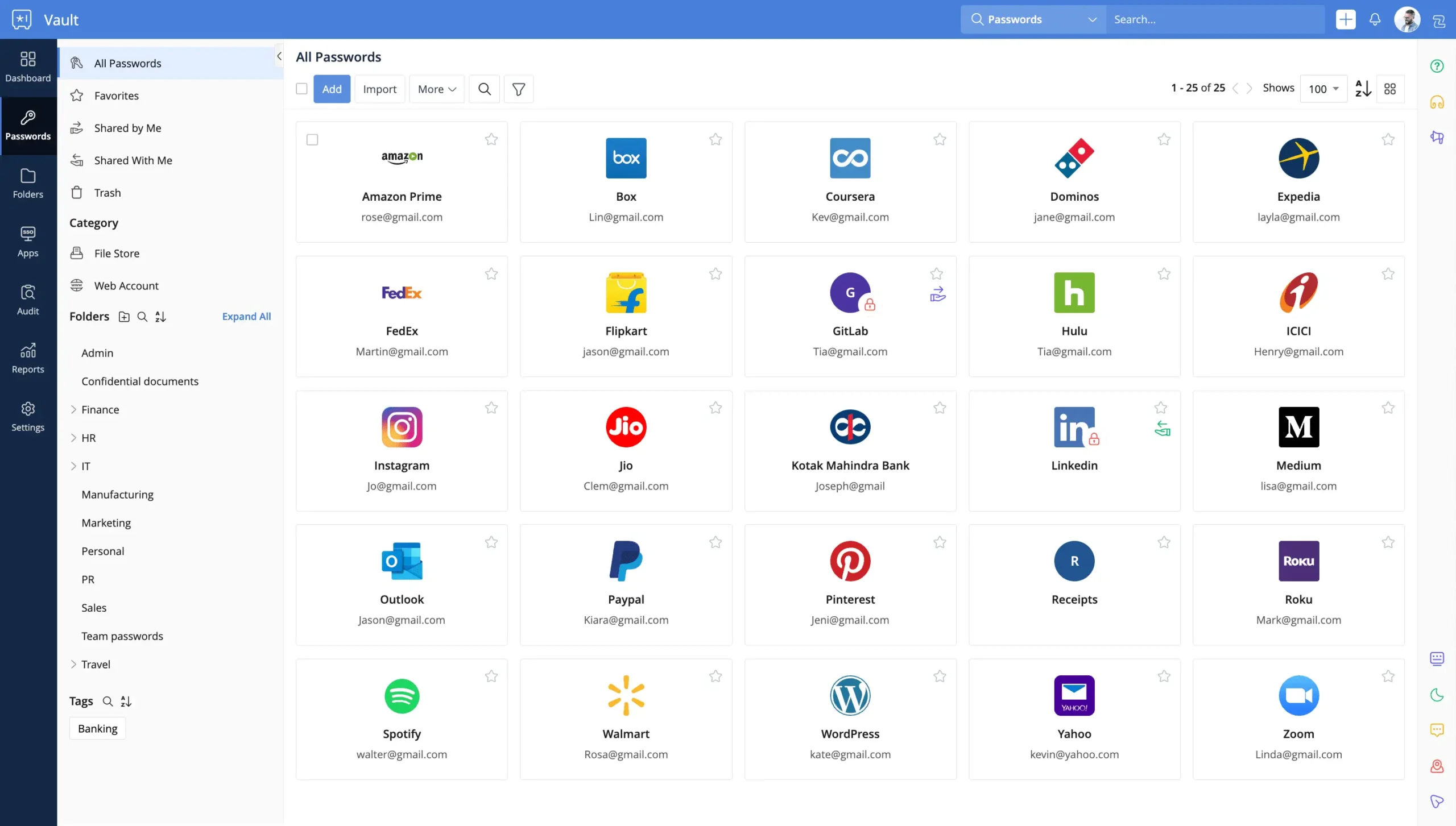
Zoho Vault makes sense for teams that need role-based access, audit logs, and shared vaults with admin control. It’s also a natural fit if you already use Zoho tools.
For personal use it can work, but its strongest value shows up when you manage access across multiple people.
- Role-based access and admin controls
- Audit logs for business use
- Team sharing and off-boarding support
- Integrates well with Zoho tools
Ideal for: teams and small businesses using shared access
Free plan or trial limits: personal free options may exist, while team features are paid.
Get started: Try Zoho Vault | See Zoho Vault plans
Free vs Paid Password Managers
When a Free Password Manager Is Enough
A free password manager is usually fine if you want to fix password reuse and get basic autofill working. If the free version supports your main device setup, you can start safely without paying.
Before you commit, check whether the free plan limits you to one device type, restricts syncing across devices, or caps sharing. Those limits matter once you rely on the tool daily.
When You Should Upgrade to a Paid Password Manager
Upgrade when you need password sharing, shared vaults, emergency access, or better admin tools. Families usually benefit from paid plans because sharing and multiple seats become smoother.
Teams should also consider paid tiers for audit logs, role controls, and clean off-boarding when staff change. In business use, the time saved and risk reduced often justify the cost.
How To Choose the Best Password Manager
Questions To Ask Before You Choose
Start with your device mix. You want smooth support for Android, iOS, and a desktop app if you work from a PC or laptop.
Next, decide if you need password sharing, a family plan, or team features like audit logs and role controls. Finally, confirm export options, so you can move later if you ever switch.
Choosing For Common Use Cases
Solo user: pick a simple app with strong autofill, a password generator, and syncing across devices.
Family: prioritise shared vaults, clear seat pricing, and easy recovery options.
Small business: look for role-based access, audit logs, clean off-boarding, and admin controls you can manage without friction.
What To Avoid When Picking a Password Manager
- Avoid picking purely based on a short discount if export is hard or unclear.
- Avoid reusing your master password anywhere else.
- Avoid importing everything before testing autofill on your key sites.
- Avoid skipping recovery and emergency access options, especially for family use.
How We Picked These Password Managers
We focused on apps that cover the basics well: password vault security, strong password generator support, reliable autofill, and syncing across devices. We also prioritised tools with clear plan pages, active development, and sensible options for free and paid use.
Conclusion: Chosing the Best Password Managers of 2026
Best Password Managers in 2026 all aim to solve the same problem: replacing reused logins with strong, unique passwords you do not have to remember. The best choice is the one that fits your devices, feels easy to use every day, and supports sharing or team control if you need it.
A simple next step is to choose one tool, test it on your most important accounts first, and then expand as you build better password hygiene. Over a few weeks, that change makes your daily logins faster, cleaner, and far safer.
If you’re in Pakistan and want a paid password manager with official activation, explore password and privacy tools in Pakistan on BreTech.
FAQs
Q: Which is the best free password manager in 2026?
A: A best free password manager should offer a free version you can actually keep using. Prioritise unlimited password storage, autofill, and export. Some free accounts limit active logins, so confirm iOS and Android rules before importing everything.
Q: How do I create a master password, and what if someone gets your master password?
A: Create a master password as a long, memorable passphrase and never reuse it. If someone gets your master password, they can open your password manager account, so turn on 2FA, save recovery codes safely, and keep an authenticator app ready.
Q: Is password sharing safe for family or teams?
A: Password sharing is safe when it happens inside the app through encrypted sharing or shared vaults. Many password managers offer family or team controls so you can remove access later, instead of sending the username and password in chat.
Q: What do premium password managers add compared to free plans?
A: Premium password managers usually add stronger sharing controls, emergency access, and better admin tools. If you’re unsure, use a 30-day free trial where available, then pay only when those features match how you use the app daily.
Q: What do password managers offer beyond saving usernames and passwords?
A: Password managers offer an encrypted vault, a built-in password generator for a new password on every site, and safer autofill. Many also include breach alerts and vault health reports so you can fix weak password reuse and improve hygiene over time.
Q: Can I sync passwords across iOS and Android on many devices?
A: Most services include iOS and Android apps plus browser extensions, so your passwords across devices stay synced. Many paid plans allow an unlimited number of devices, but some free plans limit device types or active logins, so check first.
Q: I’ve never used a password manager. What’s the safest way to start?
A: If you’ve never used a password manager, start with email and banking first. Add logins, enable 2FA, then replace old passwords gradually with the generator. This lets you learn the workflow without risking lockouts.
Q: Are free and paid password managers both safe enough?
A: Free and paid password managers can both be safe if the provider uses strong encryption and updates regularly. The main difference is features: paid tiers often add sharing, reports, and support. Choose what you need from a password manager, not hype.
Q: Is a standalone password manager better than browser saving?
A: A standalone password manager is usually safer than browser saving because it’s built for vault security, sharing controls, and audits. A dedicated password manager also makes it easier to keep every password unique and to move between devices you can use.
Q: When is Bitwarden Send useful?
A: Bitwarden Send is handy when you need to share a sensitive note or file briefly. Instead of pasting details in chat, you create a secure link with limits like expiry. It’s useful even if your vault stays private.
Further Reading
- NordStellar Review: Is This the Ultimate Business Security Suite?
- Top 7 VPNs for Multiple Devices: Stay Protected on Every Gadget
- Max Privacy: The Best Offline Password Managers of 2026
- Simple & Secure: Best Password Managers for Seniors
- Security Showdown: Password Managers vs. Browser Saving
- The Beginner’s Guide: What Exactly is a Password Manager?