
Disclosure: We may earn a commission from links on this page. Learn more.
What Is a Password Manager and How Does It Work in 2026?
What is a password manager in 2026, and why does it still matter when many websites are moving towards passkeys and passwordless sign-ins? The simple answer is that most people still use passwords every day, and weak or reused passwords remain one of the easiest ways for accounts to be compromised.
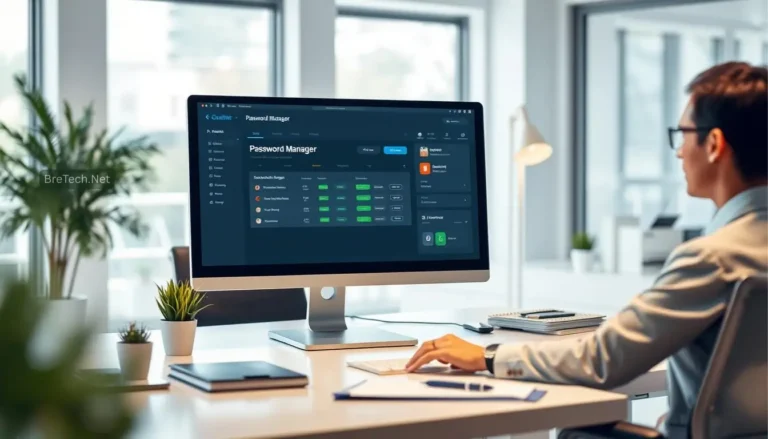
A password manager is an app that stores your usernames, passwords, passkeys, and secure notes inside an encrypted vault. You unlock that vault with one strong master password, then the app can generate strong passwords, autofill logins, and help you avoid weak or reused passwords.
The common mistake is relying on memory, browser autofill, or the same password across many accounts. This guide explains how password managers work, why they are still useful in 2026, what features matter, and when you should choose a dedicated password manager instead of saving passwords only in your browser.
Quick Answer: What Is a Password Manager?
A password manager is software that stores your login details in a secure encrypted vault. You unlock the vault with one master password, and the password manager helps you save, generate, and fill strong passwords across websites, apps, and devices.
In 2026, password managers are still useful because many services still use passwords, even though passkeys are growing. A good password manager can help with passwords, secure notes, autofill, breach alerts, password health checks, and in some cases passkey storage too.
If you want tool recommendations after learning the basics, see our guide to the best password managers in 2026.
Key Takeaways
- A password manager stores your passwords in an encrypted vault.
- You unlock the vault with one strong master password.
- It can generate unique passwords for every account.
- Autofill helps you log in faster without typing every password.
- Password health checks can warn you about weak, old, or reused passwords.
- Passkeys are growing, but most users still need a safe way to manage passwords in 2026.
What Is a Password Manager?
A password manager is an app or service that saves your usernames, passwords, passkeys, card details, secure notes, and other private login information in one protected place.
Instead of remembering every password yourself, you remember one strong master password. After that, the password manager can help you sign in to websites and apps more easily.
Once you are signed in, the password manager can:
- Save new logins when you create accounts
- Fill in usernames and passwords on websites and apps
- Suggest strong, random passwords
- Warn you about weak or reused passwords
- Sync your saved logins across devices
- Store secure notes, recovery codes, and Wi-Fi passwords
The goal is simple: better password security with less stress.
How Does a Password Manager Work?
A password manager works by storing your saved logins inside an encrypted password vault. This vault is locked, and only your master password can unlock it.
When you visit a login page, the password manager checks whether it has saved details for that website or app. If it does, it can fill in the username and password for you.
Most password managers follow this basic process:
- You create one strong master password.
- The app creates an encrypted vault.
- You save logins inside the vault.
- The app generates strong passwords when needed.
- The app fills logins on trusted websites and apps.
- Your vault can sync across your phone, laptop, browser, and tablet.
This makes it easier to use strong, unique passwords without trying to remember all of them.
How Password Managers Store Credentials Securely
A good password manager stores your data in an encrypted password vault. Encryption turns your saved passwords into unreadable data unless the vault is unlocked correctly.
Many modern password managers use strong encryption and a zero-knowledge design. This usually means the provider cannot see your saved passwords because your vault is encrypted before it is stored or synced.
Key security points:
- Your logins are stored inside an encrypted vault.
- The vault is unlocked with your master password.
- Your master password should never be reused anywhere else.
- Many providers cannot read your vault contents.
- Two-factor authentication adds another layer of protection.
A password manager is not magic. You still need a strong master password, a trusted device, and safe habits. But it makes good password security much easier to manage.
What Is a Master Password?
A master password is the main password that unlocks your password manager vault.
This is the most important password you will create. It should be long, unique, and memorable. Do not use your email password, banking password, phone PIN, or an old password as your master password.
A good master password should be:
- Long enough to resist guessing
- Unique to your password manager
- Easy for you to remember
- Hard for other people to guess
- Not based on your name, birthday, phone number, or common words
You can use a passphrase, such as a few unrelated words joined together, but make it personal enough that you can remember it and hard enough that others cannot guess it.
Do You Still Need a Password Manager in 2026?
Yes, most people still need a password manager in 2026. Passkeys are growing, but passwords have not disappeared.
Many websites, apps, routers, email accounts, software portals, banking portals, shopping sites, and older services still depend on passwords. Even when passkeys are available, you may still need to manage backup passwords, recovery codes, secure notes, and account details.
A password manager is still useful because it can help you:
- Store strong passwords
- Avoid password reuse
- Save recovery codes
- Store secure notes
- Fill logins safely
- Check weak or reused passwords
- Manage accounts across devices
- Keep family or work logins organised
Passkeys are a strong step forward, but they do not remove the need for password management for most everyday users yet.
Password Managers and Passkeys: What Has Changed?
Passkeys are a newer way to sign in without typing a normal password. They use your device, browser, or password manager to confirm your identity, often with a fingerprint, face unlock, PIN, or device approval.
In simple words, a passkey can make signing in safer and easier because you are not typing a password that can be phished or reused.
However, passkeys are still not available everywhere. Some sites support them well, some support them only partly, and many accounts still use normal passwords.
That is why a password manager in 2026 should ideally help with both:
- Traditional passwords
- Secure notes and recovery codes
- Two-factor authentication details
- Passkeys where supported
- Cross-device login access
When choosing a password manager, check whether it supports passkeys on the devices and browsers you actually use.
Benefits of Using a Password Manager
Using a password manager has two main benefits: stronger security and less hassle.
Most people reuse passwords because remembering dozens of strong logins is difficult. A password manager fixes that problem by doing the memory work for you.
Stronger Passwords Without the Headache
A password manager can create long, random passwords for each account.
This is important because attackers often try leaked passwords on many different websites. If you reuse the same password everywhere, one breach can put many accounts at risk.
A password manager helps by:
- Generating strong passwords
- Saving each password safely
- Encouraging unique passwords for every site
- Reducing the need to remember dozens of logins
- Making password updates easier
You only need to remember the master password. The tool remembers the rest.
Convenience of Autofill Across Devices
Autofill is one of the biggest everyday benefits of a password manager.
When you visit a login page, the app can recognise the website and fill in your username and password. This works in browsers and, with many tools, inside mobile apps too.
That means:
- Less typing on small screens
- Faster logins on websites you use often
- Fewer forgotten password resets
- Easier access across phone, laptop, and tablet
Once you get used to it, typing every password manually feels slow and frustrating.
Reducing the Risk of Password Reuse
Reusing passwords is one of the most common security mistakes. If one website leaks your password, attackers may try the same password on your email, banking, shopping, and social accounts.
A password manager encourages better password health by:
- Giving each account its own unique password
- Flagging reused passwords
- Flagging weak passwords
- Helping you update risky accounts first
Even if one site is breached, your other accounts are safer when every password is different.
| Benefit | Why It Matters |
|---|---|
| Strong password generation | Creates complex, unique passwords for each account |
| Autofill convenience | Saves time and reduces typing mistakes |
| Less password reuse | Limits damage if one site is breached |
| Password health checks | Helps you find weak, reused, or old passwords |
| Secure notes | Stores recovery codes, Wi-Fi passwords, and private details |
Key Features of Password Managers
Not all password managers are the same, but most good tools share a few important features.
Secure Password Storage
Secure storage is the main job of any password manager. It should protect your logins in an encrypted vault and keep them locked behind your master password.
A solid password manager should offer:
- Strong encryption
- Regular security updates
- Clear security documentation
- Two-factor authentication support
- Safe vault recovery options
Avoid tools that do not clearly explain how they protect your data.
Password Generator
A password generator creates strong random passwords for you.
This is useful because people often create passwords that are too short, too simple, or too similar to old passwords. A password generator removes that habit.
A strong generated password is usually:
- Long
- Random
- Unique
- Hard to guess
- Different for every account
You do not need to remember these generated passwords because the password manager stores them for you.
Password Health Checks
Many password managers include a password health dashboard.
This can show:
- Weak passwords
- Reused passwords
- Old passwords
- Compromised logins
- Accounts that need attention
This feature is useful because it helps you improve your security step by step instead of trying to fix everything at once.
Breach Alerts
Some password managers can warn you if one of your saved logins appears in a known data breach.
This does not always mean your account has been hacked, but it means you should check the account and change the password if needed.
Breach alerts are useful for email accounts, banking accounts, shopping accounts, and business tools.
Cross-Device Sync
Cross-device sync keeps your passwords available on:
- Desktop computers
- Laptops
- Phones
- Tablets
- Browser extensions
This is useful because most people sign in from more than one device. You may create an account on your laptop, then need to log in later from your phone.
Secure Sharing
Some password managers let you share passwords safely with family members, partners, or team members.
This is safer than sending passwords through WhatsApp, email, SMS, or plain notes.
Secure sharing is useful for:
- Family streaming accounts
- Shared bills
- Small business tools
- Team accounts
- Couple or household logins
For shared home use, you may also like our guide to password manager for couples.
Password Manager vs Browser Passwords
Browser password saving is convenient, but a dedicated password manager usually gives you more control.
Browsers can save and fill passwords, but they are mainly built for browsing. A dedicated password manager is built specifically for password security, vault organisation, sharing, health checks, and cross-device use.
A dedicated password manager may be better if you need:
- Stronger sharing options
- Better password health reports
- Secure notes
- Family or team vaults
- Cross-browser support
- Easier export and organisation
- More control over where your data is stored
Browser password saving may be enough if you only use one browser, one account, and a few basic logins. But if you use many devices, browsers, and accounts, a separate password manager is usually more flexible.
For a full comparison, read our guide to password manager vs browser passwords in 2026.
Cloud Password Managers vs Offline Password Managers
Password managers usually work in one of two ways: cloud sync or local/offline storage.
A cloud password manager syncs your encrypted vault across devices. This is convenient because your passwords are available on your phone, laptop, tablet, and browser extensions.
An offline password manager stores your vault locally. This gives you more control, but it also means you may need to handle backups and syncing yourself.
| Type | Best For | Watch Out For |
|---|---|---|
| Cloud password manager | Easy sync across devices | Choose a trusted provider and secure your account |
| Offline password manager | Local control and privacy-focused users | You must manage backups and syncing carefully |
If you prefer local storage, see our guide to the best offline password managers in 2026.
Who Should Use a Password Manager?
A password manager is useful for almost anyone with more than a few online accounts.
It is especially helpful for:
- Students with email, learning, and cloud accounts
- Parents managing family accounts
- Couples sharing household logins
- Seniors who struggle to remember many passwords
- Remote workers using work tools
- Small business users managing many services
- Bloggers and website owners using hosting, WordPress, email, and affiliate accounts
For simpler options, see our guide to the best password manager for seniors in 2026.
Examples of Popular Password Manager Options
By 2026, there are many password managers on the market, from free tools to premium services with extra security features.
A few well-known examples include:
- Bitwarden: Popular open-source password manager with a strong free plan and cross-device support.
- KeePass: Free local-storage password manager for users who prefer more manual control.
- Dashlane: User-friendly password manager with extra security and monitoring features on higher plans.
- 1Password: Polished password manager with strong family, business, and sharing features.
- NordPass: Simple password manager from the Nord Security ecosystem.
- Proton Pass: Privacy-focused option from Proton, useful for users already using Proton services.
There is no single best option for everyone. The right choice depends on your budget, device setup, family needs, and comfort level with technology.
For a full comparison, read our guide to the best password managers in 2026.
How to Choose the Right Password Manager
Choosing the right password manager is easier when you focus on your real needs.
Before choosing one, ask yourself:
- Do I need a free or paid plan?
- Do I use Windows, macOS, Android, iPhone, or all of them?
- Do I want cloud sync or offline storage?
- Do I need family sharing?
- Do I want passkey support?
- Do I need secure notes and recovery code storage?
- Do I trust the provider’s security history and documentation?
For most beginners, a simple cloud password manager is easier. For advanced users, an offline manager or self-managed setup may be better.
Common Password Manager Mistakes to Avoid
A password manager helps a lot, but only if you use it properly.
Using a Weak Master Password
Your master password protects the whole vault. If it is weak, your password manager becomes less secure.
Use a long and unique master password that you do not use anywhere else.
Forgetting Two-Factor Authentication
Turn on two-factor authentication for your password manager account when available.
This adds another layer of protection if someone tries to access your vault account.
Saving Passwords but Not Updating Weak Ones
Do not only save your old passwords and stop there.
Use the password health check to find weak, reused, or old passwords, then update the most important accounts first.
Sharing Passwords in Plain Text
Avoid sending passwords through normal messages, email, or screenshots.
Use secure sharing features if your password manager supports them.
Ignoring Recovery Options
Check how account recovery works before you need it.
Some password managers cannot recover your vault if you forget your master password. This is good for privacy, but you must keep your recovery options safe.
Is a Password Manager Safe?
Yes, a trusted password manager is generally much safer than reusing weak passwords or storing passwords in plain notes.
The main safety depends on:
- Choosing a reputable password manager
- Creating a strong master password
- Turning on two-factor authentication
- Keeping your devices secure
- Avoiding phishing pages
- Updating weak and reused passwords
A password manager reduces risk, but it does not remove every risk. You still need to use safe browsing habits and avoid entering your master password on fake pages.
Conclusion
A password manager is one of the simplest ways to make your online life safer and easier. Instead of remembering dozens of weak or reused passwords, you store them inside one encrypted vault and unlock them with a strong master password.
In 2026, password managers are still useful because passwords have not disappeared. Passkeys are growing, but many accounts still use passwords, recovery codes, secure notes, and backup login methods.
For most users, a good password manager helps with strong password generation, autofill, cross-device sync, password health checks, breach alerts, and safer sharing. Start with one trusted tool, secure it properly, and update your most important accounts first.
For more safety and privacy guides, browse our Security, VPN & Privacy section.
Further Reading
- Best Password Managers in 2026
- Password Manager vs Browser Passwords in 2026
- Best Free Password Manager 2026
- Best Offline Password Managers in 2026
- Best Password Manager for Seniors in 2026
- Password Manager for Couples
FAQs
Q: What is a password manager?
A: A password manager is an app that stores your usernames, passwords, secure notes, and sometimes passkeys inside an encrypted vault. You unlock the vault with one master password.
Q: How does a password manager work?
A: A password manager saves your login details in an encrypted vault. When you visit a website or app, it can fill your username and password after you unlock the vault.
Q: Do I still need a password manager in 2026?
A: Yes, most people still need a password manager in 2026 because many websites and apps still use passwords. Passkeys are growing, but passwords, recovery codes, and secure notes still need safe storage.
Q: Is a password manager safer than using the same password everywhere?
A: Yes. A password manager helps you create a unique password for every account, which reduces the risk if one website is breached.
Q: What is a master password?
A: A master password is the main password that unlocks your password manager vault. It should be long, unique, and not used on any other account.
Q: Can a password manager store passkeys?
A: Some modern password managers support passkeys, but support can vary by provider, browser, operating system, and device. Check the latest features before choosing one.
Q: Is browser password saving enough?
A: Browser password saving may be enough for basic users, but a dedicated password manager usually offers better sharing, vault organisation, password health checks, secure notes, and cross-browser support.
Q: What happens if I forget my master password?
A: Some password managers cannot recover your vault if you forget your master password. Before using one, check the provider’s recovery options and save recovery codes safely.
Q: Can I use a password manager on my phone?
A: Yes. Most popular password managers work on Android and iPhone and can autofill logins in browsers and supported apps.
Q: What is the best password manager for beginners?
A: The best password manager for beginners is one that is easy to use, works on all your devices, offers strong security, and includes simple autofill. For options, see TechBre’s guide to the best password managers in 2026.