How to transfer photos from iPhone to USB matters when your iPhone runs low on space, especially if you shoot high-quality photos and videos. iCloud includes 5GB of free storage on a standard Apple ID, so it can fill up quickly if you don’t upgrade.
If you want to keep personal pictures offline, saving them to a USB drive can be a useful offline backup when you don’t want to rely only on cloud storage. Just remember a USB drive can be lost or damaged, so store it safely and consider keeping a second backup too.
Can You Transfer Photos from iPhone to USB Directly?
Yes, in many cases. If you have a USB-C iPhone, you can often plug a USB-C flash drive into your iPhone and copy photos using the Files app. If your iPhone uses Lightning, you’ll usually need a Lightning-to-USB adapter, and some USB drives may require extra power. A computer method is still useful for large transfers, but it’s not always required now.
Besides, instead of built-in or official tools, using a professional can make the transfer process as simple as possible. Follow this guide to get step-by-step instructions to make it.
FoneTool – Your Best iPhone Photo Transfer Tool
FoneTool is one of the best free iPhone transfer software, designed to transfer photos from your iPhone to USB drive in the easiest and most efficient way with its user-friendly interface and powerful features. FoneTool is the best choice for this job.
Here is a short introduction to FoneToool and why it is the perfect choice for photo transfer from your iPhone to USB.
The main features of FoneTool:
Easy to use interface: The easy-to-use design of FoneTool allows you with little technical knowledge to browse and operate the software without any problems.
High-speed photo transfer: Transfer speed depends on photo size, USB drive speed, and the cable/adapter you use, but the tool is designed to move files efficiently.
Full transfer control: With FoneTool, you can transfer specific images or all albums.You have complete control over what is being moved to your USB drive.
Backup and Restore Features: FoneTool will not only transfer images, but also provide powerful compliance and restoration options to keep your data safe and secure.
Compatibility: FoneTool is compatible with various iPhone and iOS versions. It is a versatile solution for all users.
How to Transfer Photos from iPhone to USB via FoneTool
Now that you’re familiar with the features of FoneTool, let’s go through the step-by-step process of transferring photos from your iPhone to a USB drive using this powerful tool.
Step 1: Plug iPhone& USB into Computer Using USB
Ensure that your iPhone is unlocked and that the computer to which it is linked is trustworthy. At the same time, connect your USB to the computer.
Step 2: Open FoneTool
Open FaneTool on your PC. The software automatically detects the connected iPhone. Click “Trust” on your iPhone to operate.

Step 3: Select the transfer of photos
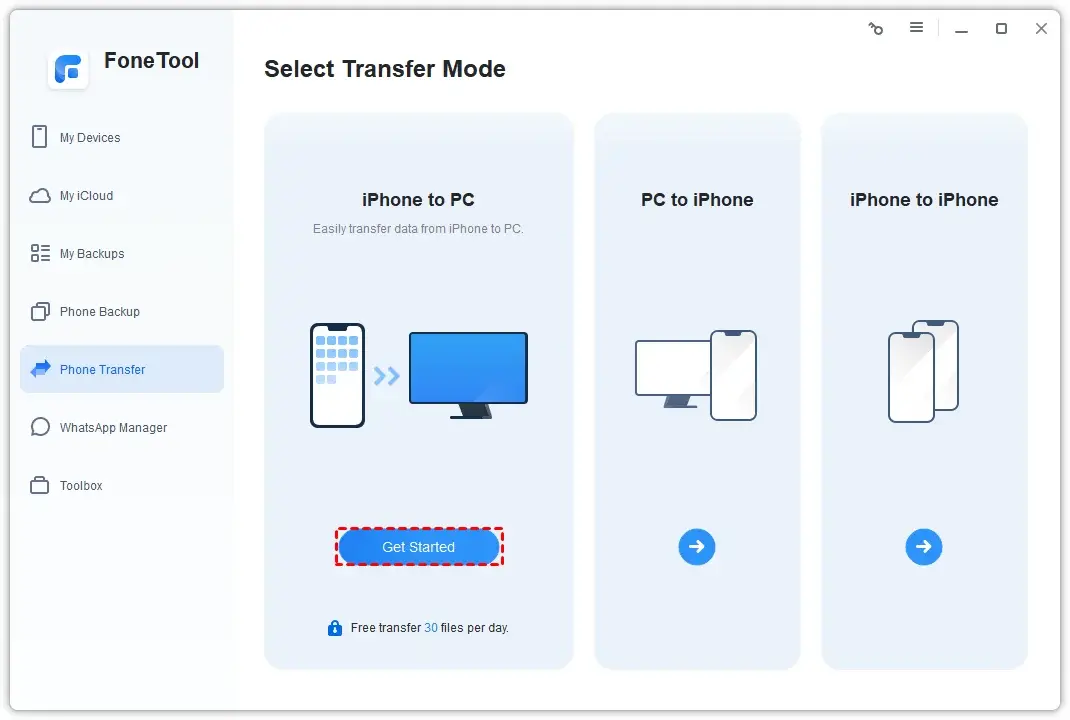
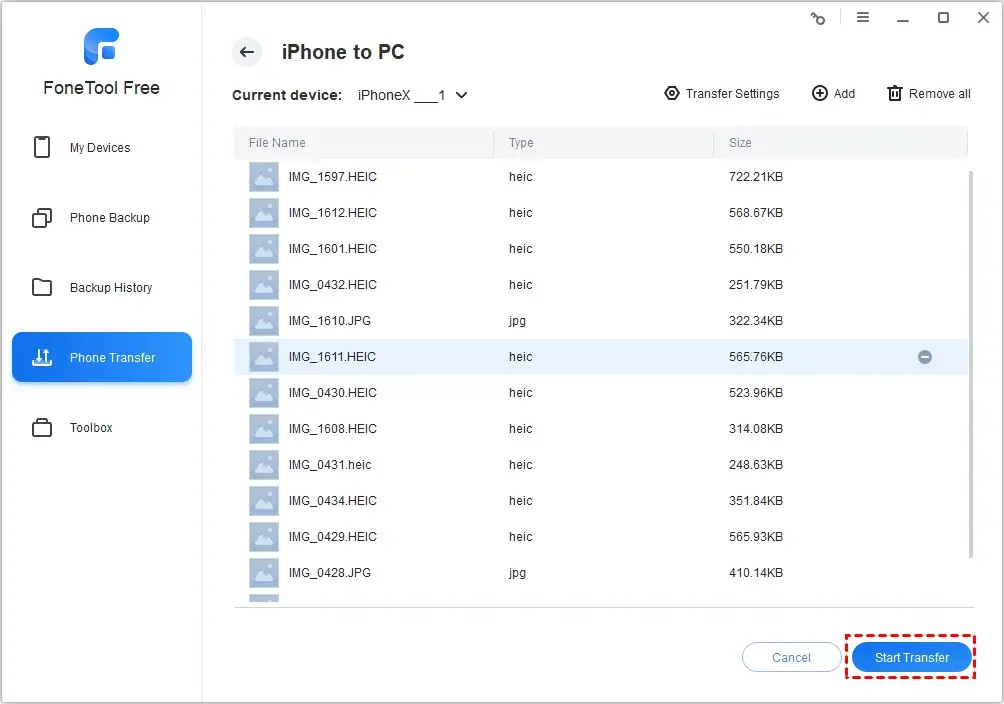
Select “iPhone to PC” from FoneTool’s Phone Transfer feature.This allows you to access and transfer images from your iPhone.
Step 4: Select the photo to transfer
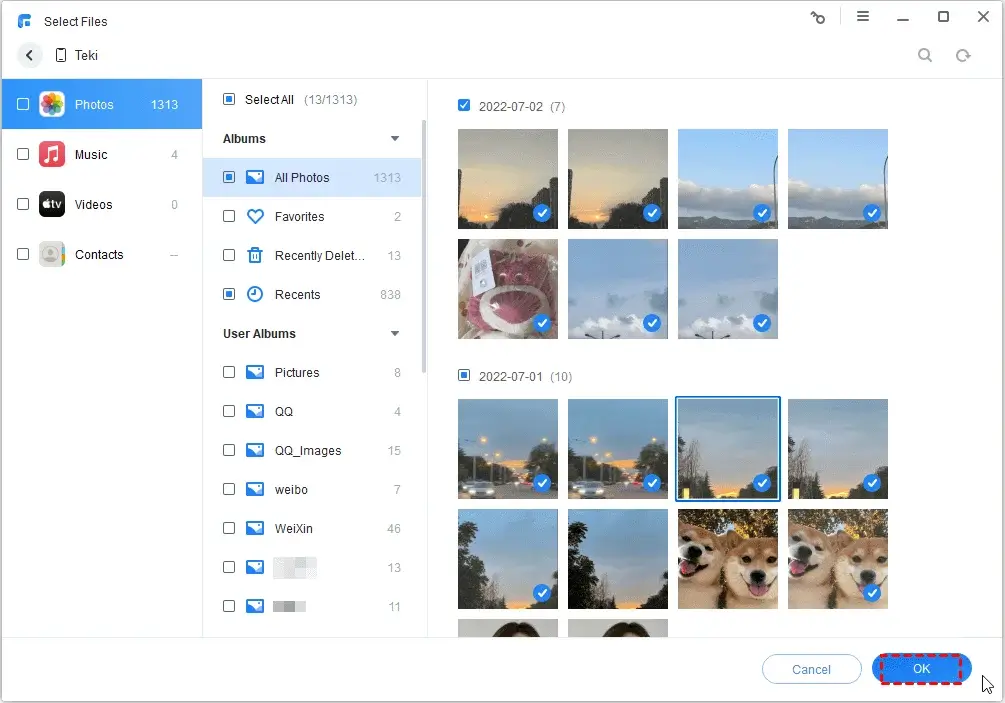
Search the photo library on your iPhone and select the photos you want to transfer. You can select all or only wanted photos to transfer. Click OK.
Step 5: Start the transfer process
From the Transfer Settings options, you can select USB as the destination for saving your iPhone images. After checking everything, click the Start Transfer button to begin the procedure. FoneTool securely transfers selected photos from your iPhone to your PC.
Step 6: Check Transferred Photos
Once the transfer is complete, navigate to the chosen location on your computer to view the image. Ensure that all photographs were transmitted correctly and in original quality.
Conclusion
Transferring photos from an iPhone to USB does not have to be a difficult task. With FoneTool, you get a dependable, efficient, and user-friendly solution to complete the entire process. Whether you want to free up space on your iPhone, make a backup of your valuable memories, or simply move images for better access, FoneTool provides a smooth and hassle-free photo transfer experience, making it an indispensable tool for all iPhone users.