Disclosure: We may earn a commission from links on this page. Learn more.
Best Password Manager for Seniors in 2026: Secure Your Passwords
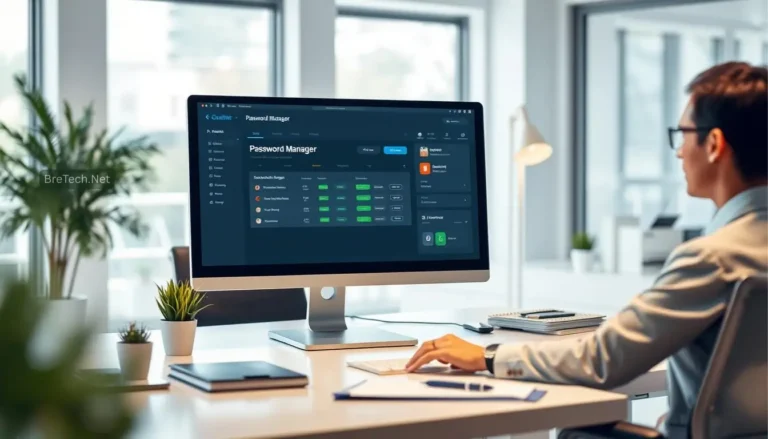
Best password manager for seniors in 2026 means one simple, secure place to keep every login without memorising dozens of passwords. Online scams and account hacks are getting worse every year, and older adults are often the first targets.
Remembering many complex passwords is hard enough. Reusing the same simple password everywhere is even more dangerous. A password manager for seniors solves both problems. It stores every password in one encrypted password vault, creates strong new passwords with a built-in password generator, and fills them in automatically. That way, seniors can keep their online accounts safe without having to memorise everything.
In this updated 2026 guide, you’ll find the best password manager options for seniors, see what each password manager offers, and learn how to use a password manager to improve overall password health without feeling overwhelmed.
Key Takeaways
- Password managers add a critical layer of protection for seniors’ online security and privacy.
- Ease of use and a clean, easy-to-navigate interface matter more than “fancy” extras for most older adults.
- NordPass, 1Password, LastPass, Bitwarden and Keeper remain top password tools in 2026, with Dashlane, Proton Pass, Enpass, RoboForm and Zoho Vault also worth a look.
- Seniors who want simple, affordable password management should focus on a user-friendly password manager with strong security and good support.
- A secure password manager plus better password habits can make online life safer and less stressful.
Best Password Manager for Seniors in 2026 at a Glance
If you just want a quick way to find the best password manager for your situation, this at-a-glance table shows our top picks and who they are best for.
| Password Manager | Best For |
|---|---|
| NordPass | Seniors new to password managers |
| 1Password | Families helping older relatives |
| LastPass | Seniors who want a familiar name |
| Bitwarden | Seniors on a tight budget |
| Keeper | Seniors who want maximum control |
Seniors have specific needs when it comes to password management. Many find modern apps confusing, small text hard to read, and complicated menus stressful. There are dozens of password managers on the market, but not all of them are ideal for seniors who may prefer a calmer, more guided experience.
A good password manager for seniors should:
- Be super easy to use without constant help
- Make logging in faster, not harder
- Keep sensitive information locked behind one strong master password
The goal is peace of mind: fewer password headaches, better password health, and lower risk of scams.
Why Do Seniors Need a Password Manager?
More seniors than ever are banking, shopping and chatting online. At the same time, criminals target older adults because many reuse weak passwords or store them in unsafe ways.
Common mistakes include:
- Using one easy password for everything
- Writing passwords in notebooks near the computer
- Saving passwords in unsecured notes or emails
A secure password manager replaces all of that with one encrypted password vault. The older adult only needs to create a master password they can remember; the app handles every other password and makes online logins quick and consistent.
What Does a Secure Password Manager Offer Seniors?
For older adults, the best password manager is not the one with the most features. It is the user-friendly password manager that feels calm and easy to set up.
A secure password manager that offers:
- Strong encryption and safe password storage across unlimited devices (on supported plans)
- A clean and easy layout that is simple to navigate
- Clear buttons for saving, editing and filling logins
- Helpful guides for anyone new to password manager apps
Many password managers offer extras like password health alerts, dark web monitoring and emergency access. These are useful for seniors, but they must be presented in a way that makes it easy to navigate, not confusing.
Top Features to Look for in a Password Manager for Seniors
When you choose a password manager for seniors, look for:
- Secure vault access: Strong encryption and a trustworthy password manager brand.
- Password sharing: Secure password sharing with a spouse or trusted family member to help your elderly family members when needed.
- Data breach alerts: Password health checker or breach alerts to highlight risky logins.
- Device compatibility: Desktop app and mobile app support on Windows, macOS, iOS, Android and major browsers.
- Biometric login where possible: Face or fingerprint sign-in for easy access instead of typing.
- Good support: Email or chat help that is helpful for seniors, not just advanced users.
Many password managers on this list also support two-factor authentication (2FA) and passkeys. That kind of core password management feature can be very helpful for seniors who want stronger protection without having to understand every technical detail.
What Are the 5 Best Password Managers for Seniors in 2026?
Seniors need a password manager that balances ease of use with strong security. The best password manager for families can also be a great pick for seniors who share accounts with partners or caregivers.
Below are five picks that consistently stand out as an excellent choice for seniors in 2026.
1. NordPass: A Top Choice for Seniors
For many older adults, NordPass is the best password manager to start with. It is a clean, easy-to-use password manager app that focuses on simplicity and strong protection.
Key advantages:
- Strong modern encryption and a secure password vault
- Password health checker and data breach scanner to highlight risky logins
- Simple layout with fewer distracting menus, making it easy to navigate
- Free version is also available so seniors can try it, with affordable password plans for more features
NordPass is a great choice for seniors who want a secure password manager that feels calm and straightforward. Anyone new to password management will likely find the app is very user-friendly.
2. 1Password: Senior-Friendly Design and Family Support
1Password is a user-friendly password manager known for its polished design and excellent family tools. Many consider that 1Password is the best password manager for families who help older relatives.
Highlights:
- Watchtower alerts to improve overall password health
- Shared vaults so trusted family members can help manage key logins
- Apps that look and behave consistently across devices
- Clear onboarding and documentation, helpful for seniors who may need step-by-step guidance
If you are seeking a password manager that makes it easy to share access while keeping control, 1Password is an excellent password manager for seniors and their families.
3. LastPass: A Familiar and Budget-Friendly Pick for Seniors
LastPass remains one of the most familiar password managers on the market and often appears in any list of the best tools. For many older adults who have heard the name before, it feels like a safe, comfortable place to start.
Key points for seniors:
- Free plan is limited to one device type (only computers or only mobile), which can frustrate seniors who switch between phone and laptop
- Paid plans unlock syncing across all device types and add more advanced online security features
- Simple password sharing and secure notes make it easy to help your elderly family members when needed
For seniors who use just one device, the free plan can still work as a best free password manager starting point. If you want a familiar, easy-to-use password manager to use every day, LastPass is an excellent choice for seniors who want something simple and well-known.
4. Bitwarden: Best Free Option for Seniors on a Budget
Bitwarden is a popular open-source password manager and one of the best free password manager options for seniors who want strong protection without a high cost.
Benefits:
- Free plan with unlimited password storage across unlimited devices
- Transparent, open-source code and a large community
- Simple design that becomes easy to use after a short learning period
- Very low-cost premium password upgrades if needed
Bitwarden is ideal for seniors looking for a password manager that’s affordable and flexible. It is one of the best free solutions for anyone new to password managers who still wants serious security.
5. Keeper: Extra Security for Cautious Seniors
Keeper is a good choice for seniors who want maximum security features and are happy to spend time learning a slightly more advanced app.
Key advantages:
- Strong security model and detailed password auditing tools
- Good cross-platform support for desktop app and mobile app use
- Rich reporting on weak, old and reused passwords, plus password health alerts
Keeper is a strong pick for seniors who may already be comfortable with technology or who have help from family members that enjoy fine-tuning security settings.
Comparison of the Best Password Managers for Seniors
Note: This table compares our five main picks above plus five other trustworthy password managers that seniors and their families may want to consider.
| Password Manager | Typical Pricing (Individual / Family)* | Platforms Supported | Key Strengths for Seniors |
|---|---|---|---|
| NordPass | Affordable personal and family plans, free version available | Windows, macOS, iOS, Android, Linux, major browsers | Clean and easy design, strong encryption, password health checker, great for anyone new to password tools |
| 1Password | Mid-range individual and family plans, free trial | Windows, macOS, iOS, Android, Linux, major browsers | Excellent family support, clear apps, strong password management and Watchtower alerts |
| LastPass | Free plan (limited), mid-range paid plans | Windows, macOS, iOS, Android, major browsers | Familiar interface, easy password sharing, free version is limited to one device type |
| Bitwarden | Free plan, very low-cost premium | Windows, macOS, iOS, Android, Linux, browsers | Open-source password manager that includes unlimited password storage and great value |
| Keeper | Mid to higher-priced individual and family plans | Windows, macOS, iOS, Android, Linux, major browsers | Strong security focus, password auditing, ideal for seniors who want extra control |
| Dashlane | Higher-priced premium plans | Windows, macOS, iOS, Android, browsers | Polished password manager app with dark web monitoring and built-in VPN; useful for seniors who care about online privacy |
| Proton Pass | Free tier plus paid plans | Windows, macOS, iOS, Android, Linux, browsers | Privacy-focused password manager based on the Proton ecosystem; offers one of the best experiences for privacy-minded seniors |
| Enpass | Low-cost personal and family plans | Windows, macOS, iOS, Android, Linux | Local storage option for core password management; ideal for seniors who want to avoid third-party password managers that keep vaults only in the cloud |
| RoboForm | Free plan and low-cost premium | Windows, macOS, iOS, Android, browsers | Affordable password manager to use with strong form filling; app is very user-friendly once configured |
| Zoho Vault | Free personal plan, paid business plans | Windows, macOS, iOS, Android, browsers | Secure and capable option that can help your elderly family members; better for tech-confident seniors or mixed family and business use |
*Pricing descriptions are approximate and for guidance only.
Other trustworthy password managers on this list, such as Dashlane, Proton Pass, Enpass, RoboForm and Zoho Vault, can be an excellent choice for seniors who want specific features like strong online privacy controls, local-only vaults or deep form-filling.
Are There Free Password Managers for Seniors?
Yes. Seniors can absolutely use free password managers and still get strong security, as long as they understand what each free plan includes and where it is limited.
Some of the best free options include:
- Bitwarden: One of the best free options with unlimited password storage and an open-source codebase.
- LastPass Free: Includes core password management but is limited to one active device type, which can be confusing.
- Zoho Vault: Free plan that supports basic password storage and auto-fill for personal use.
These free plans make it easy to start using a password manager without spending money, and they are especially helpful for seniors who may still be testing which app they like.
Limitations of Free Password Managers for the Elderly
Free plans often have trade-offs:
- Limited password sharing or family access
- Fewer advanced password health alerts and reports
- Sometimes slower or less detailed support
If a senior relies on multiple devices or needs close help from family, a premium password plan or affordable password upgrade often makes daily life smoother.
How to Choose the Best Free Password Manager
When you are looking for a password manager that fits a senior’s budget:
- Check security and reputation
- Confirm that the free plan supports the devices they actually use
- Make sure the layout feels clean and easy, not crowded
One of the best free paths is to start with Bitwarden or Proton Pass, then move to a paid plan if you need more sharing and advanced features.
When Is a Premium Password Manager Worth It for Seniors?
A premium password manager becomes worth it when the free version can no longer match real-world needs. Seniors who want family sharing, password storage across unlimited devices, advanced breach monitoring or secure file storage will benefit from a paid plan.
A premium password manager app usually:
- Adds stronger password health reporting and password auditing
- Makes password sharing and emergency access easier
- Improves support, which is very helpful for seniors who may need extra guidance
For seniors who may feel anxious about security, paying for a premium plan can be a smart way to simplify everything and make it easy to get help.
How to Use a Password Manager Effectively
A password manager is only helpful if it is set up correctly and actually used. The good news: after a short setup, daily use becomes quick and routine.
How Does a Password Manager Work for Seniors?
To understand how a password manager work in everyday life, imagine a secure digital notebook inside your device. It stores each website name, username and password in an encrypted vault. You unlock that vault with your master password, face or fingerprint.
When you visit a site, the password manager app recognises the page and offers an easy-to-use password fill button. Many password managers offer automatic password generation when you create new accounts and then save the details for you. After a little practice, seniors mainly see a small prompt that makes online logins super easy.
Steps to Get Started with a Password Manager
- Choose a trusted password manager from this list of the best options.
- Install the desktop app and browser extension on your computer, plus the mobile app on your phone or tablet.
- Create a master password you can remember and keep it private.
- Import or add existing passwords from your browser or by saving them as you log in.
- Turn on autofill or auto-save to make it easy to capture every password you use.
- Enable two-factor authentication (2FA) for the password manager account itself.
These steps make it easy to set up the core password management features and build better password habits over time.
How to Create a Master Password for Your Password Manager
The master password is the key to your entire vault. It must be strong but memorable.
Tips:
- Use a long phrase or sentence instead of a single word
- Combine several unrelated words with numbers or symbols
- Avoid personal details such as birthdays, addresses or family names
This approach helps seniors who want strong protection while still being able to remember the master password without writing it down.
Using a Password Book vs a Password Manager
Some seniors still use a physical password book to write down every password. While it feels familiar, it has clear risks if it is lost, stolen or seen by visitors.
| Feature | Password Book | Password Manager |
|---|---|---|
| Security | Can be lost, stolen or photographed | Encrypted vault protected by master password |
| Password Generation | None; must create passwords manually | Built-in password generation for strong, unique logins |
| Autofill | Not available | Autofill for websites and apps |
| Access | Only where the book is | Sync across devices (for supported plans) |
In 2026, a trustworthy password manager is usually the safer, more flexible choice, especially when seniors want easy access without carrying a notebook.
What Are the Easiest Password Managers for Seniors to Use?
The easiest password managers for seniors are those that feel calm, predictable and user-friendly. An easy-to-use password manager avoids clutter and uses plain language instead of technical jargon.
Why Ease of Use Matters More Than Extra Features
For many older adults, ease of use is more important than having every advanced option. A clean and easy interface with clear buttons is far more helpful for seniors who may be nervous about making mistakes online.
A password manager that offers too many complex screens can scare people away, while a simple one can be perfect for seniors who want confidence, not complexity.
Characteristics of the Easiest Password Managers
- User-friendly interface: Big, readable text and simple menus
- Helpful onboarding: Guided setup that makes it easy to set core options
- Manual control: Simple edit screens to change a password or add a new password
- Responsive support: Clear help content and reachable support when something goes wrong
These traits make an excellent choice for seniors who may feel overwhelmed by technology but still want to protect their online security.
Top Recommendations for Easy-to-Use Password Managers
If you are looking for a password manager that is easy for seniors:
- NordPass: Clean, easy-to-navigate design that makes it easy to use daily; NordPass is the best password manager on this list for seniors who want a gentle starting point.
- 1Password: Strong family features and a layout that is helpful for seniors and their relatives working together.
Both tools can help your elderly family members feel safer online while keeping control of important accounts.
How Can Seniors Ensure Their Passwords Are Secure?
Seniors are heavily targeted by online fraud and scams. Many password managers for seniors try to address this by combining strong encryption with easy-to-understand safety tools.
Importance of Secure Password Practices for Seniors
Key habits include:
- Use different passwords for important accounts like email and banking
- Avoid passwords that include personal details such as addresses or phone numbers
- Do not share passwords over phone, text or email unless using built-in secure password sharing
These basic habits help protect you online. Combined with a good password manager, they make online life much safer.
How a Password Manager Helps with Password Security
Strong passwords protect accounts. A good password manager generates unique passwords, stores them in an encrypted vault and prevents plain-text notes.
It also checks password health and flags weak or reused passwords. Every password manager here is made to make online safety easier for seniors.
Tips for Maintaining Password Health
Good ongoing habits:
- Review and update old passwords every year or so
- Use password health checkers or reports inside your manager
- Turn on 2FA wherever possible
- Be careful with links in emails or messages, especially those urging quick action
- Keep devices updated and run reputable security software
These steps are useful for seniors and for anyone looking for a password manager that truly improves long-term safety.
How to Choose a Password Manager for Seniors
When you choose a password manager for an older adult, focus on real-world use, not just marketing promises. Ask what you should expect from a password manager in daily life: simple logins, fewer worries and clear support.
A sensible process is:
- Make a shortlist from this list of the best and test one or two apps
- Use free plans or free trials to see which app is the easiest password manager to use for that person
- Check whether the app makes it easy to navigate settings and manage everyday logins
The right pick for seniors will be the password manager based on their comfort level, not just the one with the biggest feature sheet.
Conclusion: Choosing the Best Password Manager to Meet Senior Needs
Choosing the best password manager for seniors in 2026 is one of the most effective ways to reduce the risk of fraud and account loss. Yet many older adults still rely on memory or paper notes, which are easy targets for mistakes and scams.
When comparing trustworthy password managers:
- Look for strong security and clear password management features
- Prioritise ease of use and a calm interface over rare advanced options
- Consider cost and value, including free plans and low-cost upgrades
NordPass, 1Password, Bitwarden, LastPass and Keeper are among the top password managers for seniors who want a mix of security and simplicity, with LastPass standing out as a familiar, budget-friendly choice for everyday use.
With the right, user-friendly password manager in place, seniors can make online life safer, easier and more enjoyable—without having to remember every password.
If you’re in Pakistan and want a paid password manager with official activation, explore password and privacy tools in Pakistan on BreTech.
FAQs
Q: What is the best password manager for seniors in 2026?
A: There is no single best tool for every senior, but NordPass, 1Password, LastPass, Bitwarden and Keeper are all strong options. The right choice depends on your budget, how many devices you use and whether family members will help you manage logins.
Q: Are password managers safe for seniors to use?
A: Yes, reputable password managers are designed to be very secure. They use strong encryption to protect your vault and never show your passwords in plain text. The main safety rule is to keep your master password private and turn on two-factor authentication for your account.
Q: Is there a free password manager that is good for seniors?
A: Yes. Bitwarden and Proton Pass both offer very capable free plans, and LastPass has a free version with some limits. These free options are a good way for seniors to try a password manager before deciding whether a paid plan is worth it.
Q: What happens if I forget my master password?
A: In most cases, the company cannot reset your master password because they do not know it and cannot see inside your vault. Some tools offer recovery options such as recovery keys or trusted contacts, but you should treat your master password like the key to a safe and store it carefully in a secure place.
Q: How hard is it to switch from a notebook to a password manager?
A: The first setup can feel like a bit of work, but after that it becomes much easier. You can start by adding just your most important online accounts, then let the password manager save new logins as you go. Over time, you will rely less on the notebook and more on the app.
Q: Can my family help me set up and use a password manager?
A: Yes, and for many seniors this is the best approach. A trusted family member can help install the app, create a strong master password and import your existing logins. Tools like 1Password and LastPass also support shared vaults so family can help with critical accounts without knowing every password.
Q: Do I still need antivirus software if I use a password manager?
A: Yes. A password manager protects your logins, but it does not replace antivirus or other security tools. You should still keep your devices updated, run reputable security software and be careful with links and attachments, especially in unsolicited emails or messages.
Further Reading
- What Is a Password Manager and How Does It Work?
- Best Password Managers in 2026
- Password Manager vs Browser Passwords in 2026
- Best Offline Password Managers in 2026
- Best VPN for Multiple Devices in 2026
- Managing your passwords with password managers
- NordStellar Review 2026: Is This Security Suite Really Worth It?