
Disclosure: We may earn a commission from links on this page. Learn more.
How to Boost PC Performance for Gaming on Low-End PCs (2026)
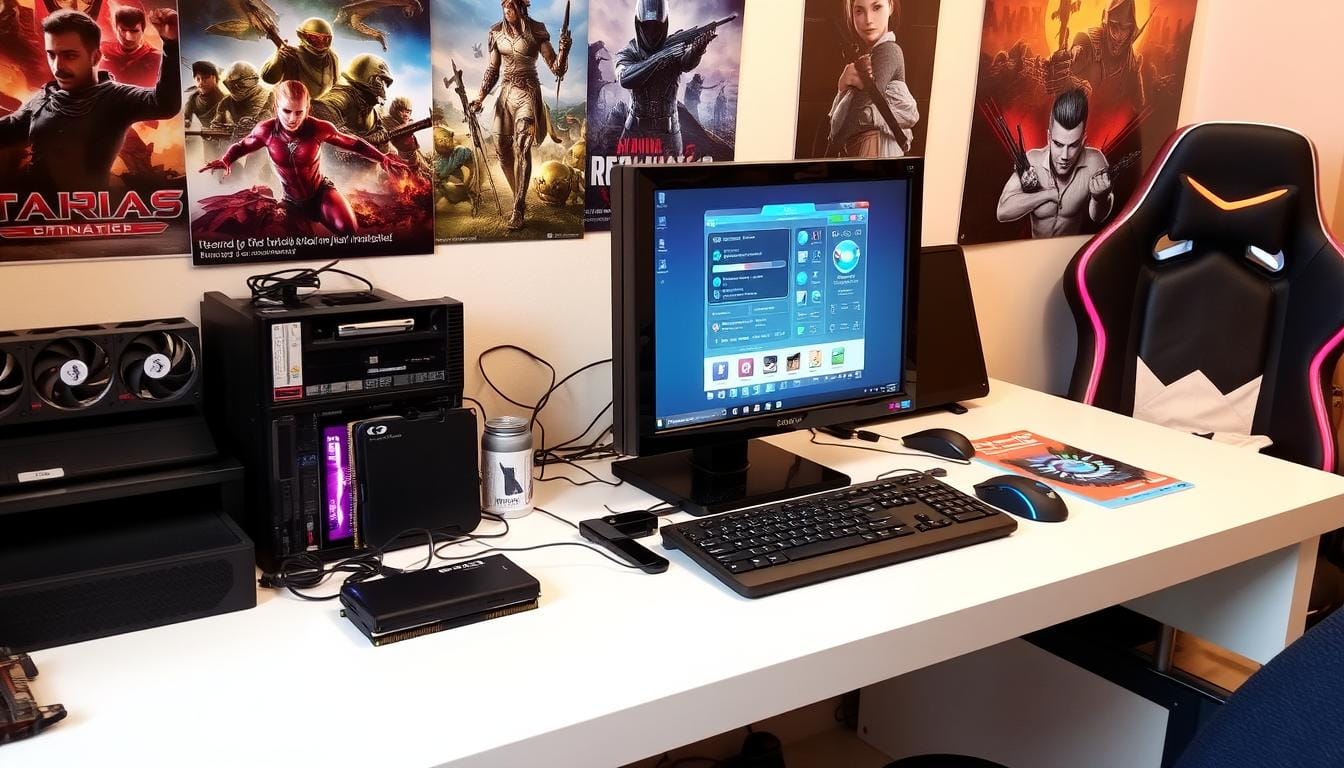
How to boost PC performance for gaming on low-end PCs is a common problem when games stutter, load slowly, or feel unstable even on simple settings. The real issue is often background apps, heat, storage limits, or graphics settings that are too heavy for your hardware.
Many beginners try random “FPS booster” apps first, but that can waste time or add more background services. A safer method is to fix Windows settings, reduce startup load, update GPU drivers properly, and adjust in-game graphics step by step.
This guide shows practical ways to improve gaming performance on low-end PCs without risky tweaks. You will learn what to change first, what to avoid, and when a small hardware upgrade is worth it.
To boost PC performance for gaming, start with Game Mode, close background apps, update GPU drivers from official sources, lower heavy graphics settings, keep free storage, and check CPU/GPU temperatures. On low-end PCs, stable FPS is usually more important than chasing the highest FPS number.
How to Boost PC Performance for Gaming: Quick Steps
- Turn on Windows Game Mode
- Close browsers, launchers, and unused overlays
- Update GPU drivers from NVIDIA, AMD, or Intel
- Lower shadows, reflections, and anti-aliasing
- Keep games on an SSD if possible
- Keep at least 15–20% free storage
- Check CPU and GPU temperatures
- Restart your PC before long gaming sessions
Understanding PC Gaming Performance Basics
Gaming performance depends on how well your CPU, GPU, RAM, storage, cooling, and Windows settings work together. On a low-end PC, one weak area can cause stutter even if the rest of the system is usable.
Before installing extra tools, it helps to understand what is actually slowing your game down.
What Affects Gaming Performance
The CPU handles game logic, background tasks, and many system processes. The GPU handles graphics, resolution, shadows, textures, and effects.
RAM affects how many apps and game files your PC can handle at once. Storage affects loading times, updates, texture loading, and overall system responsiveness.
Common Performance Bottlenecks
Low RAM can cause stuttering when Windows starts using slower virtual memory. A slow or nearly full drive can make games load slowly and cause texture delays.
Heat can also reduce performance. If the CPU or GPU gets too hot, it may slow itself down to stay safe, which can cause sudden FPS drops during long gaming sessions.
Measuring Current System Performance
Use simple monitoring tools before making big changes. Steam’s FPS counter, Xbox Game Bar, NVIDIA App, AMD Software, or MSI Afterburner can help you check FPS, frame drops, temperatures, and GPU usage.
Also check your monitor refresh rate. A 60Hz display cannot show more than 60 frames per second, while a 144Hz display can feel smoother if your PC can keep up.
| Component | Minimum Recommendation | Better Recommendation |
|---|---|---|
| RAM | 8GB | 16GB or more |
| GPU | Basic dedicated GPU or modern integrated graphics | Dedicated GPU with enough VRAM |
| Storage | HDD | SSD for Windows and main games |
| Cooling | Clean vents and working fans | Better airflow and temperature monitoring |
Essential Software Optimizations for Gaming
Software changes are usually the safest first step. They cost nothing, and you can undo most of them easily.
The goal is simple: reduce background load, keep drivers clean, and make sure Windows gives your game enough resources.
Windows Game Mode Configuration
Windows Game Mode can help reduce interruptions during gameplay. It helps Windows focus more on the game and reduce some background activity.
To turn it on, go to Settings > Gaming > Game Mode and enable it. Test your game before and after, because results can vary by PC and game.
Driver Updates and Maintenance
Keep GPU drivers updated from official sources only. NVIDIA users can use NVIDIA App, AMD users can use AMD Software: Adrenalin Edition, and Intel users can use Intel’s official driver tools.
Avoid random driver updater apps for gaming fixes. They can install the wrong driver or add extra background software you do not need.
Background Process Management
Close apps you do not need before playing. Browsers, launchers, cloud sync apps, screen recorders, chat overlays, and update tools can all use CPU, RAM, disk, and network resources.
You can also check Task Manager > Startup apps and disable apps that do not need to launch with Windows. Do not disable security tools or important hardware services unless you know what they do.
How to Boost PC Performance for Gaming on Low-End PCs
Low-end PCs need careful tuning because every background task matters. Start with simple Windows changes before installing extra software or buying new hardware.
Close browsers, game launchers you are not using, screen recorders, RGB tools, and cloud sync apps before playing. These apps can use RAM, CPU, disk, and network resources in the background.
Next, check your game settings. Lower shadows, reflections, ambient occlusion, anti-aliasing, and ray tracing first. These settings often hurt low-end PCs more than texture quality.

Use an SSD for your most-played games if possible. An SSD will not always raise FPS, but it can reduce loading times, texture pop-in, and some storage-related stutter.
Finally, check heat. If your CPU or GPU gets too hot, performance drops during longer sessions. Clean dust, improve airflow, and monitor temperatures before blaming the game or optimizer tool.
For a full tool comparison, see our guide to the best PC optimizer and game booster tools for gaming.
Graphics Settings That Help Low-End PCs
Graphics settings have a big effect on low-end gaming performance. The best approach is to lower the heaviest settings first, not everything at once.
This helps you keep the game playable without making it look worse than necessary.
Lower Resolution Carefully
Lowering resolution can improve FPS on weak GPUs. For example, dropping from 1080p to 900p or 720p may make a difficult game more playable.
The downside is that the image can look softer. Use this only when other settings are not enough.
Reduce Shadows, Reflections, and Ray Tracing
Shadows, reflections, ambient occlusion, and ray tracing are usually heavy settings. Lower these first when your game feels slow.
On low-end PCs, turning off ray tracing is often necessary. It looks nice, but it can be too demanding for budget hardware.
Adjust Anti-Aliasing and Effects
Anti-aliasing smooths jagged edges, but some methods use more GPU power. Try lower settings or switch it off if your game still struggles.
Also reduce motion blur, depth of field, particles, and post-processing effects. These can improve performance and make the image feel clearer.
Use FPS Caps for Stability
A stable 45 or 60 FPS can feel better than an unstable FPS that jumps up and down. Use an FPS cap if your game supports it.
This can reduce heat, fan noise, and sudden frame drops. Stable frame pacing is often more important than the highest number.
RAM and Storage Management for Better Gaming
RAM and storage problems can make a low-end PC feel much slower than it really is. If Windows runs out of memory or storage space, games may stutter or freeze.
Start with cleanup and storage checks before changing advanced settings.
Free Up RAM Before Playing
Close heavy apps before launching your game. Browsers with many tabs, video editors, cloud sync apps, and screen recorders can use a lot of RAM.
Restarting your PC before a long gaming session can also help. It clears stuck background processes and gives the game a cleaner start.
Check Virtual Memory Settings
Virtual memory lets Windows use storage as backup memory when RAM is full. It is slower than real RAM, but it can prevent crashes.
For most users, it is best to let Windows manage virtual memory automatically. Do not follow random “disable page file” advice on low-RAM PCs.
Move Games to an SSD
An SSD can make Windows and games feel much faster. It improves loading times, update speed, and some storage-related stutter.
If you cannot move every game, move your most-played or slowest-loading games first.
| Storage Type | Advantages | Best Use |
|---|---|---|
| SSD | Faster loading, better responsiveness | Windows, main games, apps |
| HDD | More space for less money | Older games, media files, backups |
Avoid Defragging SSDs
Classic defragmentation is for hard drives, not SSDs. Windows normally handles SSD optimization automatically.
If your games are on an SSD, avoid old “defrag for gaming” advice. It usually does not help and is not needed.
Temperature Control and System Cooling
Heat is one of the most common reasons games slow down after a few minutes. A PC can start fine, then stutter when the CPU or GPU gets too hot.
Cooling does not always require expensive parts. Basic cleaning and airflow improvements can make a noticeable difference.
Clean Dust From Vents and Fans
Dust blocks airflow and makes fans work harder. Turn off the PC, unplug it, and clean vents and fan areas carefully.
For laptops, keep the bottom vents clear. Do not play on a blanket, bed, or soft surface that blocks airflow.
Improve Case Airflow
For desktop PCs, make sure cables are not blocking fans. A simple front-to-back airflow path can help keep temperatures under control.
Adding a basic case fan may help if your case has poor airflow. Check your case size before buying fans.
Monitor CPU and GPU Temperatures
Use a monitoring tool to check temperatures during gaming. If temperatures climb too high and performance drops at the same time, heat is likely part of the problem.
MSI Afterburner, HWiNFO, NVIDIA App, and AMD Software can help you see what is happening while you play.
Replace Thermal Paste Only If Needed
Old thermal paste can reduce cooling, especially on older desktops and laptops. Replacing it can help, but it requires care.
If you are not comfortable opening your PC or laptop, ask a repair technician. A wrong step can damage parts.
Essential Hardware Upgrades Within Budget
Software tweaks help, but some low-end PCs need small hardware upgrades. The best upgrade depends on your bottleneck.
Do not upgrade blindly. Check RAM, storage, temperatures, and GPU usage first.
RAM: The Quick Multitasking Boost
If your PC has only 4GB RAM, upgrading to 8GB can make Windows and light games feel much better. If possible, 16GB is a safer target for modern gaming.
More RAM will not always increase FPS, but it can reduce stutter when the system is running out of memory.
SSD: The Best Everyday Upgrade
An SSD is often the most noticeable upgrade for older PCs. It makes Windows boot faster, games load faster, and apps open quicker.
It may not raise FPS directly, but it improves the overall gaming experience, especially when the old hard drive is slow.
GPU: The Biggest Gaming Upgrade
For desktop PCs, a GPU upgrade can improve gaming performance the most. This matters if your current GPU is too weak for the games you play.
Before buying, check your power supply, case size, and CPU. A powerful GPU will not perform well if the rest of the system cannot support it.
CPU and Cooling: Upgrade Only When Needed
If your CPU is always near 100% during games, it may be limiting performance. But CPU upgrades can be more complex than RAM or storage upgrades.
Cooling upgrades are useful when heat is clearly causing throttling. Always diagnose before spending money.
What to Avoid When Optimizing a Low-End Gaming PC
Not every “gaming tweak” is safe. Some advice can make your PC unstable or create new problems.
Avoid these common mistakes.
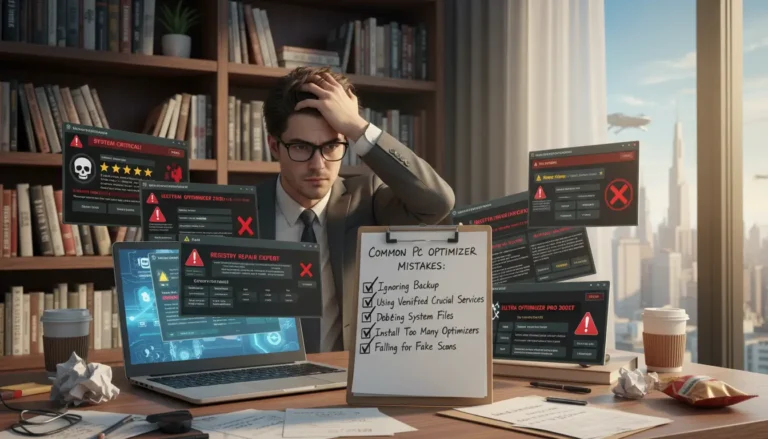
Do Not Install Many Optimizer Tools Together
Multiple optimizer suites can run background services, change the same settings, and slow the PC down. Use one tool at most if you really need one.
For most users, Windows settings, driver updates, cleanup, and game settings are enough to start.
Avoid Random Registry Cleaners
Registry cleaners rarely improve gaming performance in a meaningful way. In some cases, they can remove entries that apps still need.
Do not use registry cleaning as an FPS fix.
Avoid Unofficial Driver Sites
Only download GPU drivers from NVIDIA, AMD, Intel, or your laptop manufacturer. Unofficial driver sites can offer outdated, wrong, or unsafe files.
A bad driver can cause crashes, black screens, or worse performance.
Do Not Overclock Without Understanding the Risk
Overclocking can improve performance in some cases, but it also increases heat and power use. On low-end or poorly cooled PCs, it can make crashes more likely.
If you are a beginner, focus on safe settings first.
Conclusion
Boosting PC performance for gaming on low-end PCs is possible when you focus on the right problems. Start with Windows Game Mode, startup apps, official GPU drivers, free storage, and safer in-game graphics settings.
Next, check heat and storage. A game that starts smoothly but stutters later may be facing thermal throttling, background load, or slow drive issues.
Keep expectations realistic. Low-end PCs may not run every modern game at high settings, but smart tuning can improve stability and reduce stutter.
If your PC still struggles after software fixes, consider practical upgrades like more RAM, an SSD, or a better GPU. Choose the upgrade that solves your actual bottleneck, not the one that sounds most powerful.
Further Reading
If your low-end PC still struggles with games, these TechBre guides can help you reduce background load, clean Windows safely, and improve overall performance.
- Best PC Optimizer for Gaming
- How to Optimize Gaming PC for Competitive Gaming
- Free Optimization Software 2026
- How to Remove Windows 11 Bloatware
- Common Mistakes When Using PC Optimizers
For more Windows speed, cleanup, and performance guides, explore the TechBre PC & Laptop Optimization section.